Players can access their profile on any browser at app.pelotero.com. After logging in, the profile opens on a dark header card showing the athlete's photo, name, email, age, height, and weight, plus a row of swing-tag pills describing their mechanics tendencies. A left/right-handed toggle sits in the top right of the header for switch hitters. Below the header sit six tabs: Overview (athlete dashboard with score breakdown and workout completion), Mechanics (review uploaded swings and their checkpoint-by-checkpoint breakdown), Power (bat sensor metrics benchmarked against Lower Level, High School, College, and Professional bands), Performance (game-data gauges and benchmarks), At Bats (game-by-game log and report cards), and Workouts (training program and completion tracking).
Overview
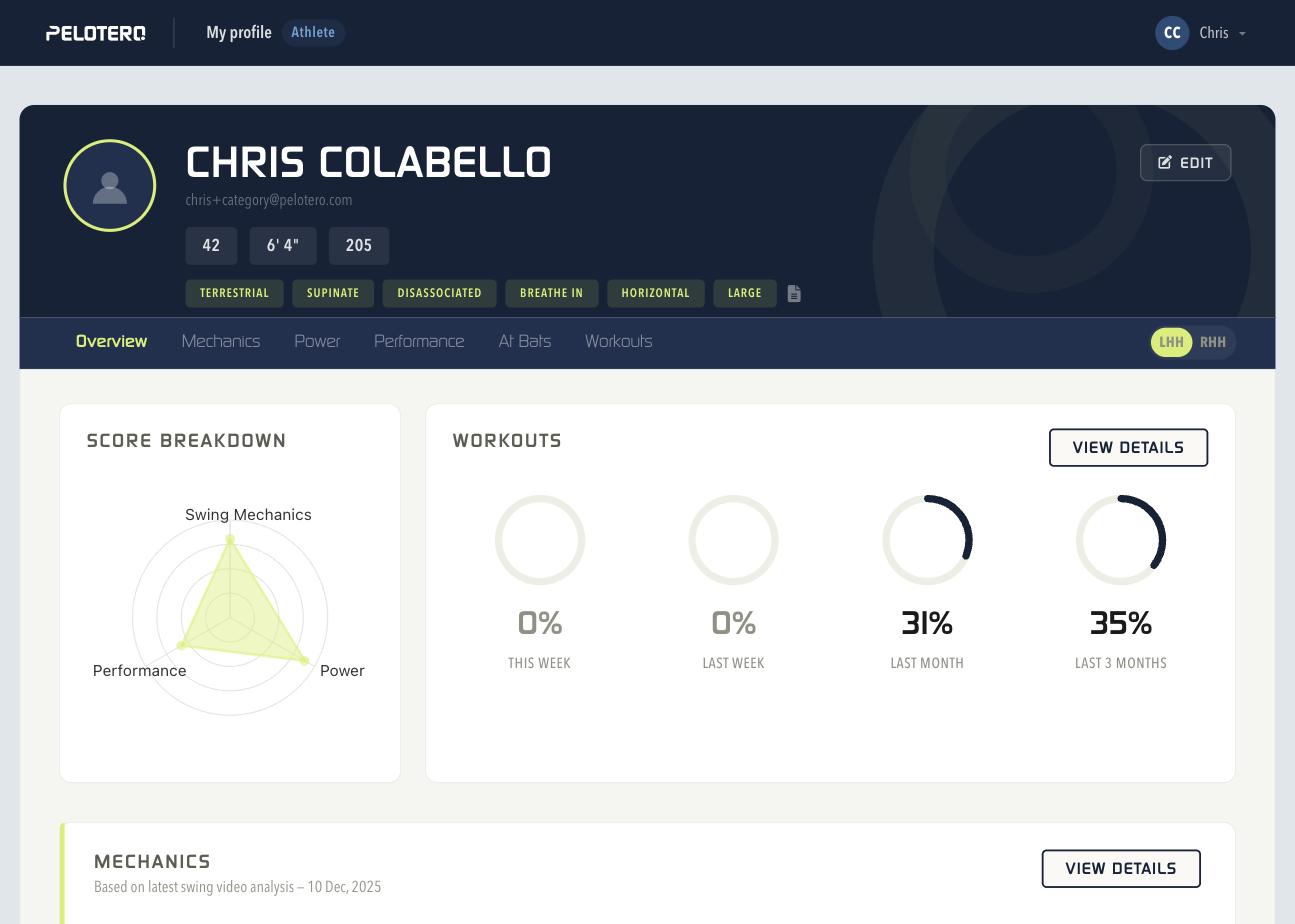
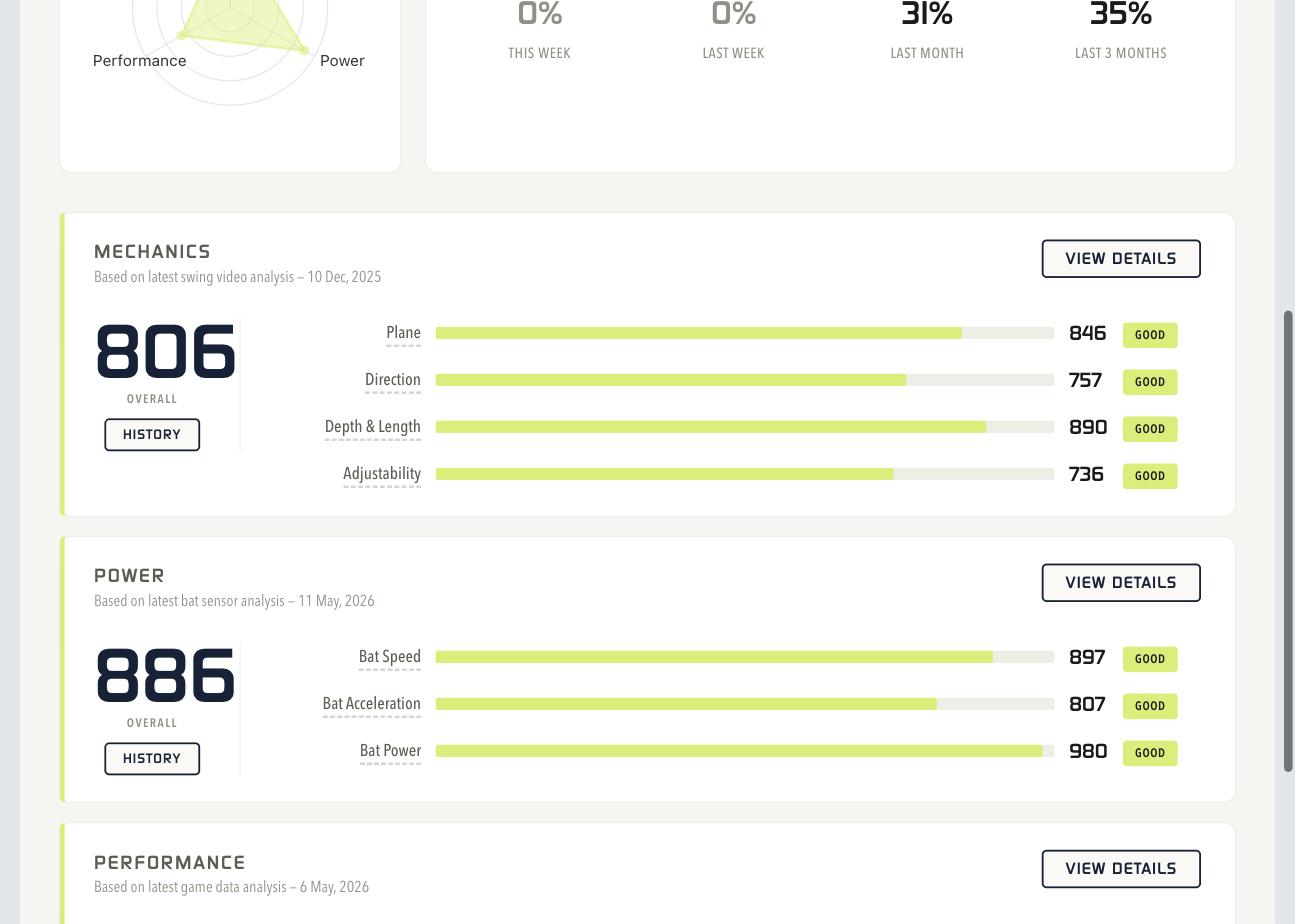
The Overview tab opens with a Score Breakdown radar chart plotting Swing Mechanics, Power, and Performance as a single triangle, so an athlete can see at a glance which pillar needs the most work. Next to it, a Workouts panel shows four completion rings — This Week, Last Week, Last Month, and Last 3 Months. Scrolling down reveals three score-summary cards — Mechanics, Power, and Performance — each with an overall three-digit score, its component categories as labeled bars, a colored result tag (Good, Okay, Poor, Average, or Low), a "History" button to see the score trend over time, and a "View Details" button that jumps into the full tab.
Mechanics
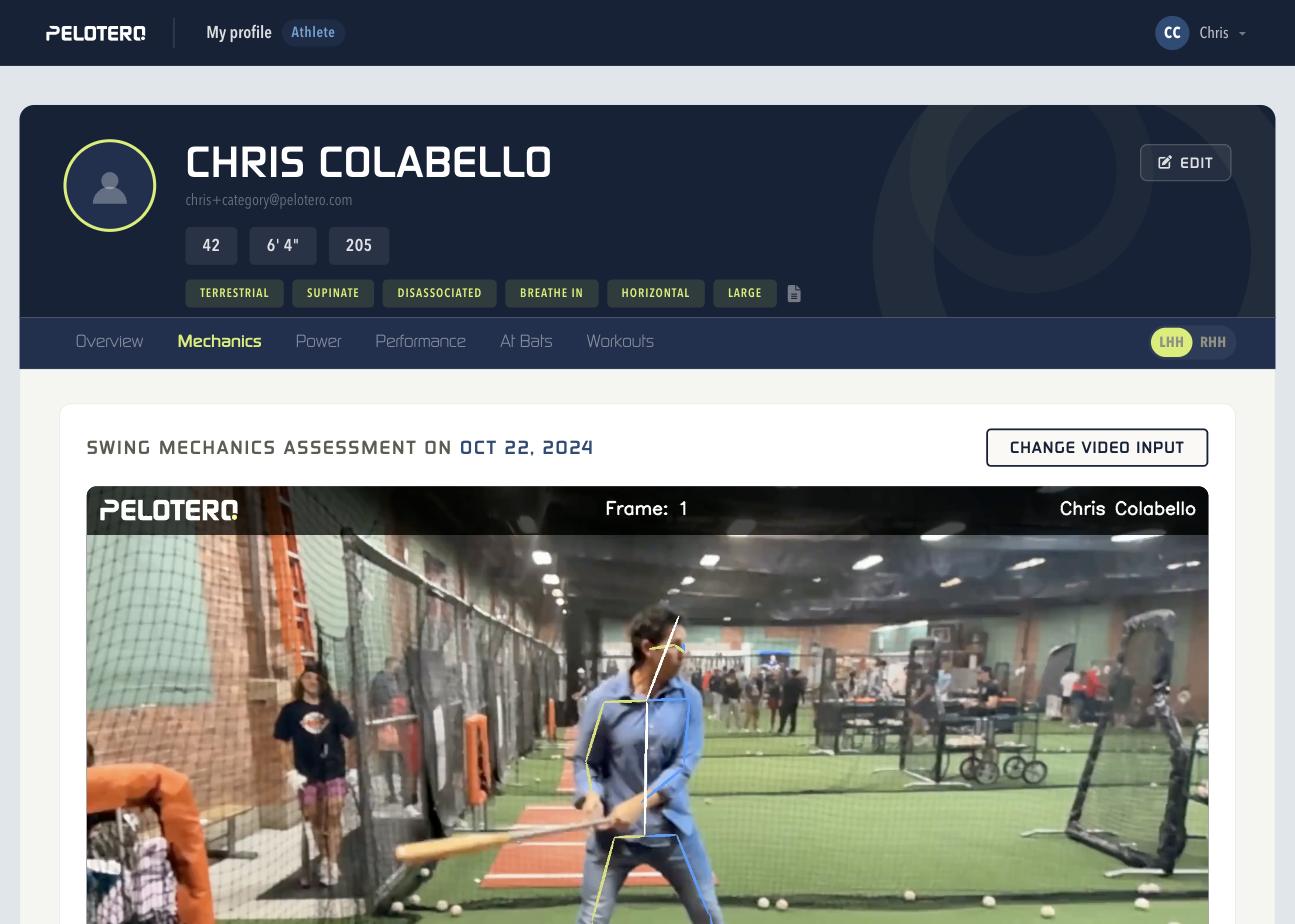
The Mechanics tab plays the athlete's most recent swing video with a pose overlay sketched over the body, a frame counter, and a "Change Video Input" button for switching to a different upload. Below the video, checkpoints are grouped into three phases — During Gather (initial movements), During Load/Launch (transition into the swing), and During Contact (when bat meets ball). Each checkpoint is a plain-language question (e.g. "Do your hands stay back?") with a Great/Okay/Poor result tag, a short description of what the movement means, and a "View Demo" button.
Power
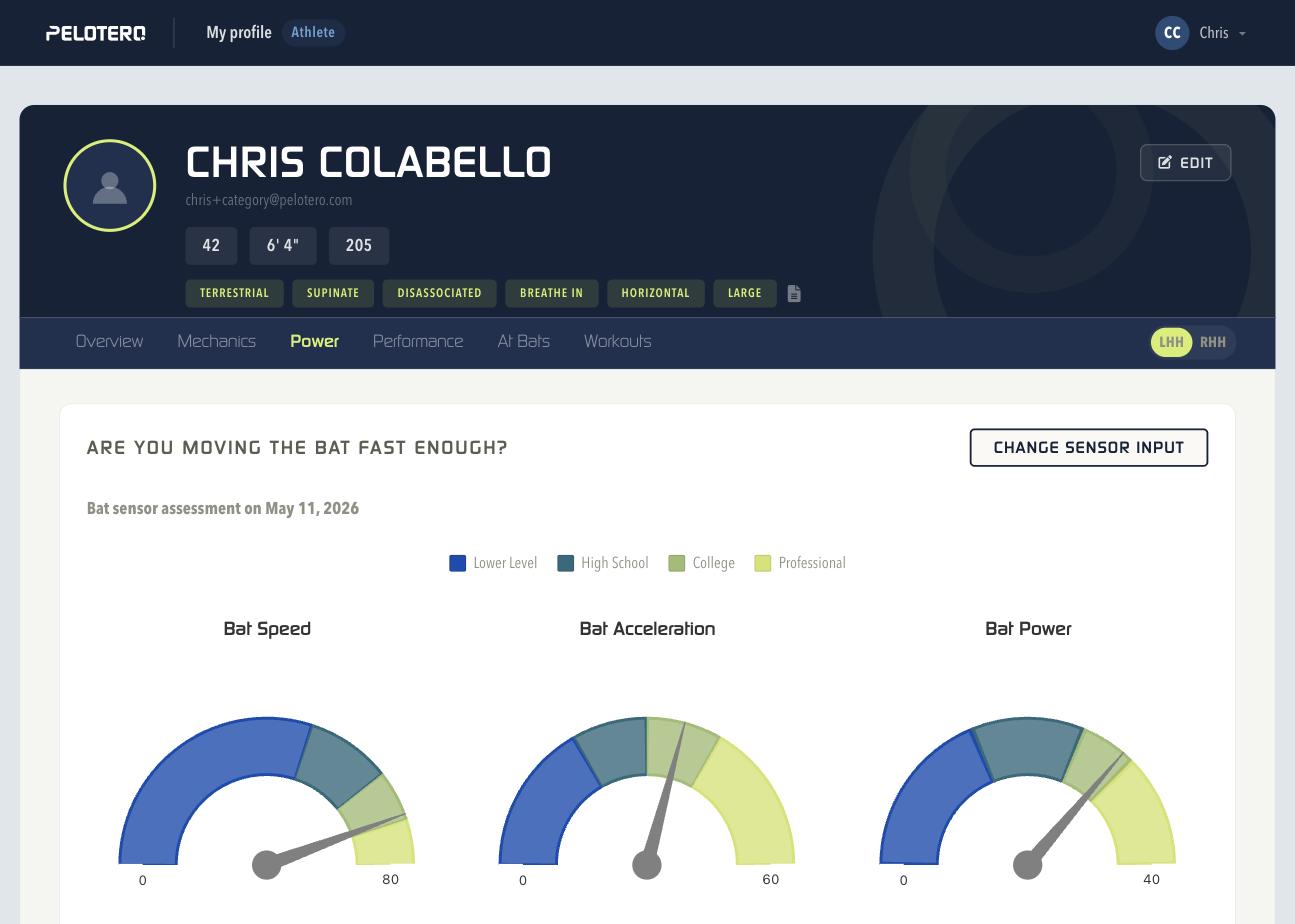
The Power tab answers "Are you moving the bat fast enough?" with three gauge dials — Bat Speed, Bat Acceleration, and Bat Power — each needle benchmarked against color-coded Lower Level, High School, College, and Professional bands pulled from bat-sensor data. A "Change Sensor Input" button lets the athlete pick a different sensor session to review.
Performance
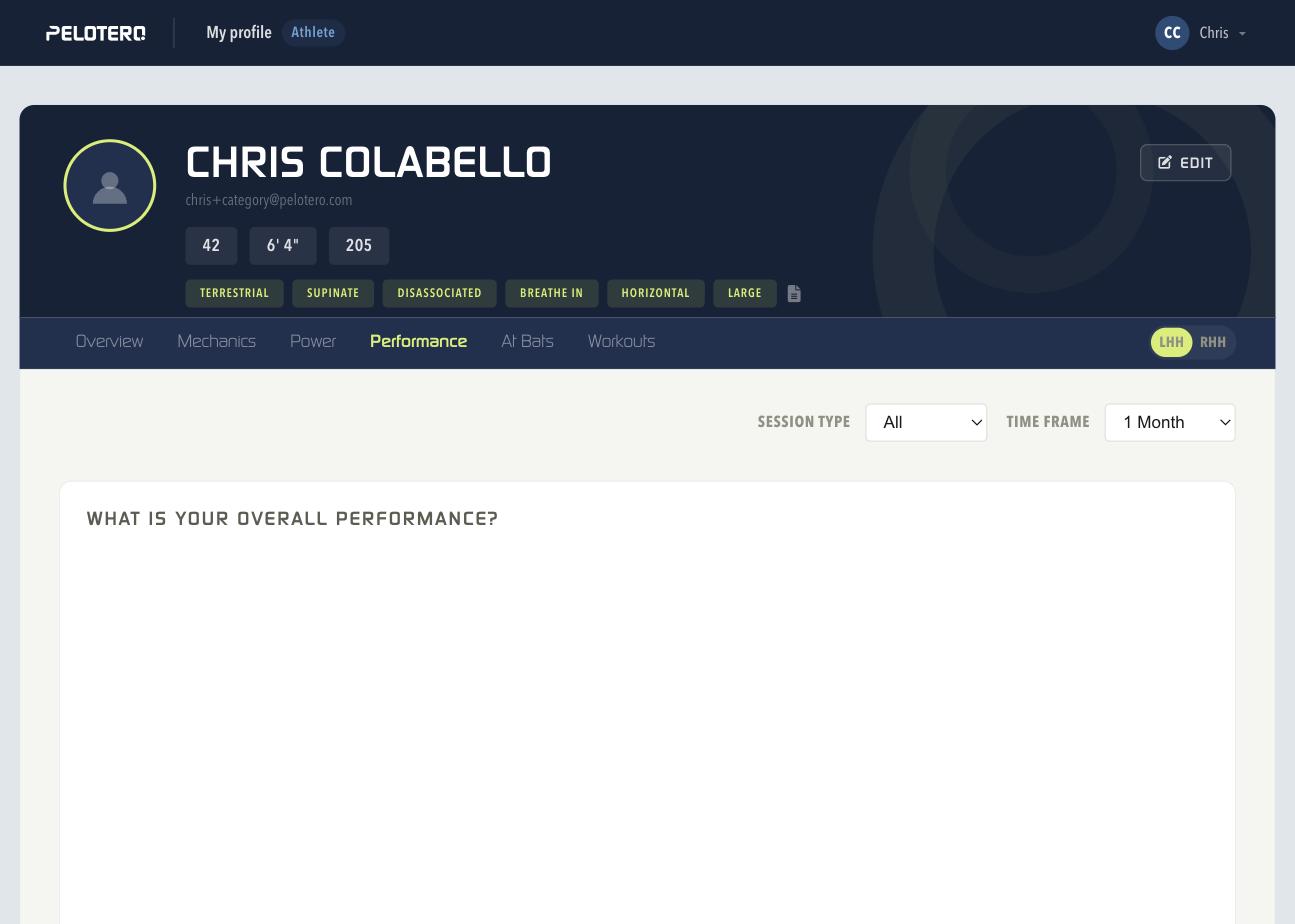
The Performance tab can be filtered by Session Type and Time Frame, then shows a set of gauges built from logged at-bats — for example "How often are you safe?" and "Are you recognizing the types of pitches thrown?" — each paired with a plain-language benchmark (e.g. "Elite players should be able to identify the type of pitch being thrown to them at least 80% of the time"). Further down, swing-decision breakdowns show how often the athlete swings at balls versus strikes and how often contact is on time, under, or over the ball.
At Bats
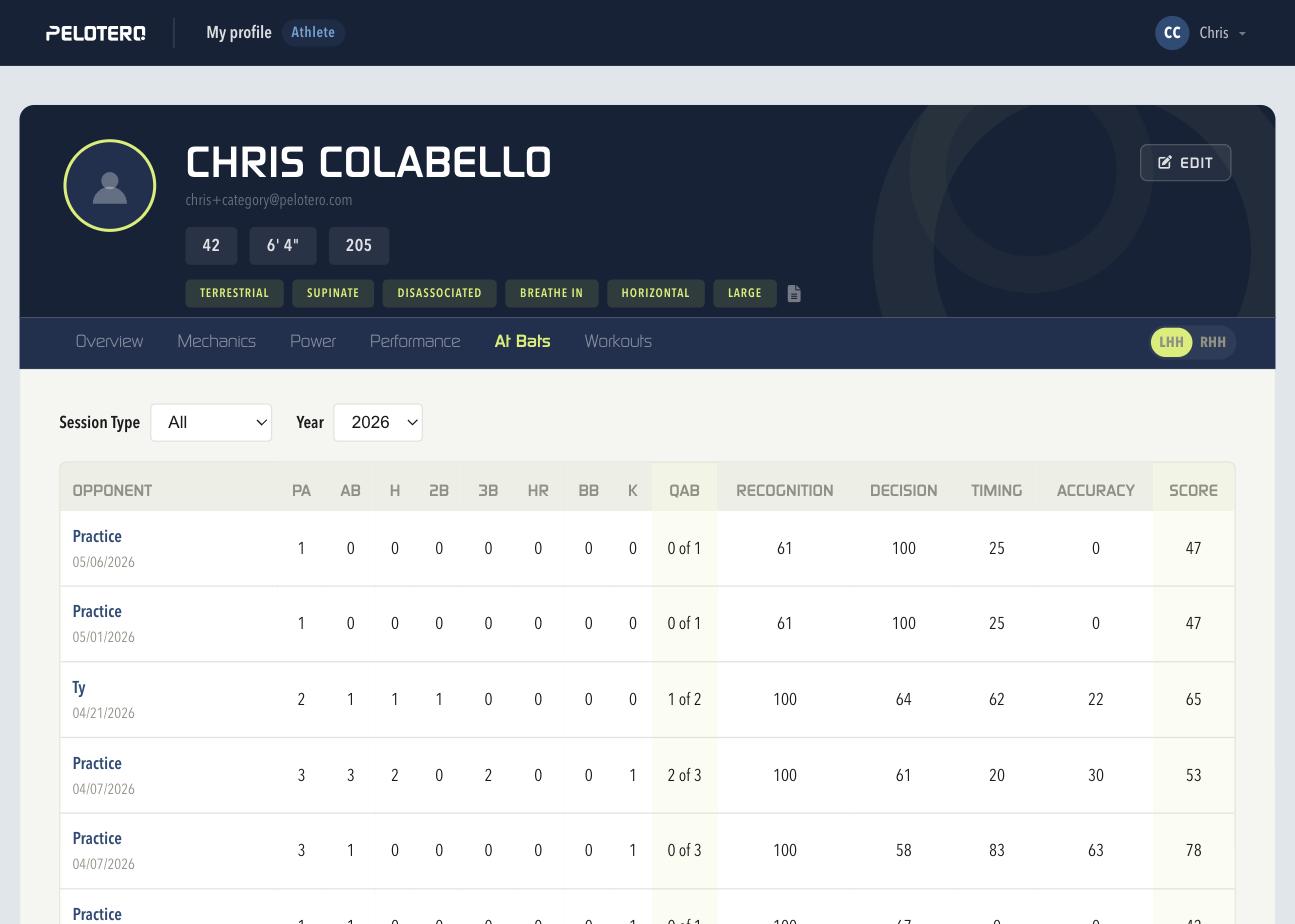
The At Bats tab lists every logged session — Practice or a named opponent — with PA, AB, H, 2B, 3B, HR, BB, K, and Quality At-Bats (QAB) counts, plus Recognition, Decision, Timing, Accuracy, and an overall Score for that session. Filters at the top narrow the list by Session Type and Year. Clicking a session opens its full Game Report Card: tiles for Pitch Recognition, Swing Decisions, Timing, and Accuracy, a chart of at-bat outcomes, and Share and delete controls at the top.
Workouts
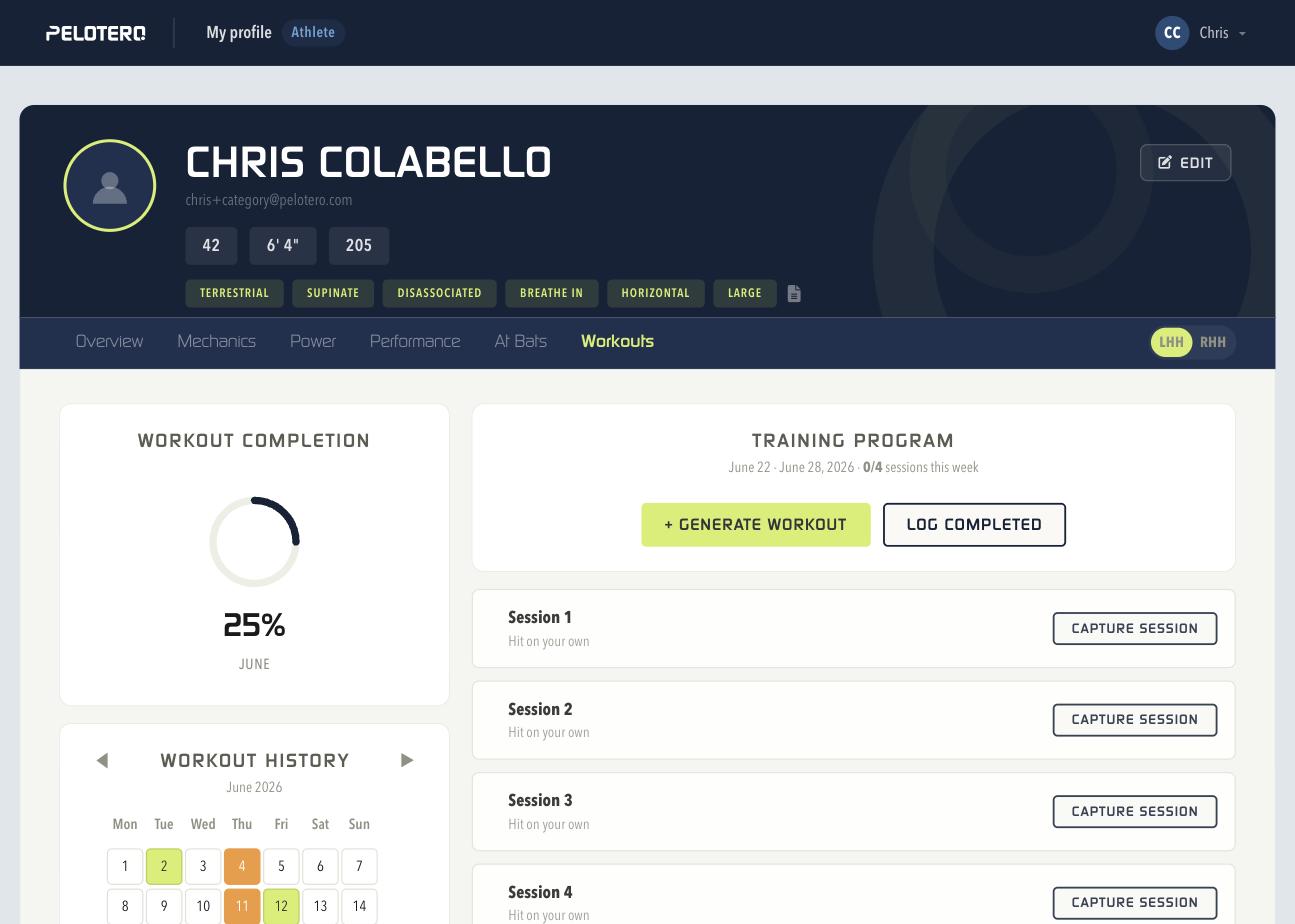
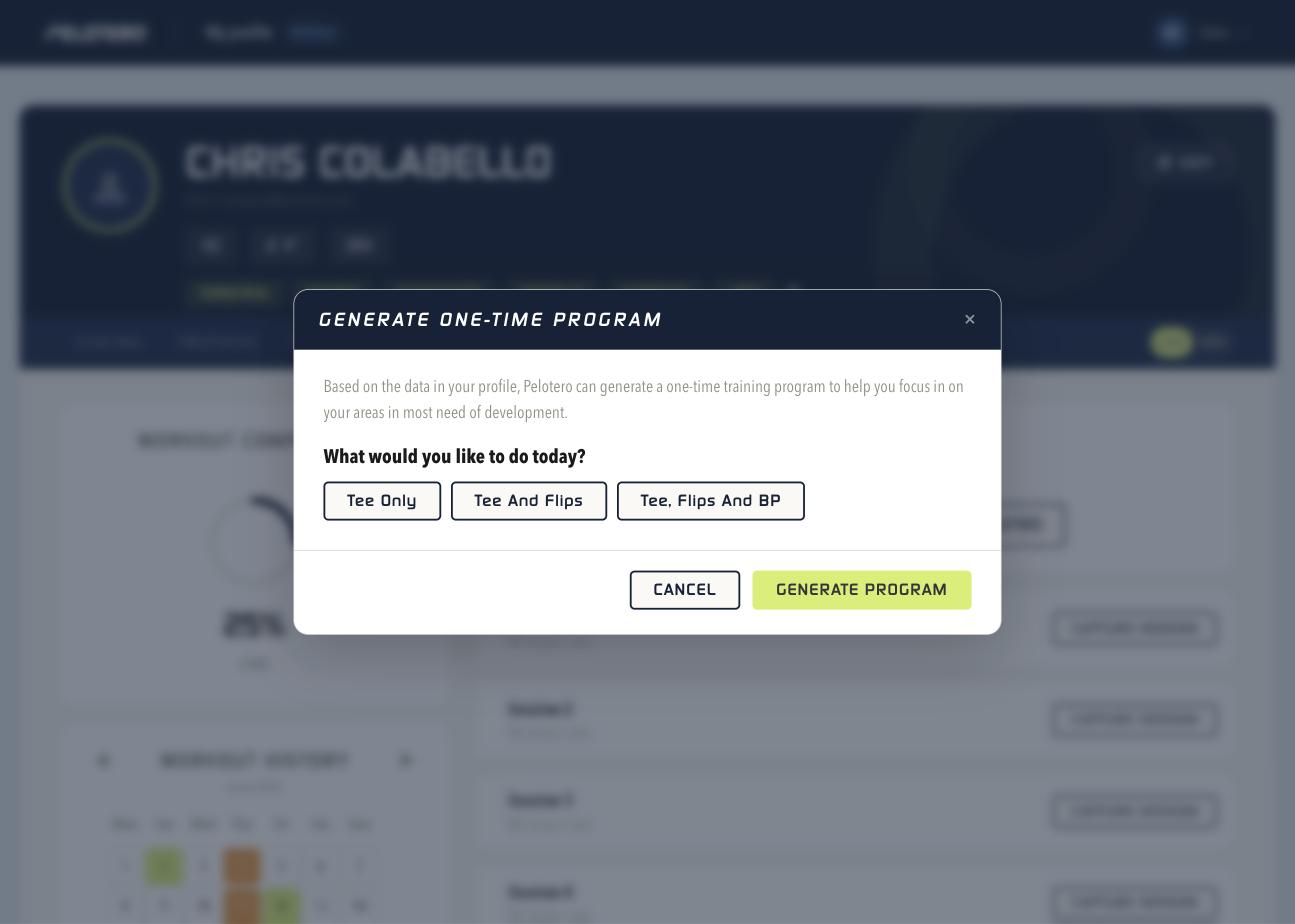
The Workouts tab shows a monthly completion ring, a calendar of workout history with color-coded days, and the current week's Training Program listing each session (e.g. "Session 1 — Hit on your own") with a "Capture Session" button. Two buttons above the list, "+ Generate Workout" and "Log Completed," cover the two ways to record work: generating a brand-new one-time session or logging one already completed. Choosing "+ Generate Workout" opens a Generate One-Time Program modal where the athlete picks what they'd like to do that day — Tee Only, Tee and Flips, or Tee, Flips and BP — then taps "Generate Program" for a fully customized plan built in seconds.
Account Settings
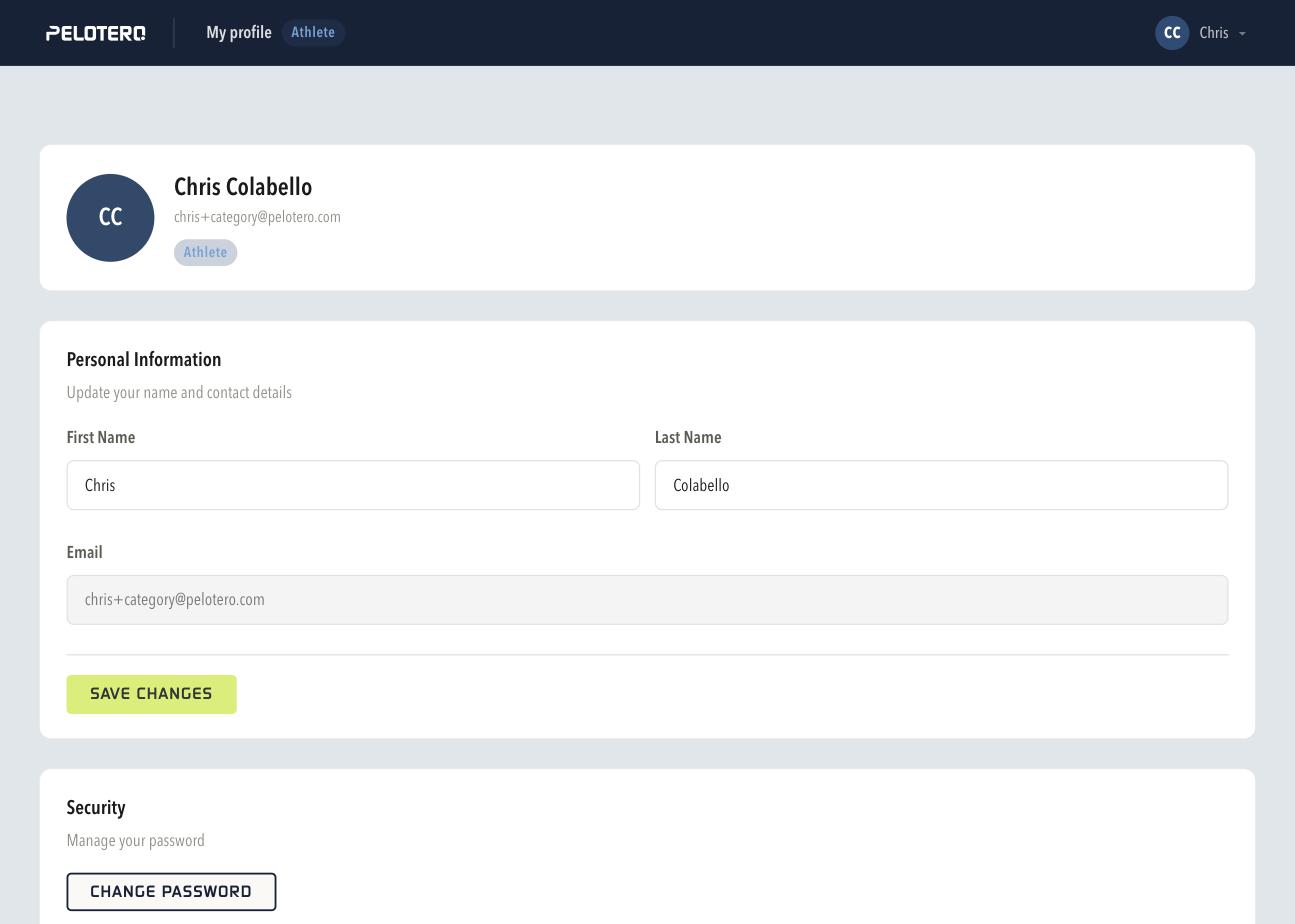
Clicking the avatar menu in the top right gives access to account settings, where an athlete can update their first name, last name, and email under Personal Information, and change their password under Security.
Was this article helpful?
That’s Great!
Thank you for your feedback
Sorry! We couldn't be helpful
Thank you for your feedback
Feedback sent
We appreciate your effort and will try to fix the article