Players access Pelotero through the same iOS app as coaches, but see a different experience when they log in. The player view is centered around three things: understanding their current scores, completing workouts, and logging at-bat data. Everything is personalized to their profile and updated as new data comes in.
1.1 Player Home — Score Breakdown
When a player logs in they land on the Player Mode home screen. It shows their name, age, height, weight, and position at the top, followed by their Score Breakdown: a radar triangle showing their Mechanics, Power, and Performance scores. Tapping any score opens the full breakdown for that pillar. The bottom nav has five tabs: Home, Workouts, At Bats, Notifications, and Account.
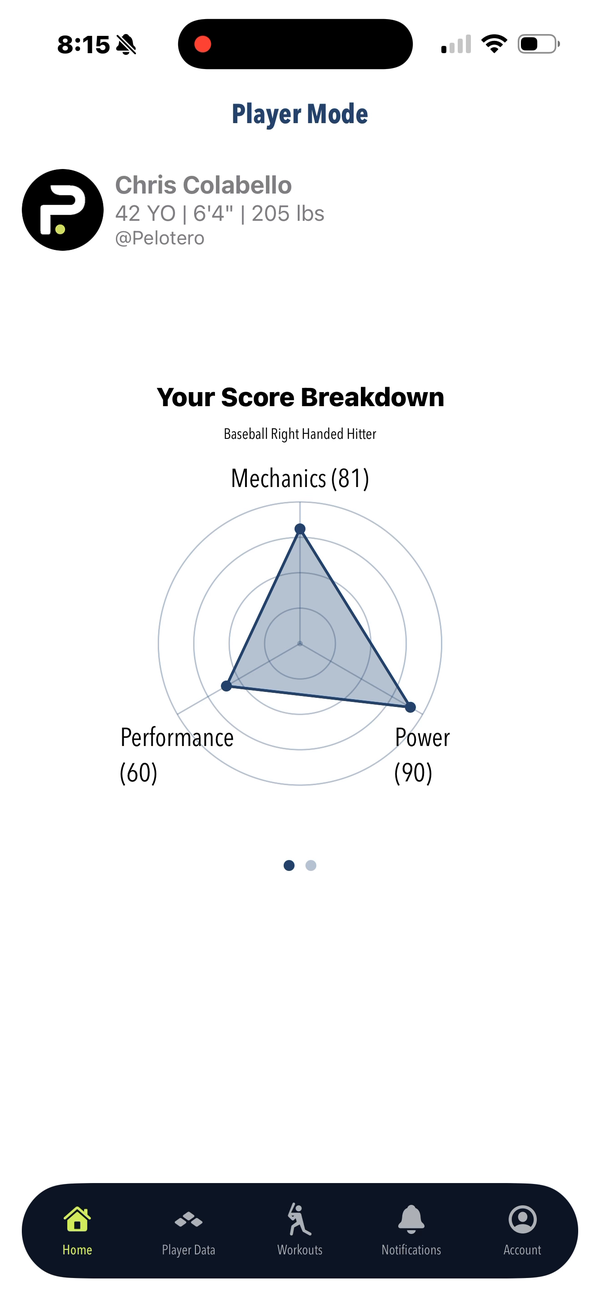
Figure P1: Player home — score radar with Mechanics, Power, and Performance scores
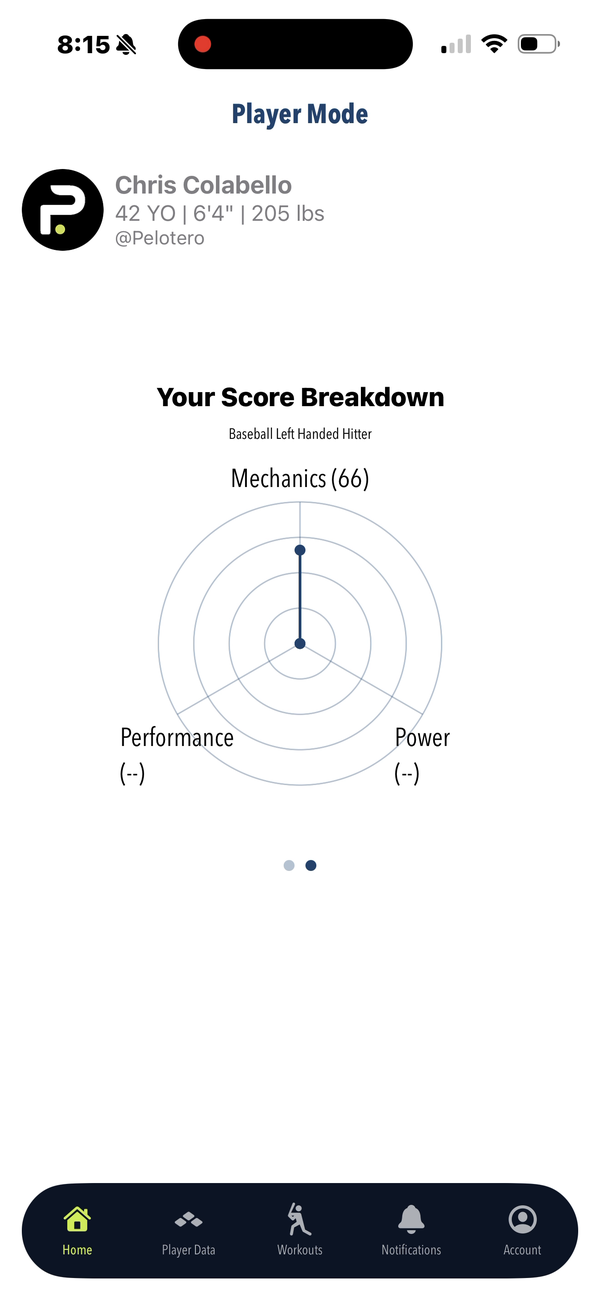
Figure P2: Score breakdown showing individual pillar scores and radar shape
1.2 Collecting Your Own Data
Players can self-report data without a coach present. Tapping the data collection option presents the same menu of data types coaches use. Players can submit swing videos, at-bat results, and other metrics directly from the app.
When submitting swing video, the player selects their handedness (Right Handed or Left Handed) and the app records directly using the phone camera:
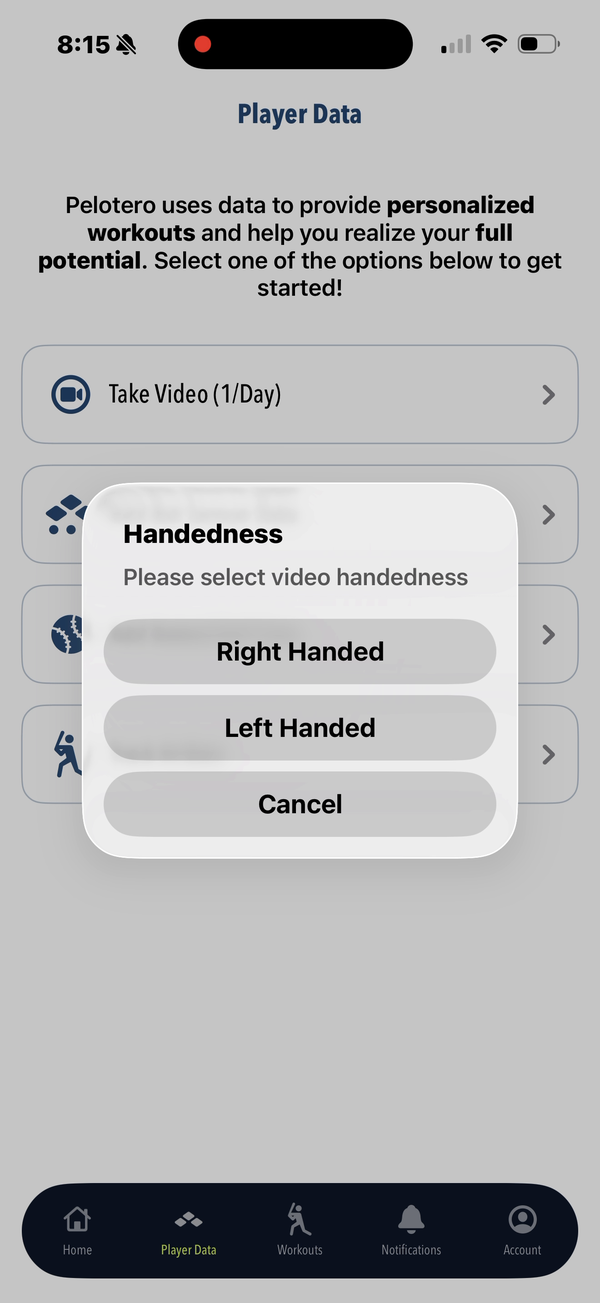
Figure P3: Handedness selection before video capture
For bat sensor data, the player fills in the sensor readings manually or syncs from a connected device. Fields include Applied Power, Max Acceleration, Impact Momentum, Max Hand Speed, Max Barrel Speed, and Trigger to Impact:
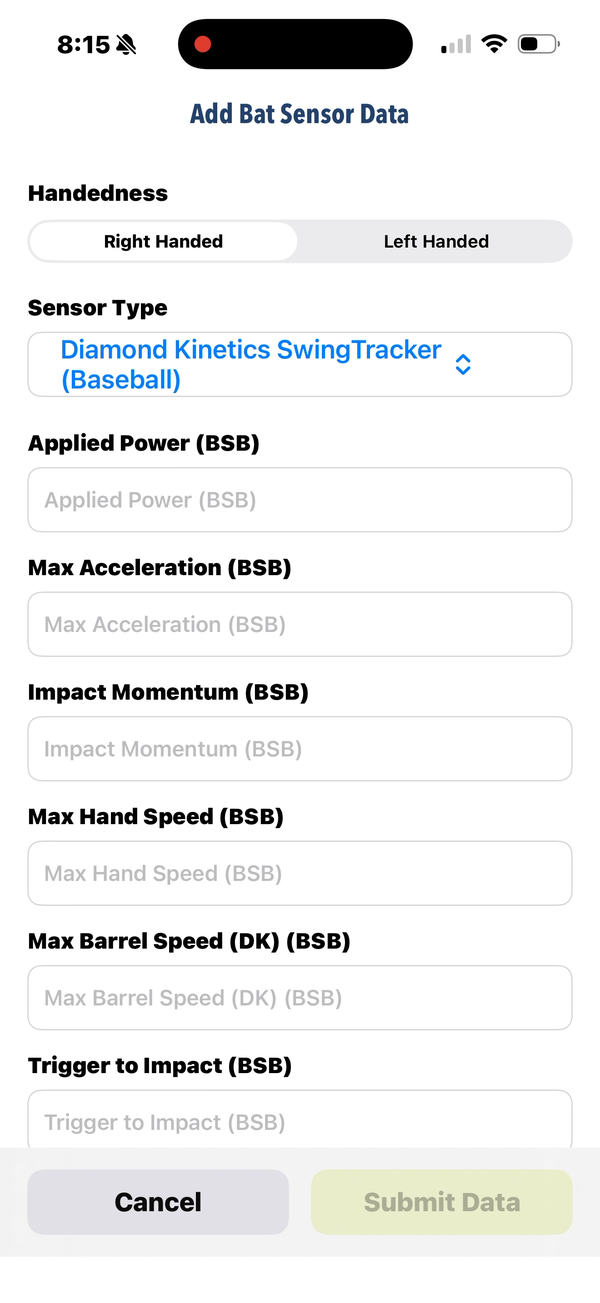
Figure P4: Bat sensor data entry form with all metric fields
1.3 Logging At Bats
Players log their at-bat performance through a guided multi-step flow. Each step captures one piece of information to keep data entry fast during or after a game.
Step 1 — Session setup: Choose Practice or Game, select the date, and pick Pitcher View or Catcher View for the strike zone orientation used during entry:
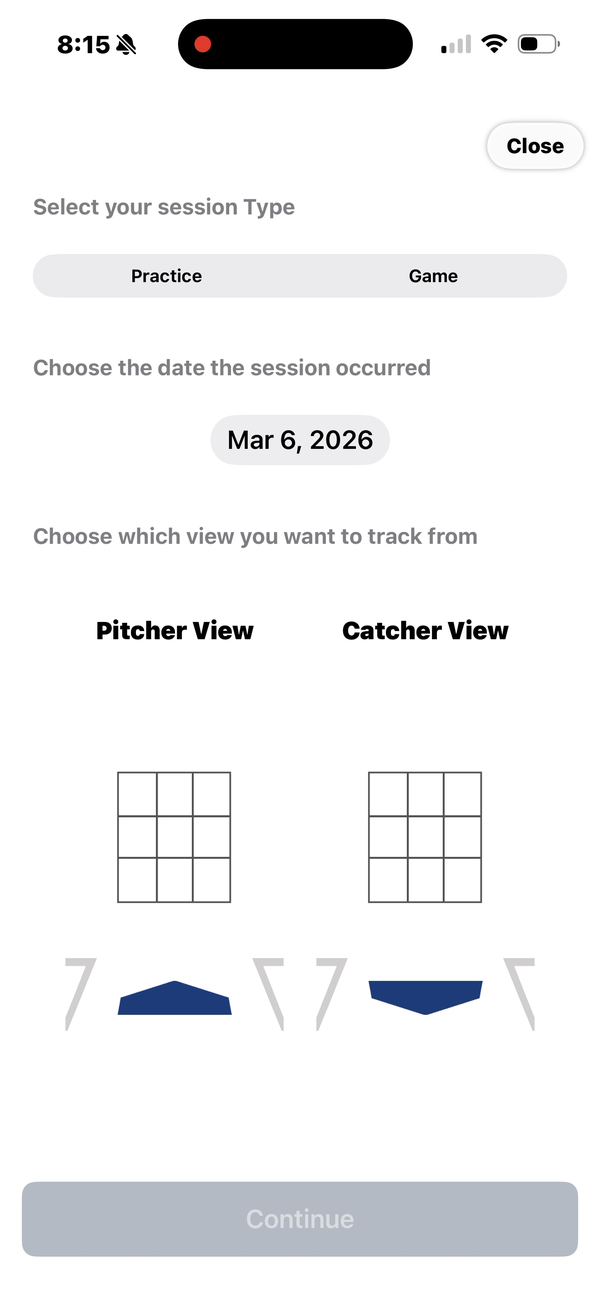
Figure P5: Session type selection — Practice or Game, with date picker
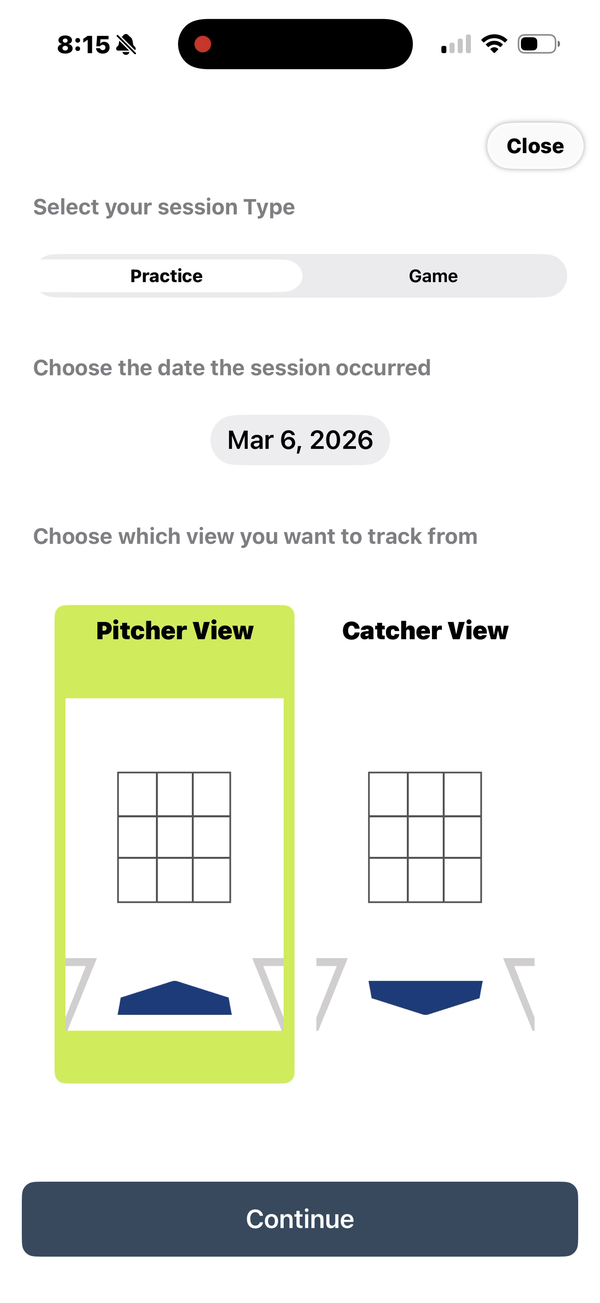
Figure P6: Strike zone view selection — Pitcher View or Catcher View
Step 2 — Set context: Define which side of the plate the batter hit from, the inning, top or bottom, and set the handedness and velocity of the pitcher faced:
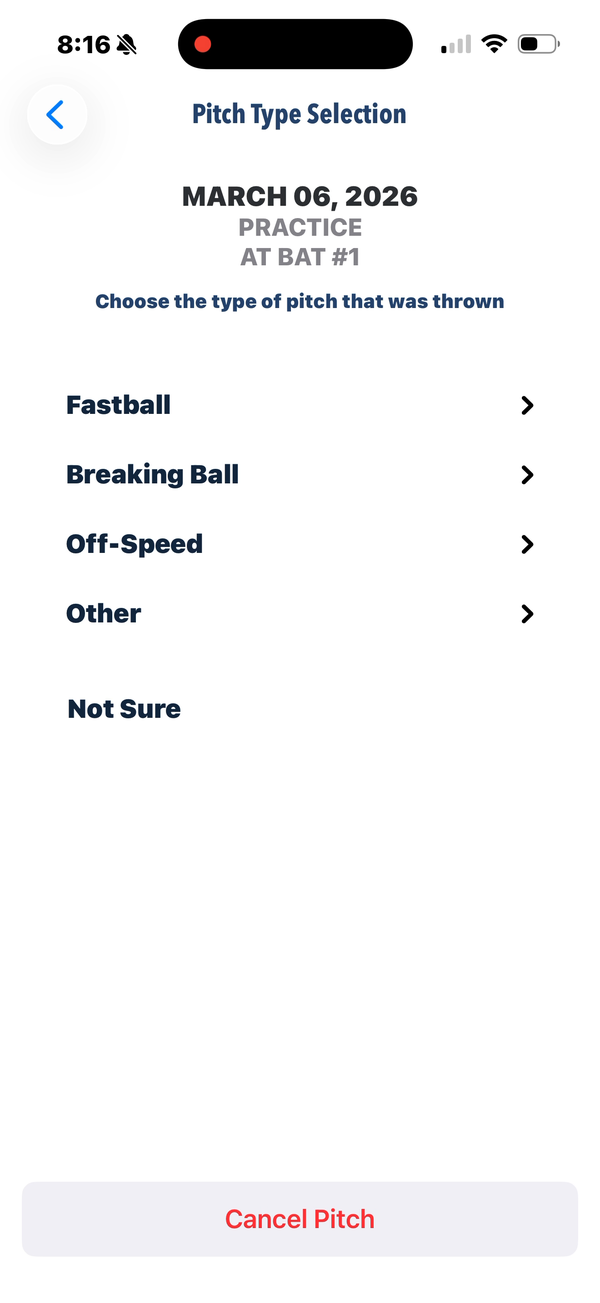
Figure P7: Set context — batter side, inning, pitcher handedness and velocity
Step 3 — Pitch location: Tap the strike zone grid to mark where the pitch was located:
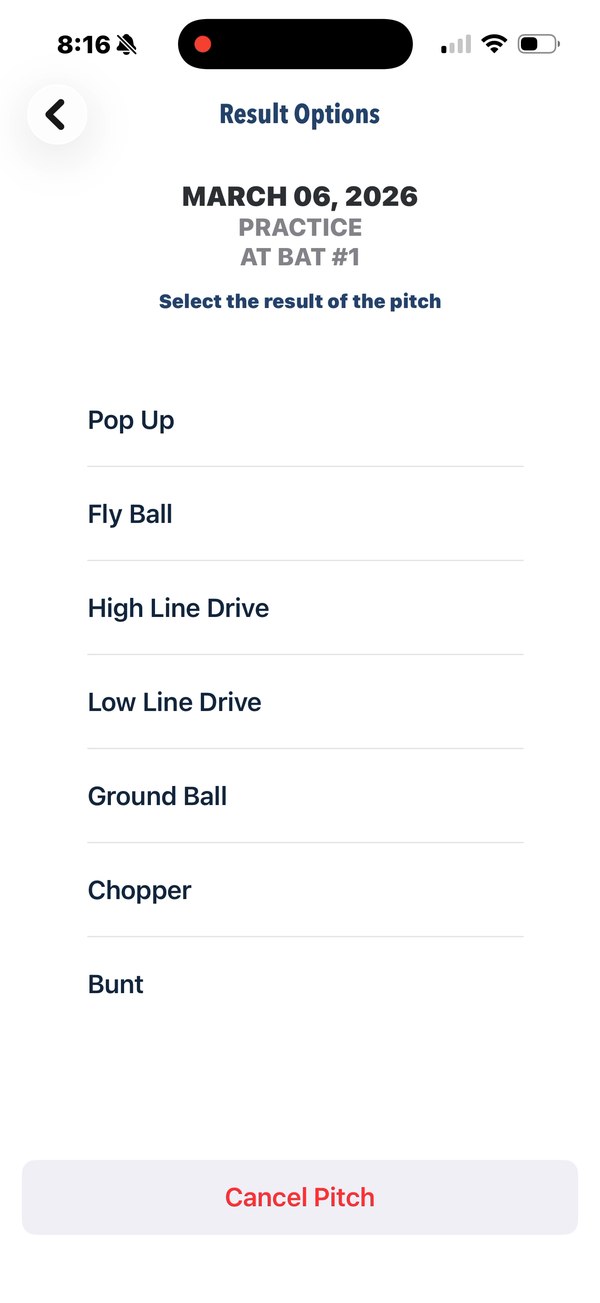
Figure P8: Pitch location entry — tap the strike zone to mark pitch location
Step 4 — Pitch type: Select the type of pitch thrown (Fastball, Breaking Ball, Off-Speed, Other, or Not Sure):
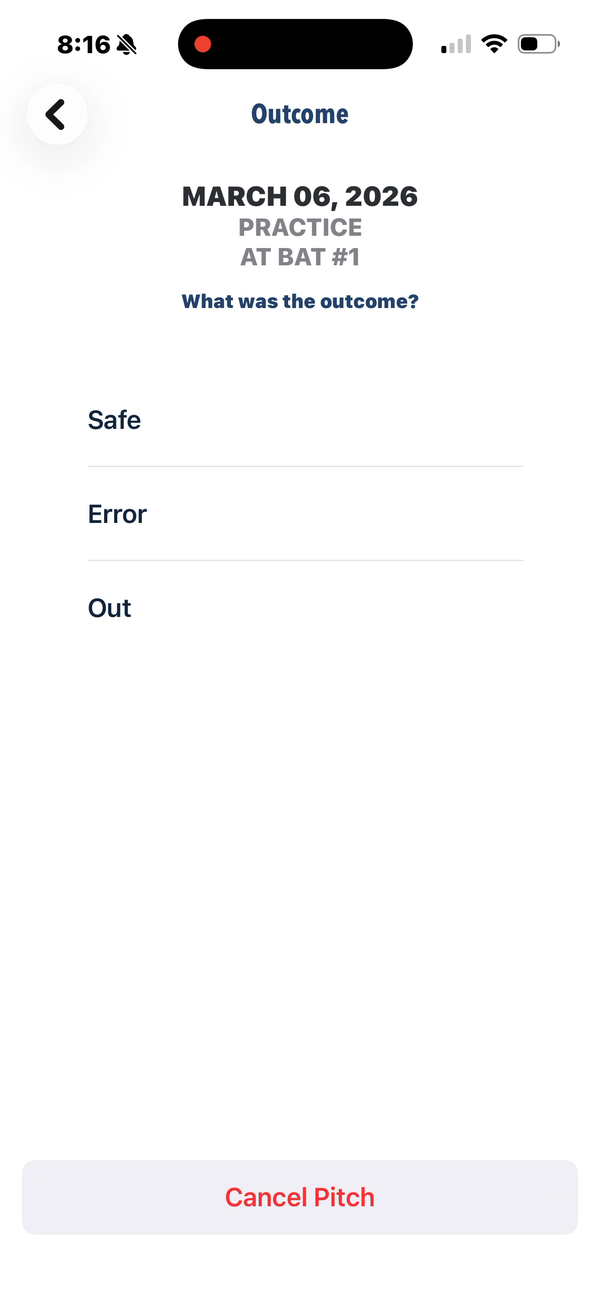
Figure P9: Pitch type selection
Step 5 — Result: Select the outcome of the at bat (Pop Up, Fly Ball, Ground Ball, Bunt, etc.) and rate how hard the ball was hit:
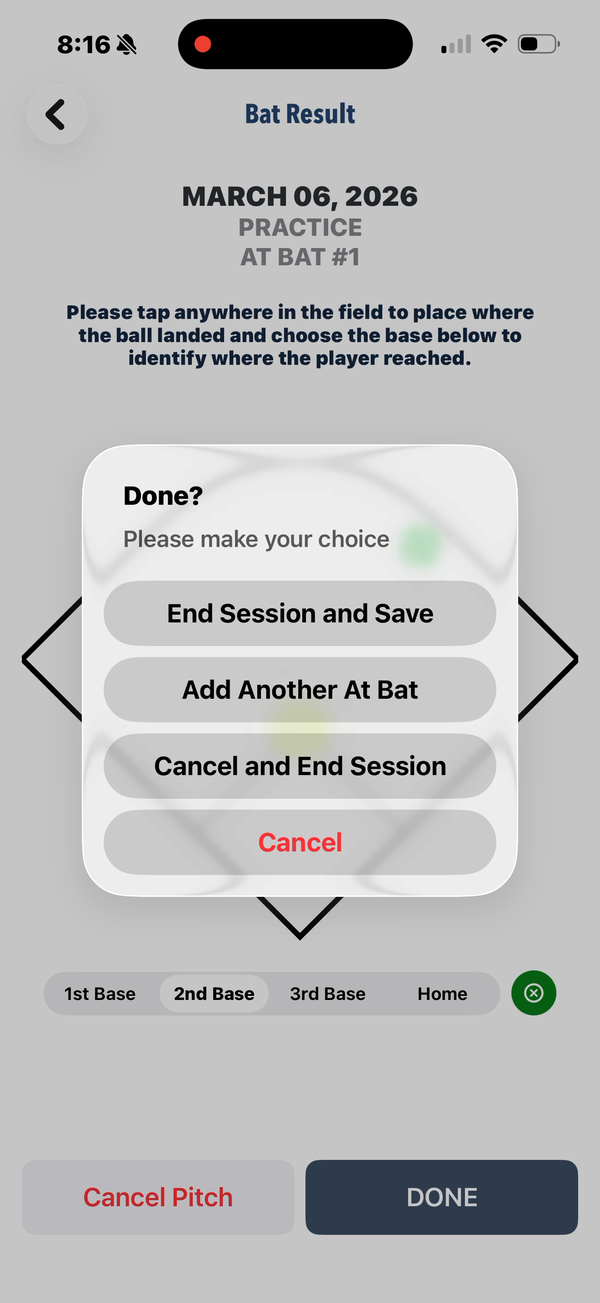
Figure P10: Result options — batted ball type selection
After completing the result, the player marks where the ball landed on a field diamond and is prompted to End Session, Add Another At Bat, or Cancel:
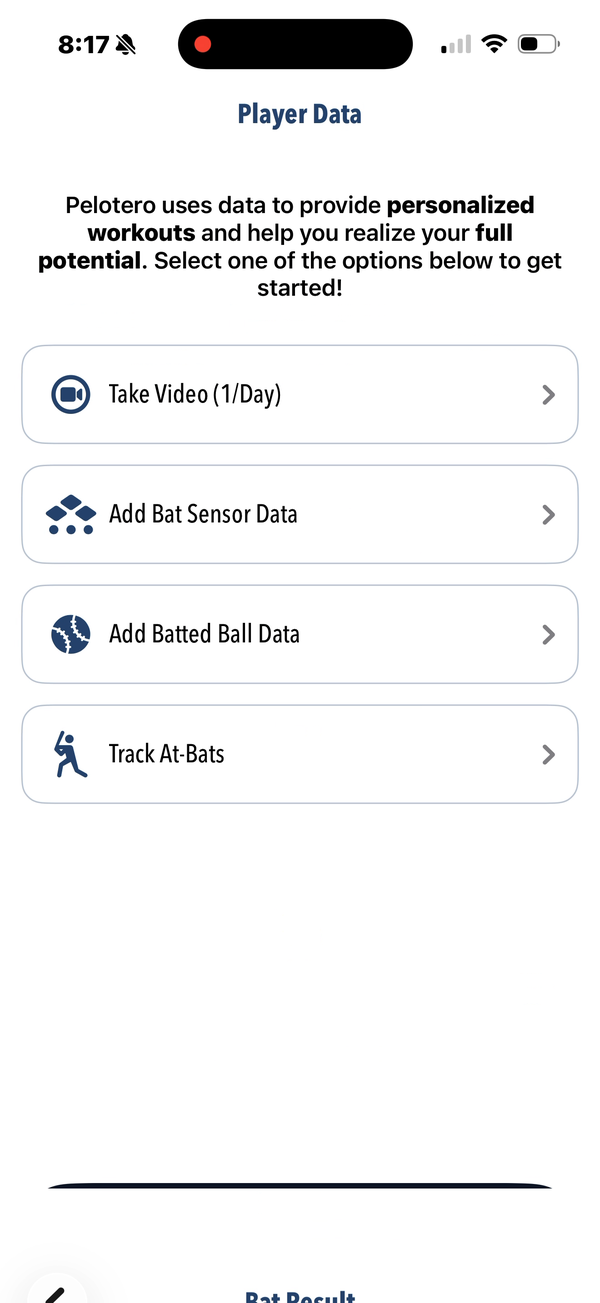
Figure P11: Bat result — tap field diamond to mark ball landing location
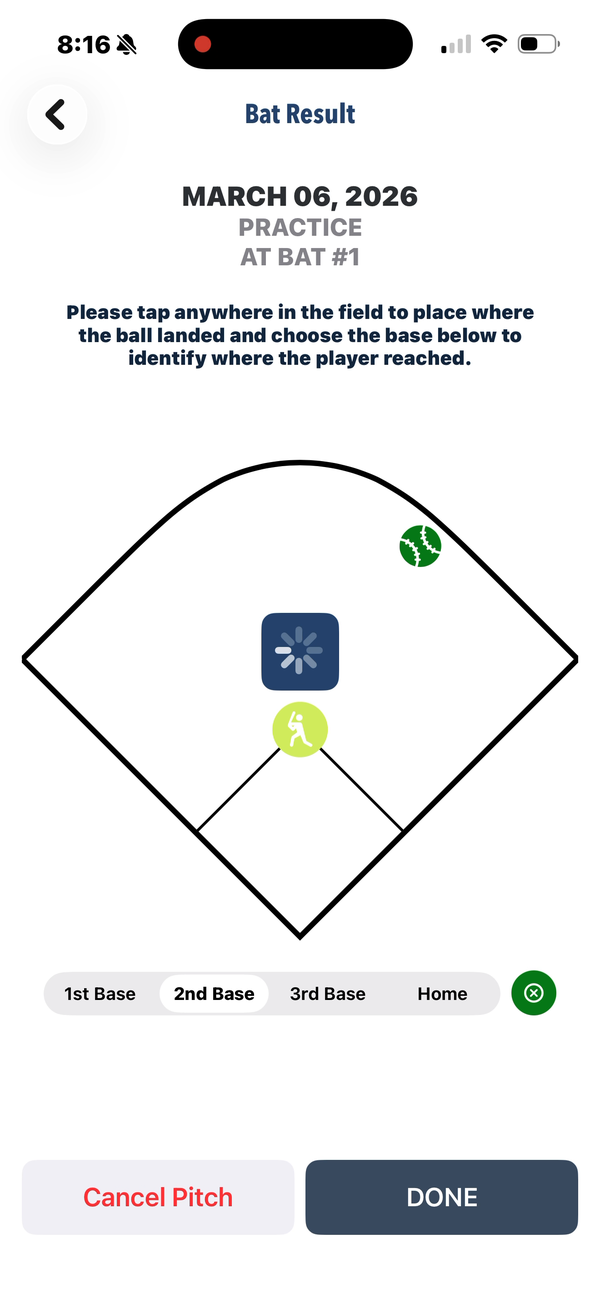
Figure P12: Completed at-bat with field placement marked and end session options
1.4 Workouts & Training Programs
The Workouts tab is the player's personal training hub. Pelotero generates a personalized training program based on the player's score profile. The program is organized into named sessions (e.g. Session 1, Session 2, Tee and Flips) each containing multiple exercises.
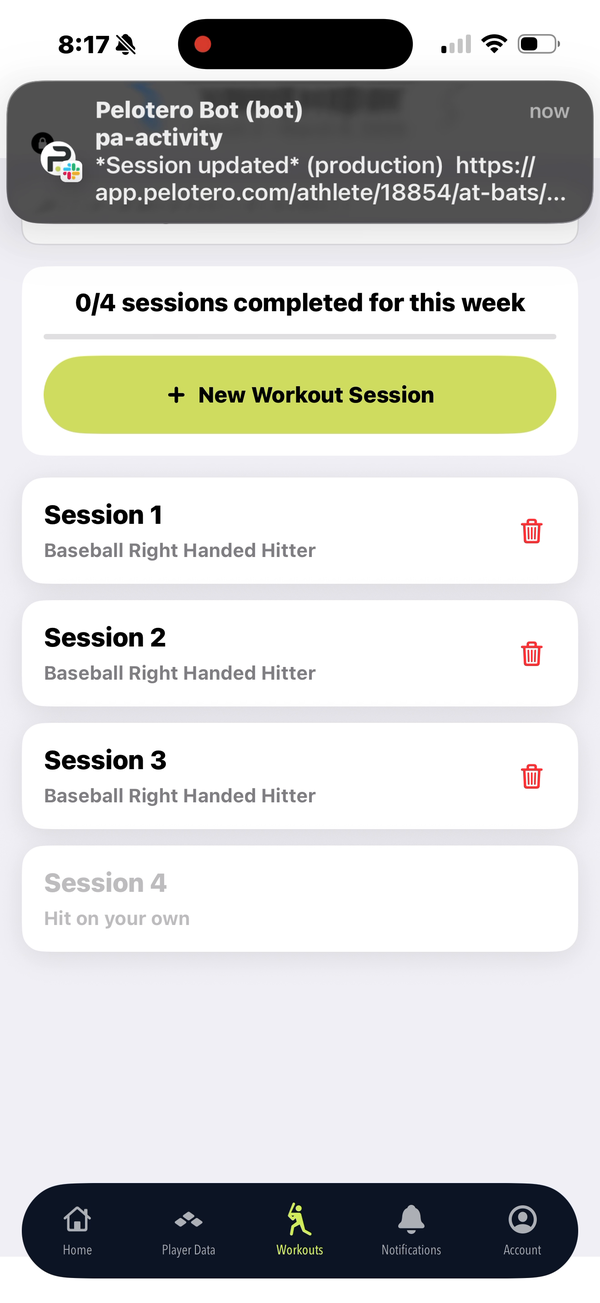
Figure P13: Training program list — weekly sessions with completion status
When a player taps a session they can see all exercises with sets, reps, and video demonstrations. Each exercise has a Done button to mark completion. A one-time AI-generated program option is also available based on the player's current development needs:
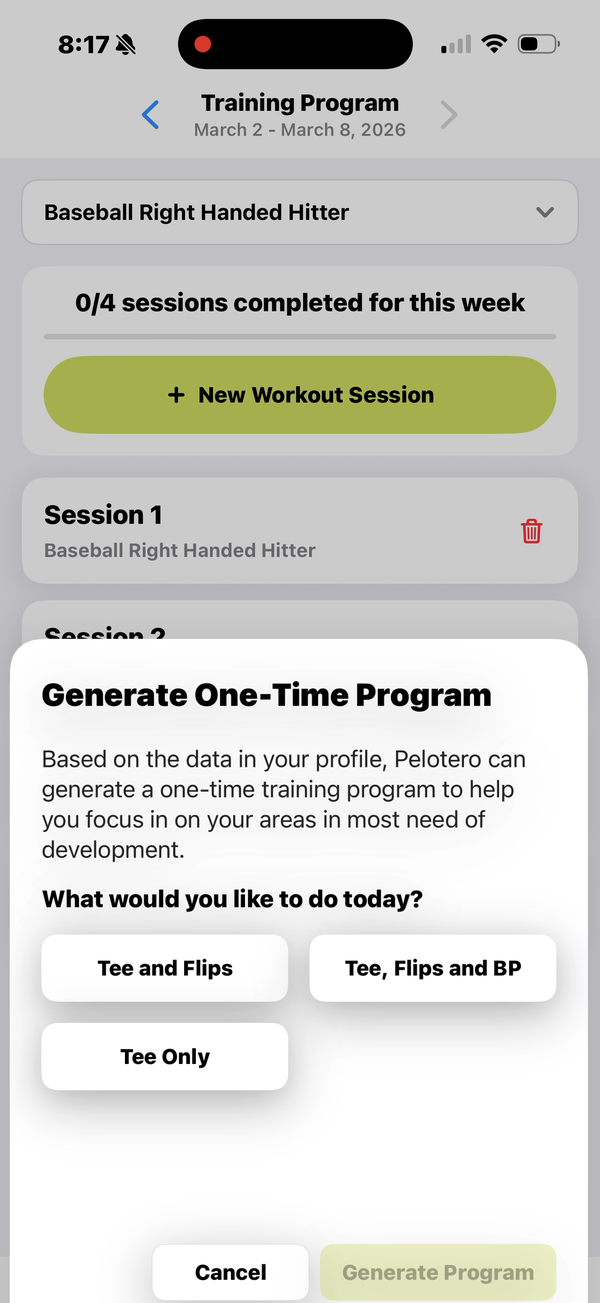
Figure P14: AI-generated program prompt — Pelotero offers a personalized one-time program
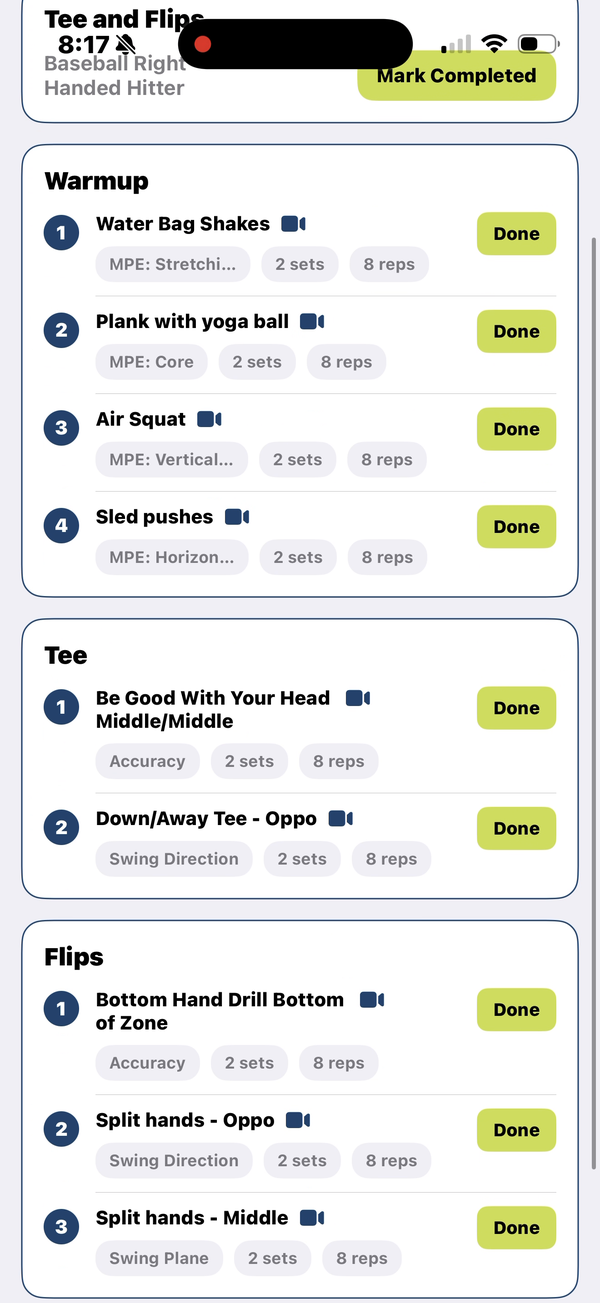
Figure P15: Workout session detail — exercises with sets, reps, and Done buttons
Each exercise can be marked Done individually. Once all exercises in a session are completed, the session is marked with a green Mark Completed badge:
Figure P16: Session marked as completed
1.5 Activity & Notifications
The Notifications tab shows a chronological activity feed of everything that has happened on the player's account: practices logged, videos uploaded, scores generated, and games recorded. The Pending tab shows any actions the player still needs to complete.
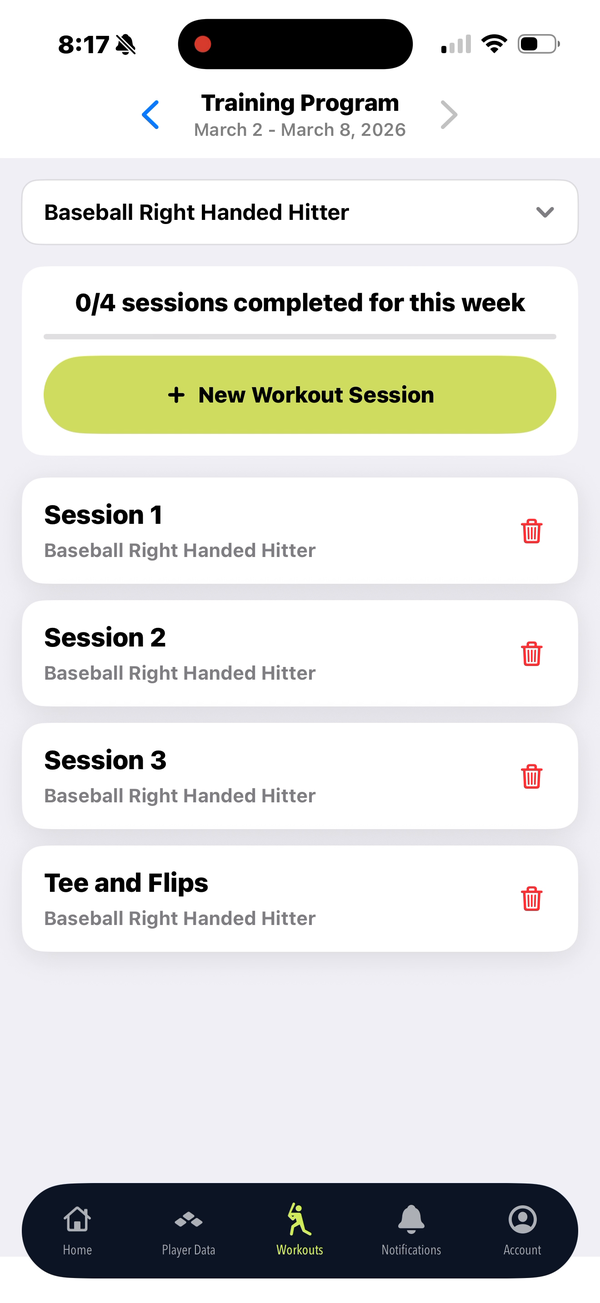
Figure P17: Activity feed — chronological log of practices, uploads, and score events
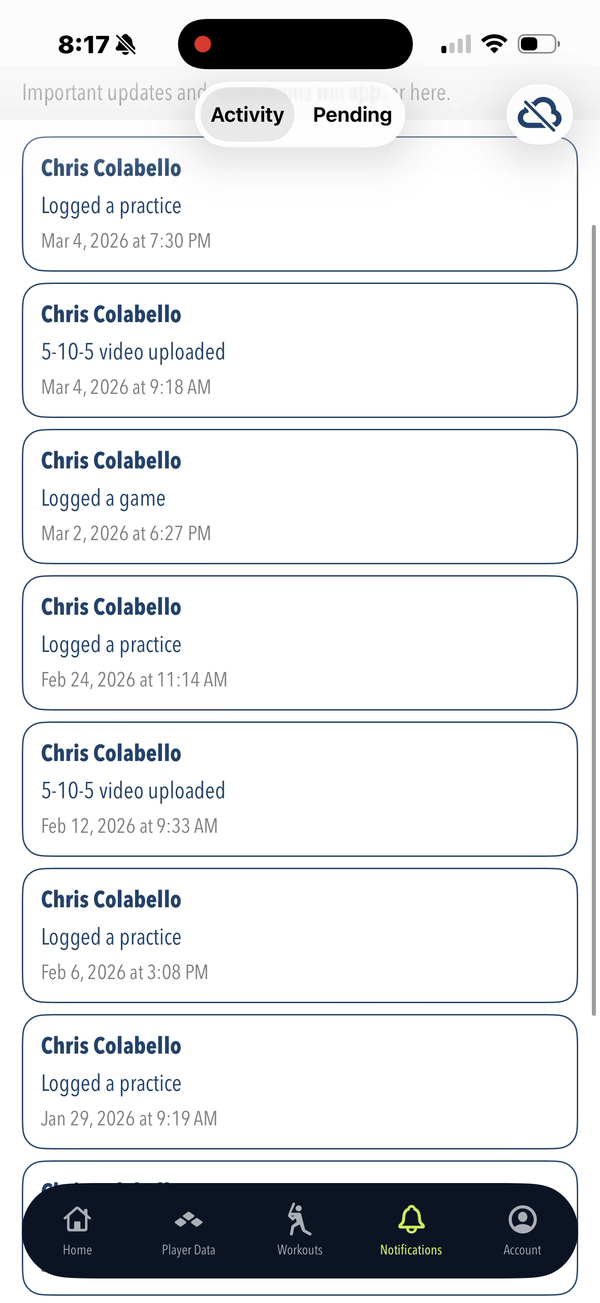
Figure P18: Notifications tab with activity and pending items
1.6 Account & Settings
The Account tab shows the player's profile (name, photo) and provides access to View Dashboard (opens the web portal) and Log Out. The app version is shown at the bottom.
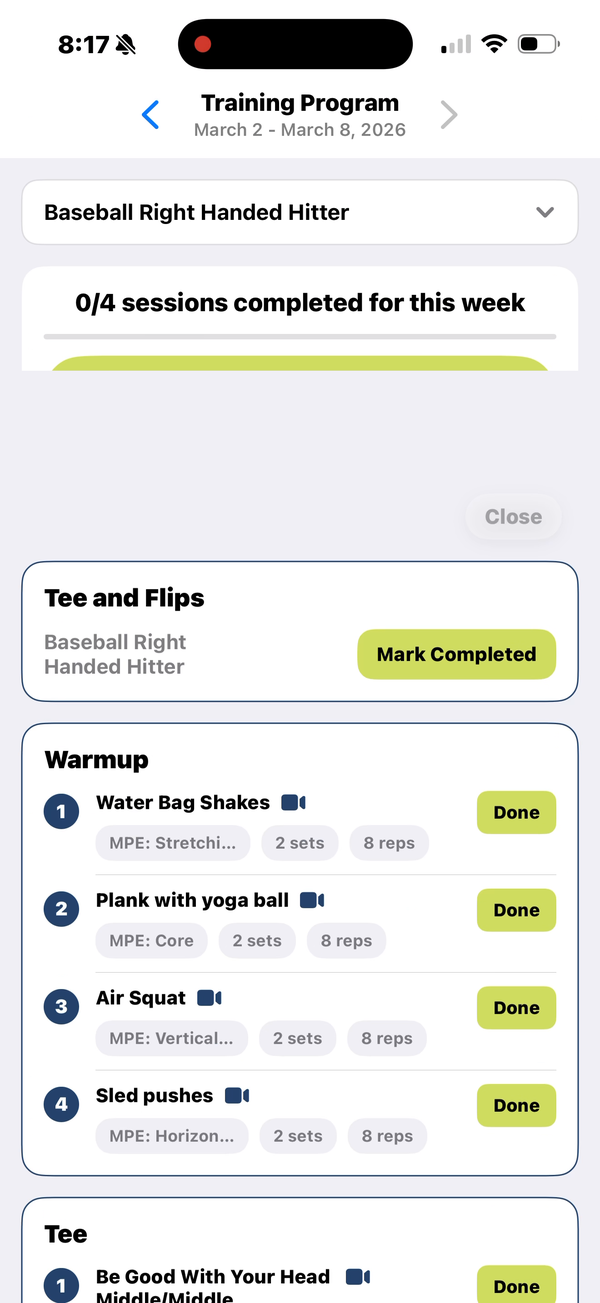
Figure P19: Account tab — player profile with View Dashboard and Log Out options
Was this article helpful?
That’s Great!
Thank you for your feedback
Sorry! We couldn't be helpful
Thank you for your feedback
Feedback sent
We appreciate your effort and will try to fix the article