Pelotero has a companion iOS app that coaches use to collect data in the field — primarily swing video and bat sensor readings. Athletes also use the app to complete workouts and track their progress. The mobile experience is designed around data capture and quick access to the same Player Intelligence scores available on the web.
1.1 Navigation
The bottom navigation bar has four tabs available throughout the app:
Home — Service selection list; tap a service to enter it
Message Us — Live support chat powered by Freshdesk
Notifications — Alerts for new scores, uploads, and activity
Account — Profile and account settings
1.2 Home — Service List
After logging in, coaches see a list of all their services. Tapping a service opens its action menu with four options: Manage Player List, Collect Player Data, Sessions, and Import DK Data.
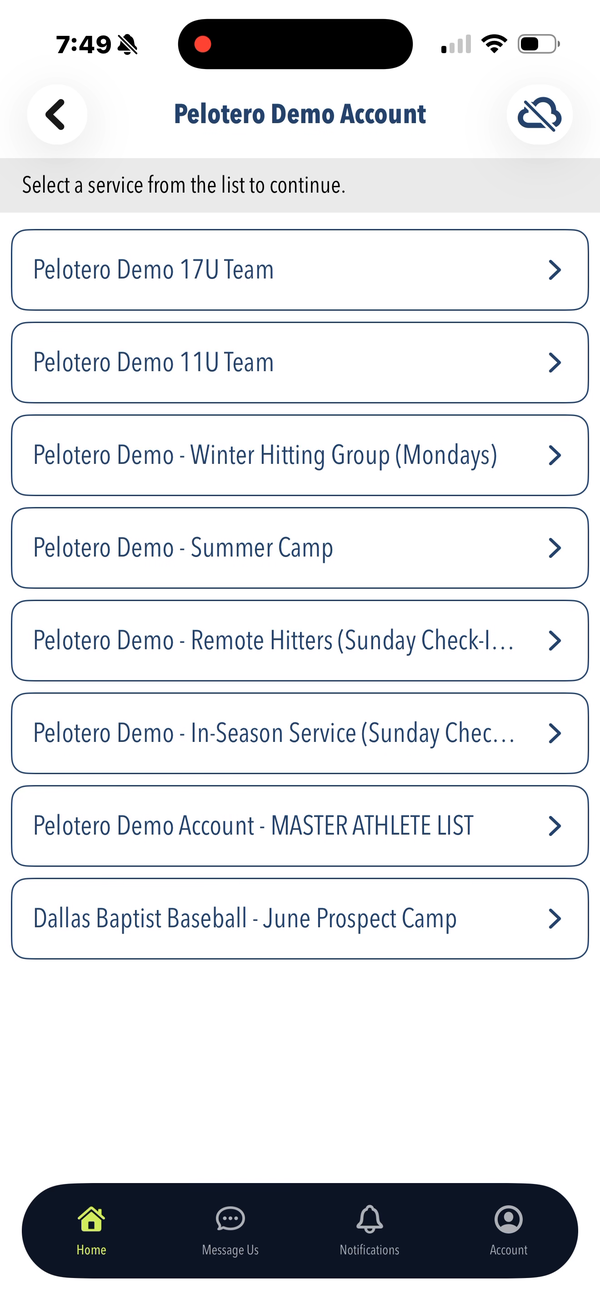
Figure M1: Home screen — list of all services for the organization
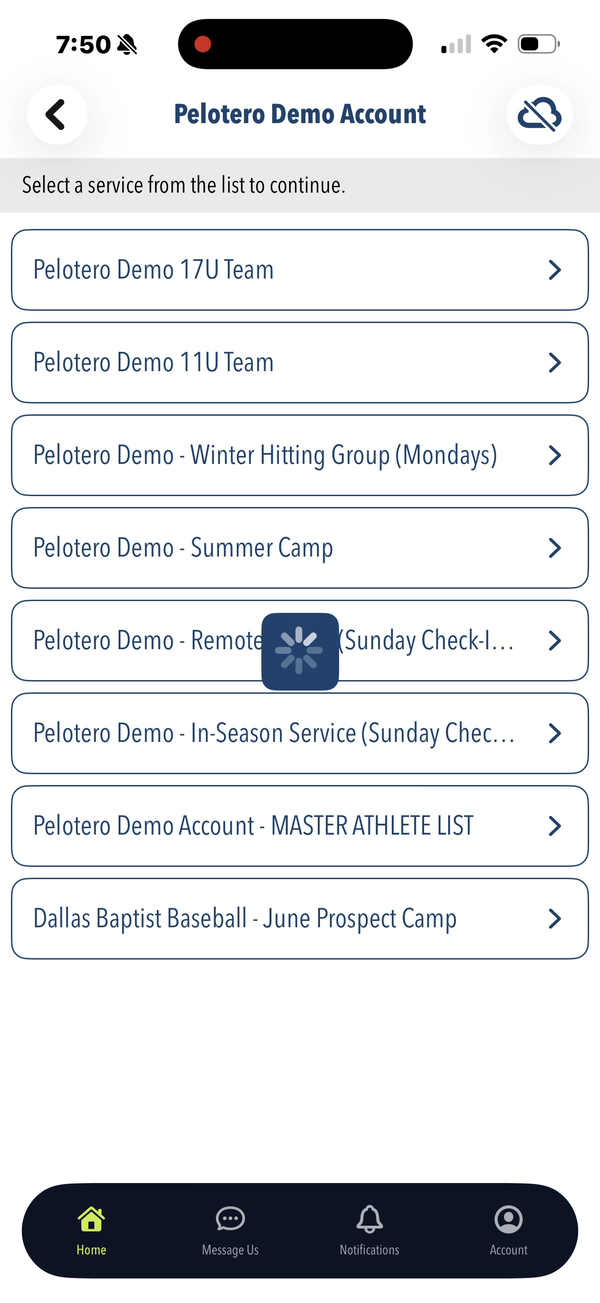
Figure M2: Service action menu — Manage Player List, Collect Player Data, Sessions, Import DK Data
1.3 Collecting Player Data
The primary mobile workflow is data collection. After selecting a service, coaches tap "Collect Player Data" and choose the data type. The app then prompts them to select an athlete and begin the collection process.
Available data types coaches can collect in the field:
Swing Mechanics — records and uploads a swing video for AI analysis
5-10-5 — sprint/agility drill timing
Bat Sensor — imports data from a connected bat sensor device
30 Yard Dash — sprint timing
Fielding Pop Times — catcher pop time measurements
Batted Ball — exit velocity and launch angle data
Throwing Velocity — radar gun readings
Track At Bats — live game performance entry
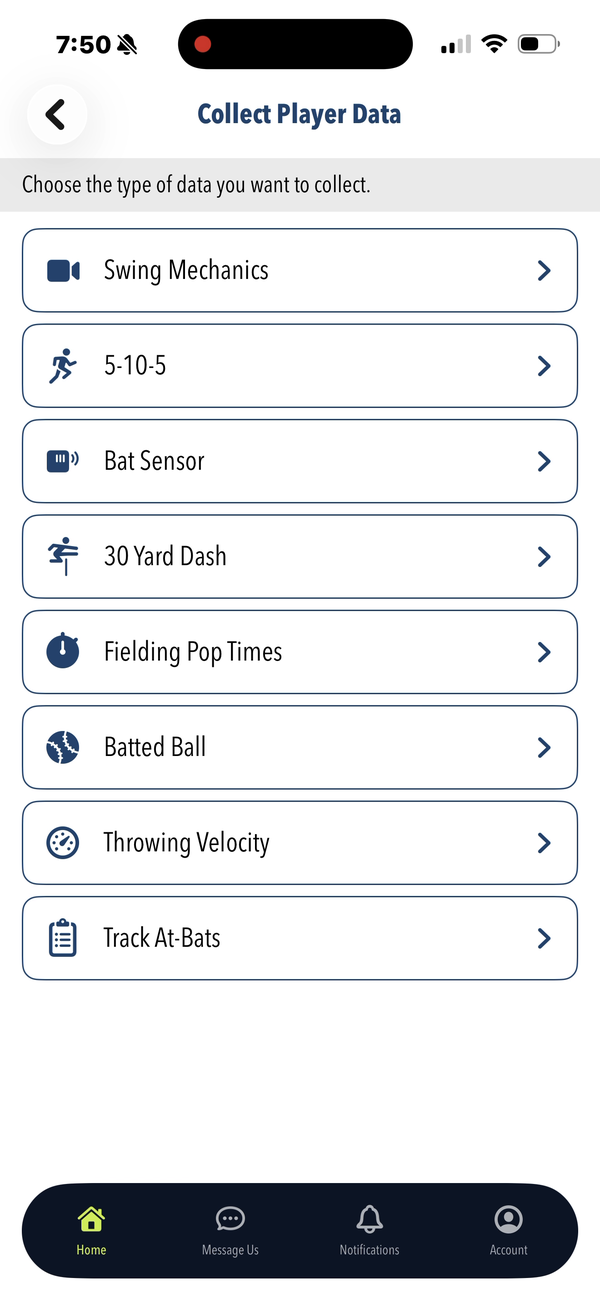
Figure M3: Collect Player Data — data type selection menu
1.4 Swing Video Capture
When collecting Swing Mechanics, the coach selects an athlete, chooses their batting position (e.g. Baseball Right Handed Hitter), and then records a swing video. The app prompts to rotate the device to landscape mode for recording. Videos are uploaded automatically and processed by Pelotero’s AI to generate the Mechanics checkpoint scores visible on the web portal.
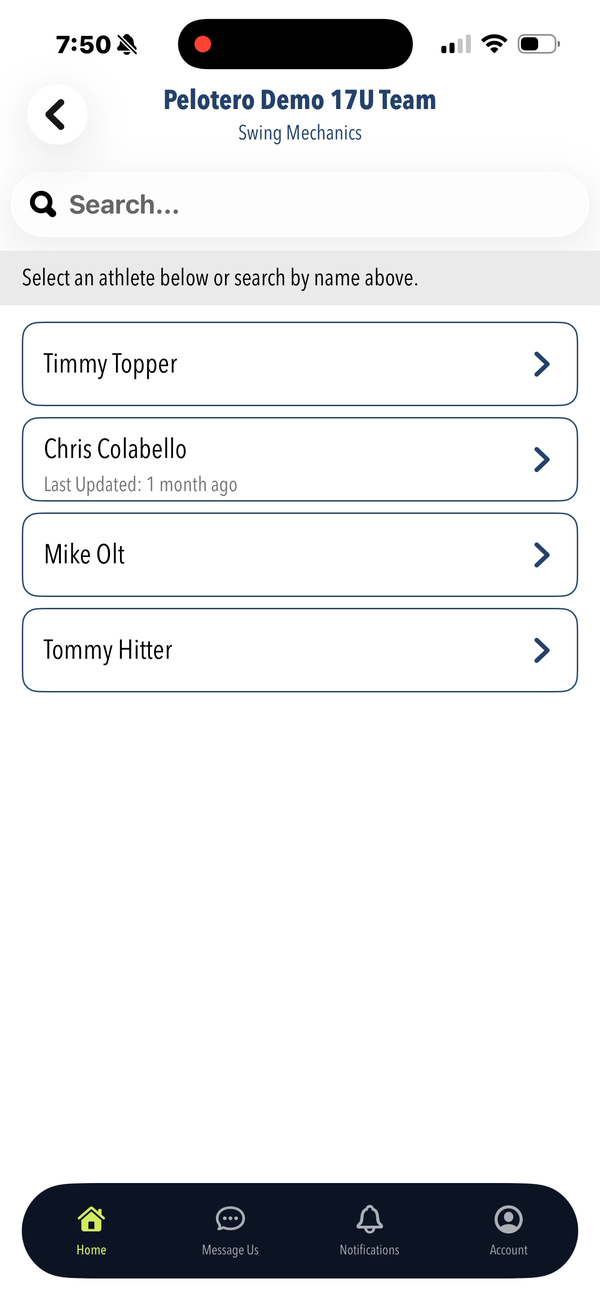
Figure M4: Athlete search — select or search for the athlete to collect data for
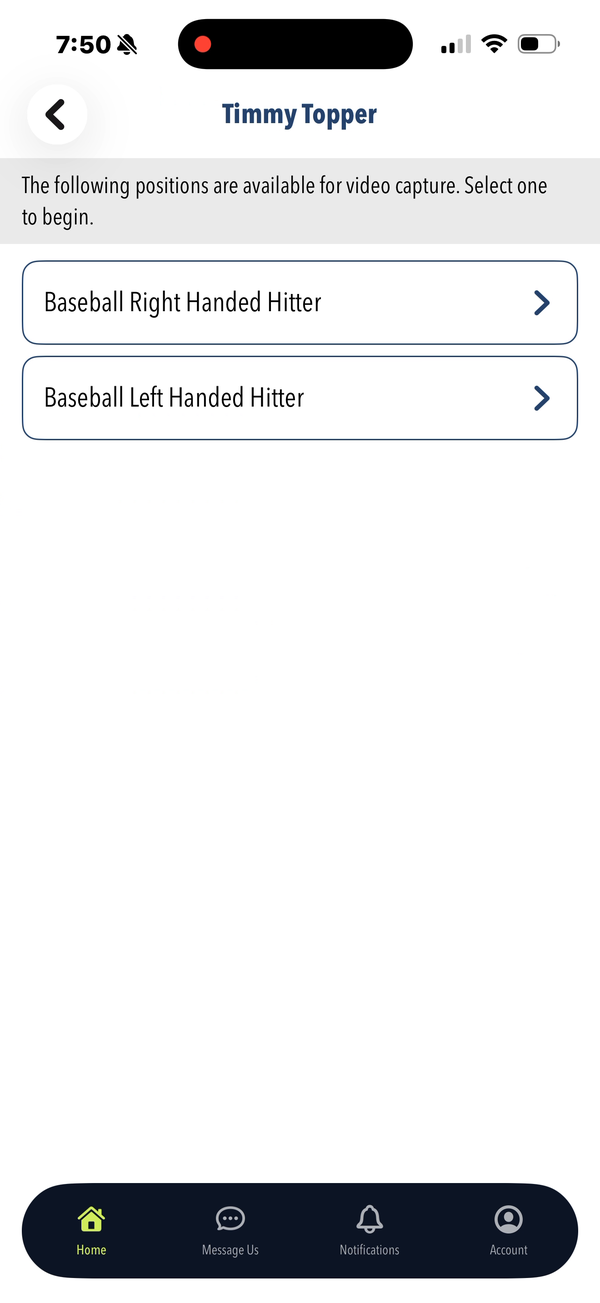
Figure M5: Position select — choose batting hand/position before video capture
1.5 Dashboard & Leaderboards
The Dashboard tab (accessible from the Home flow) shows organization-level leaderboard data. Teams and groups are listed with color-coded progress indicators showing relative performance across athletes.
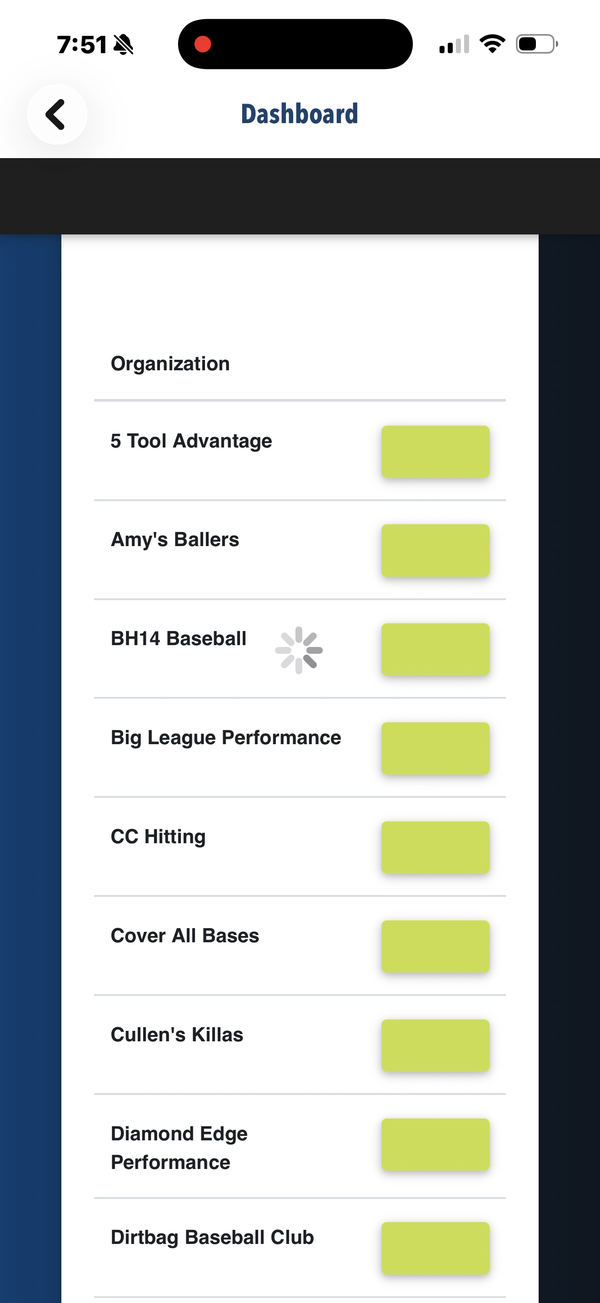
Figure M6: Dashboard view — organization leaderboard with color-coded athlete progress
1.6 Support & Activity
The Message Us tab opens a support chat interface where users can contact the Pelotero support team with any questions or issues. The Activity tab (visible after selecting a service) shows a chronological feed of recent events — video uploads, score generations, and game logs — for all athletes in that service. The Uploads tab shows pending and completed video uploads.
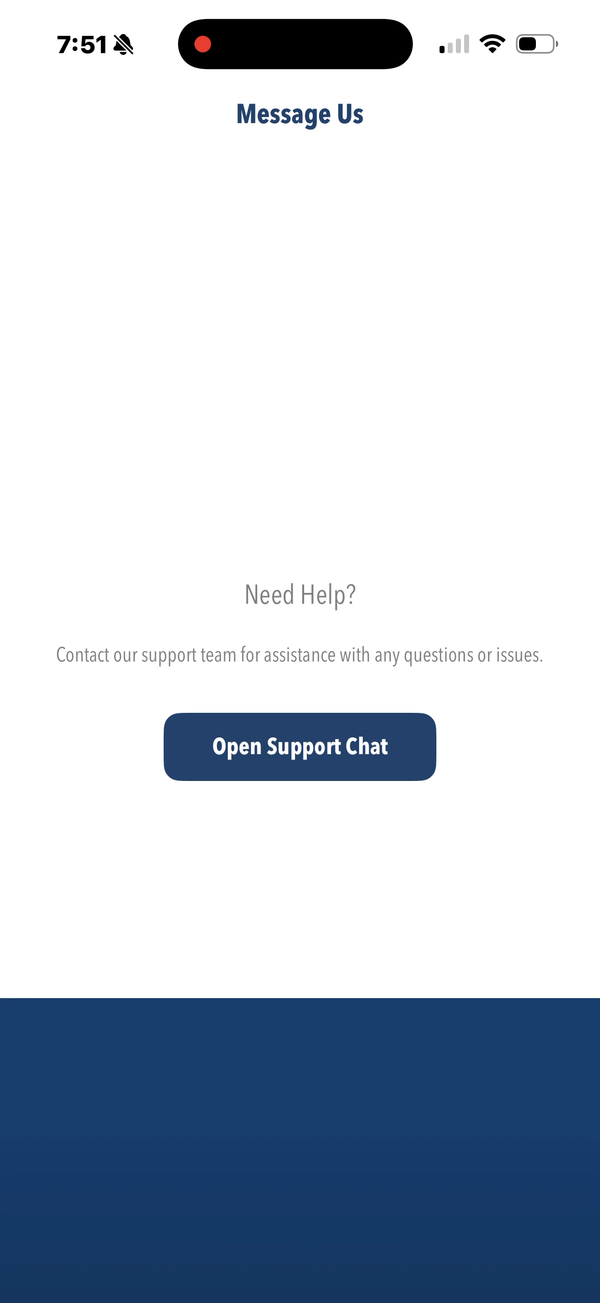
Figure M7: Message Us — support chat contact screen
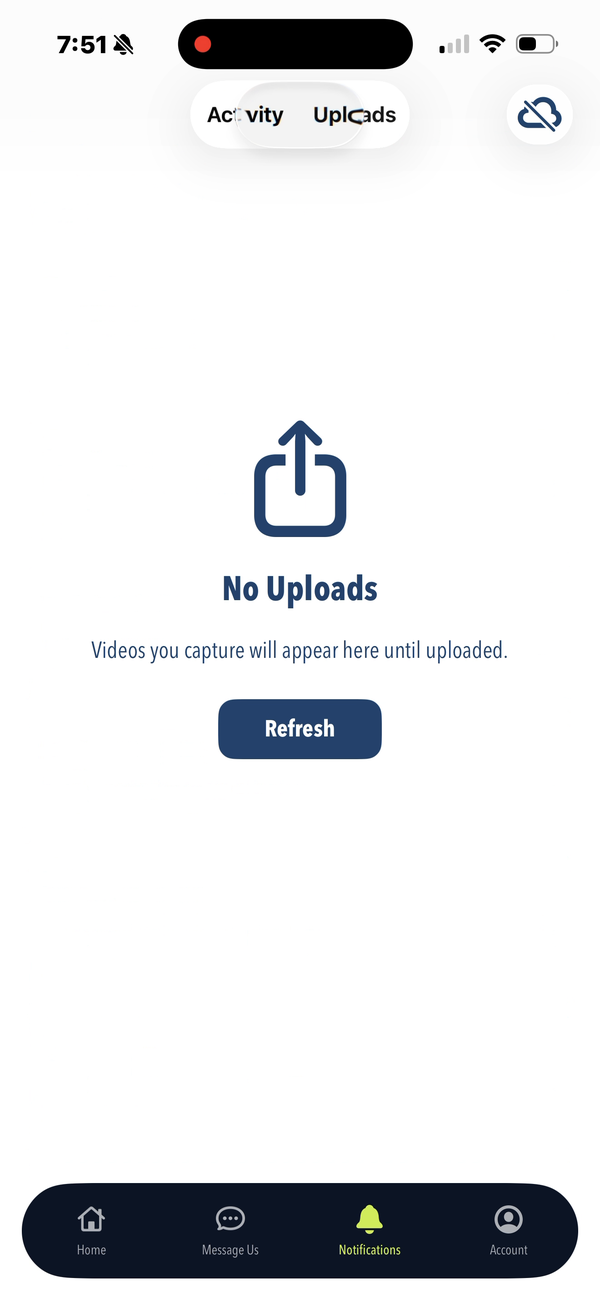
Figure M8: Activity & Uploads tabs — recent events feed and video upload status
Was this article helpful?
That’s Great!
Thank you for your feedback
Sorry! We couldn't be helpful
Thank you for your feedback
Feedback sent
We appreciate your effort and will try to fix the article