The first (and simplest) data to collect is a hitter's Swing Mechanics Video.
Once players have been added to the platform, video collection is as simple as opening up the Pelotero app, logging in with your coach credentials and choosing the Service that you'll be collecting data for.
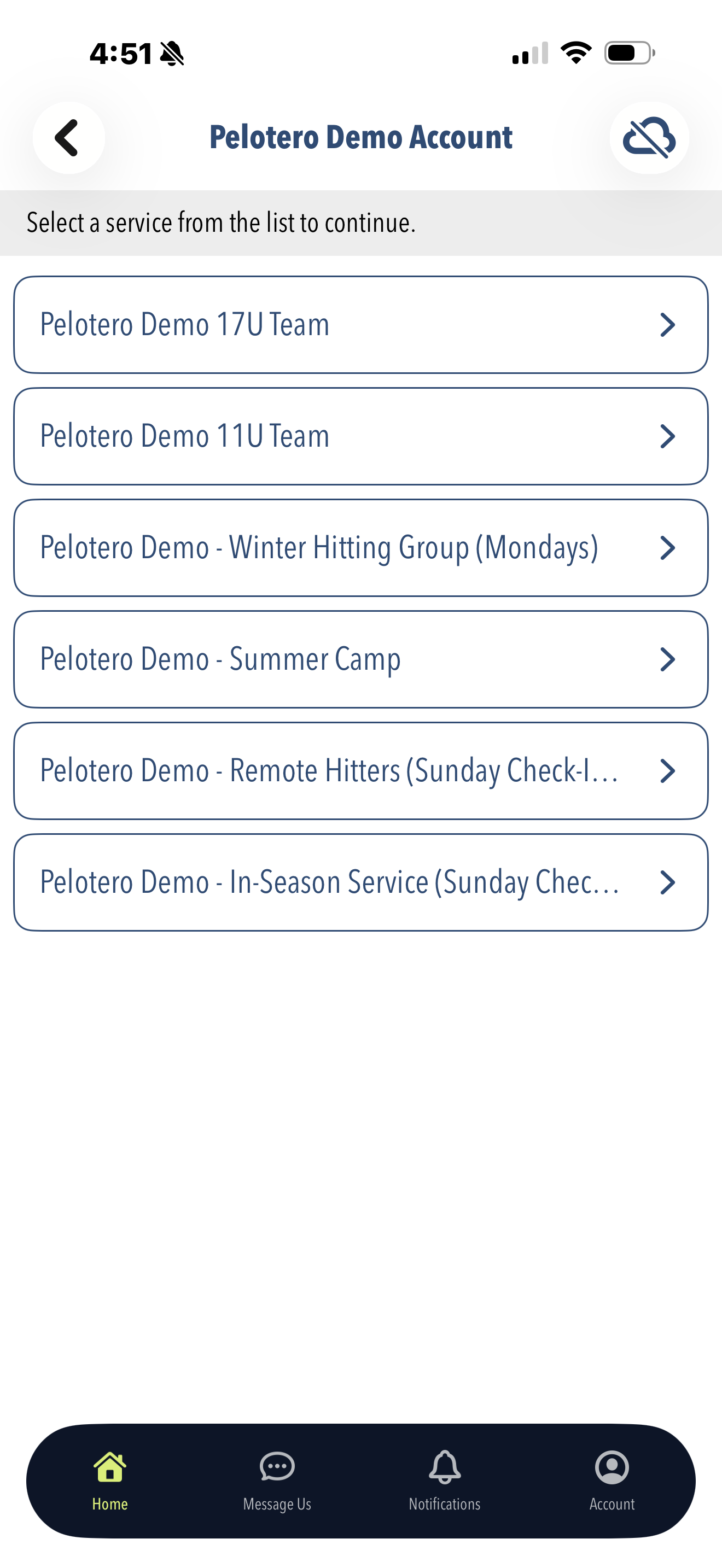
Once you've chosen your service, you'll click into the 'Collect Player Data' menu item.
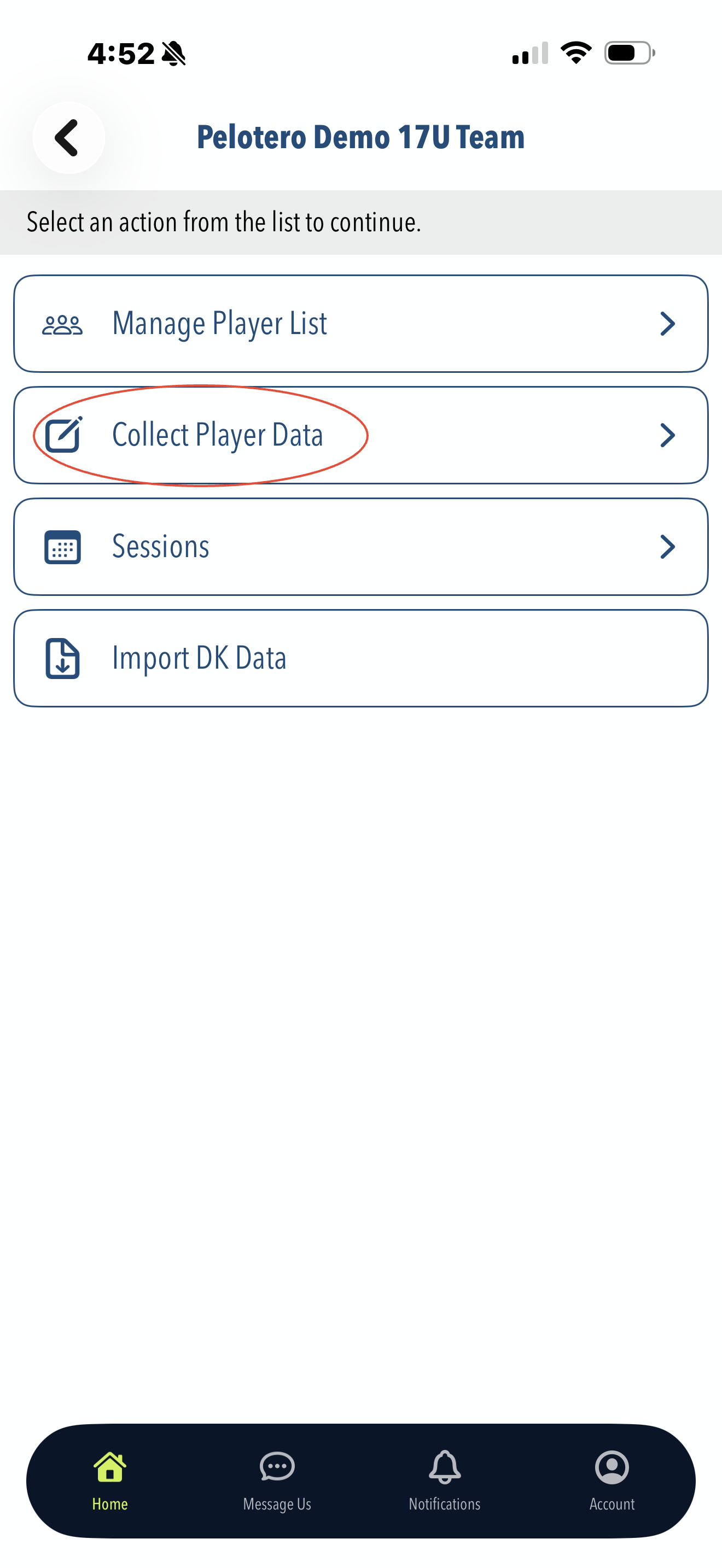
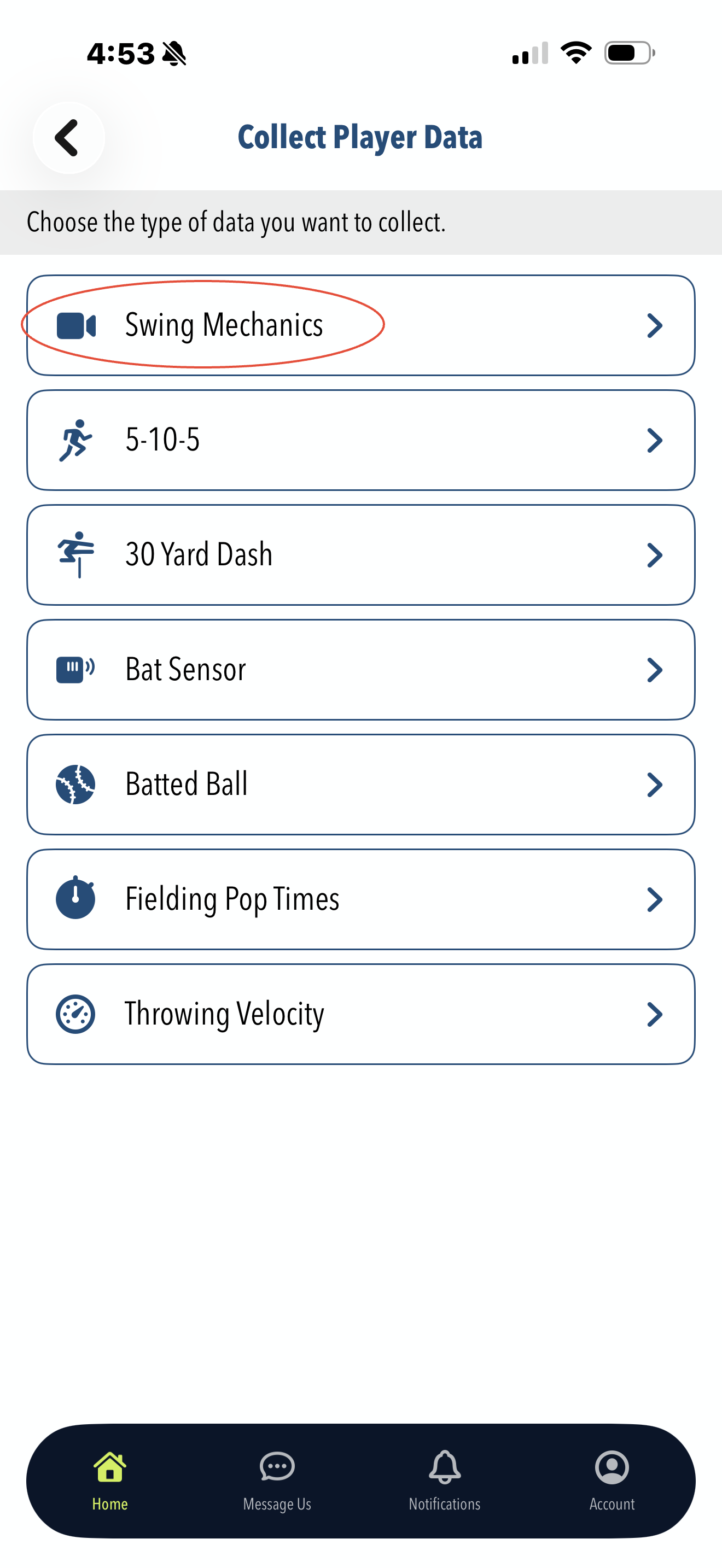
In the following menu, you will choose the type of data you'd like to collect. In this case, when we'd like to upload swing video, we'll be choosing 'Swing Mechanics'
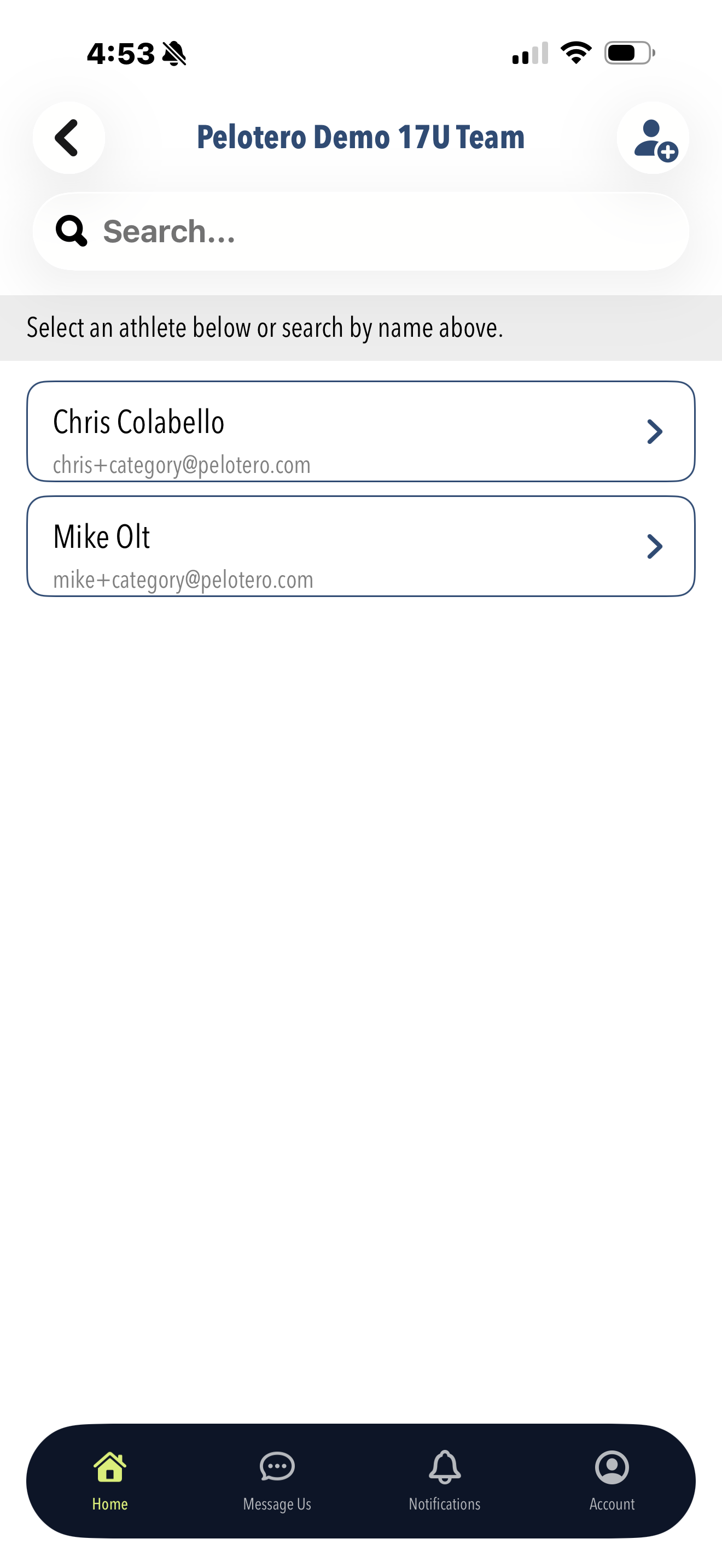
The next step is to choose the specific player that you'd like to collect data for.
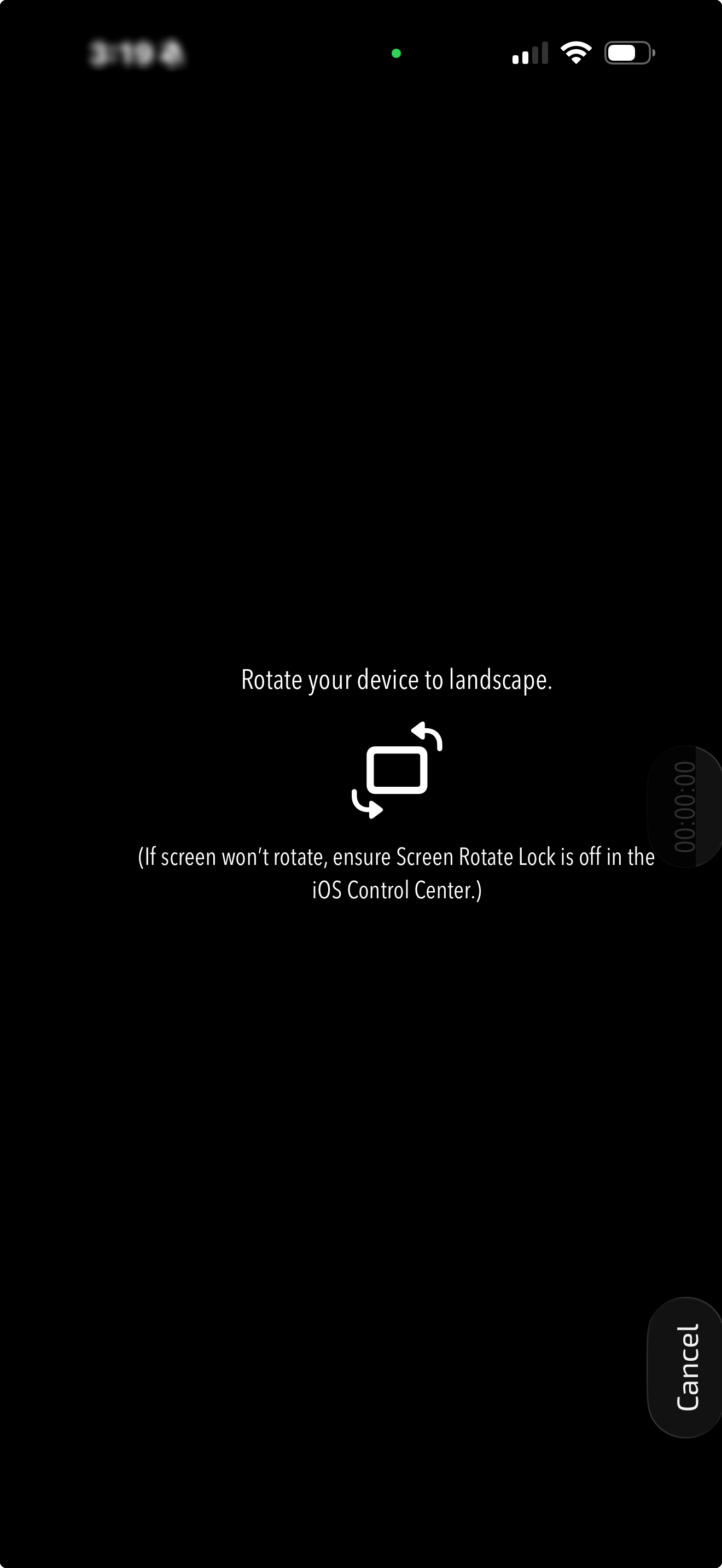
Once you have chosen the player, you will be taken through a guided experience on how to best perform the video capture itself. You'll start by seeing the initial prompt on the screen telling you to 'Rotate your Device'
Once the device is rotated you will see another notification telling you how to align the player on the screen. The notification will inform you to line up the player's feet with the yellow line at the bottom of the screen and to use the cross in the middle to align to their front foot.
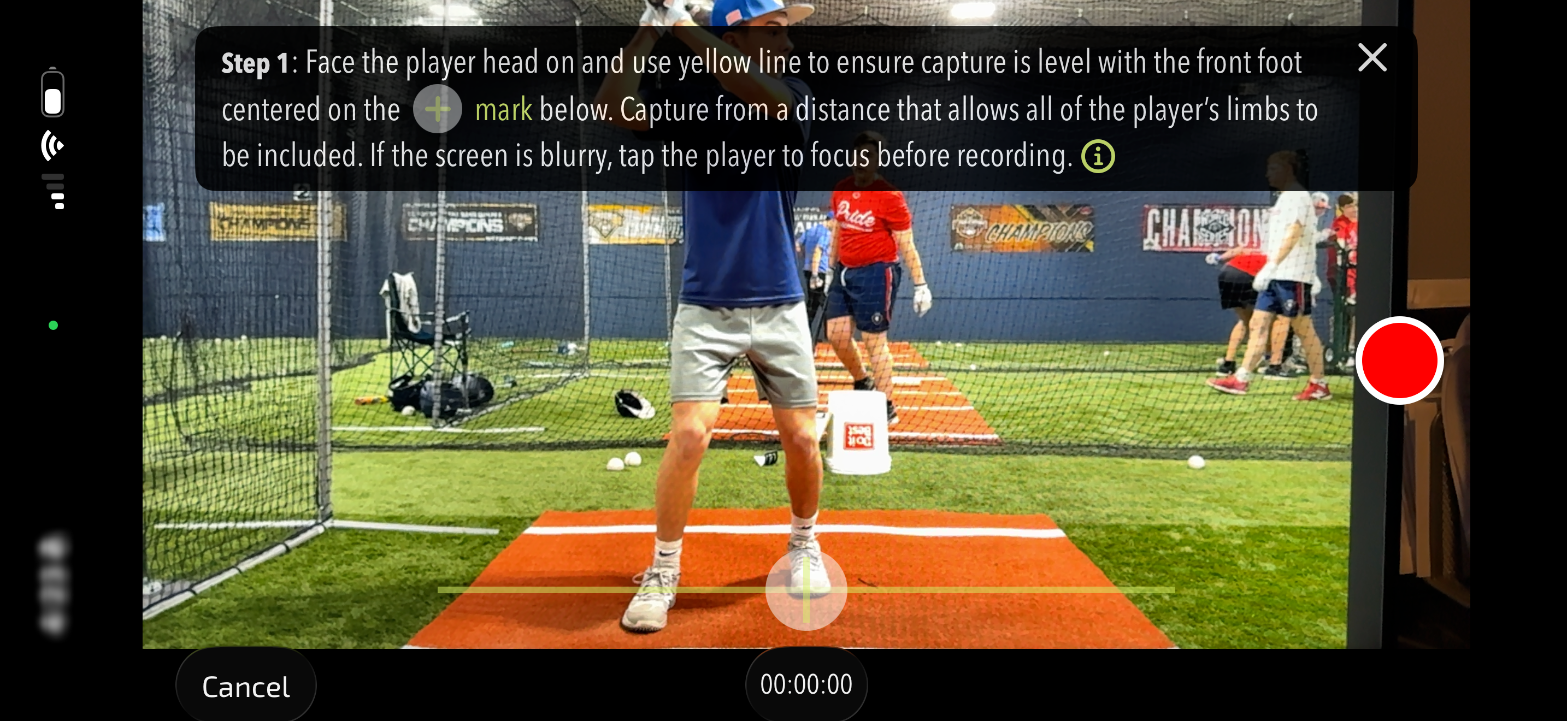
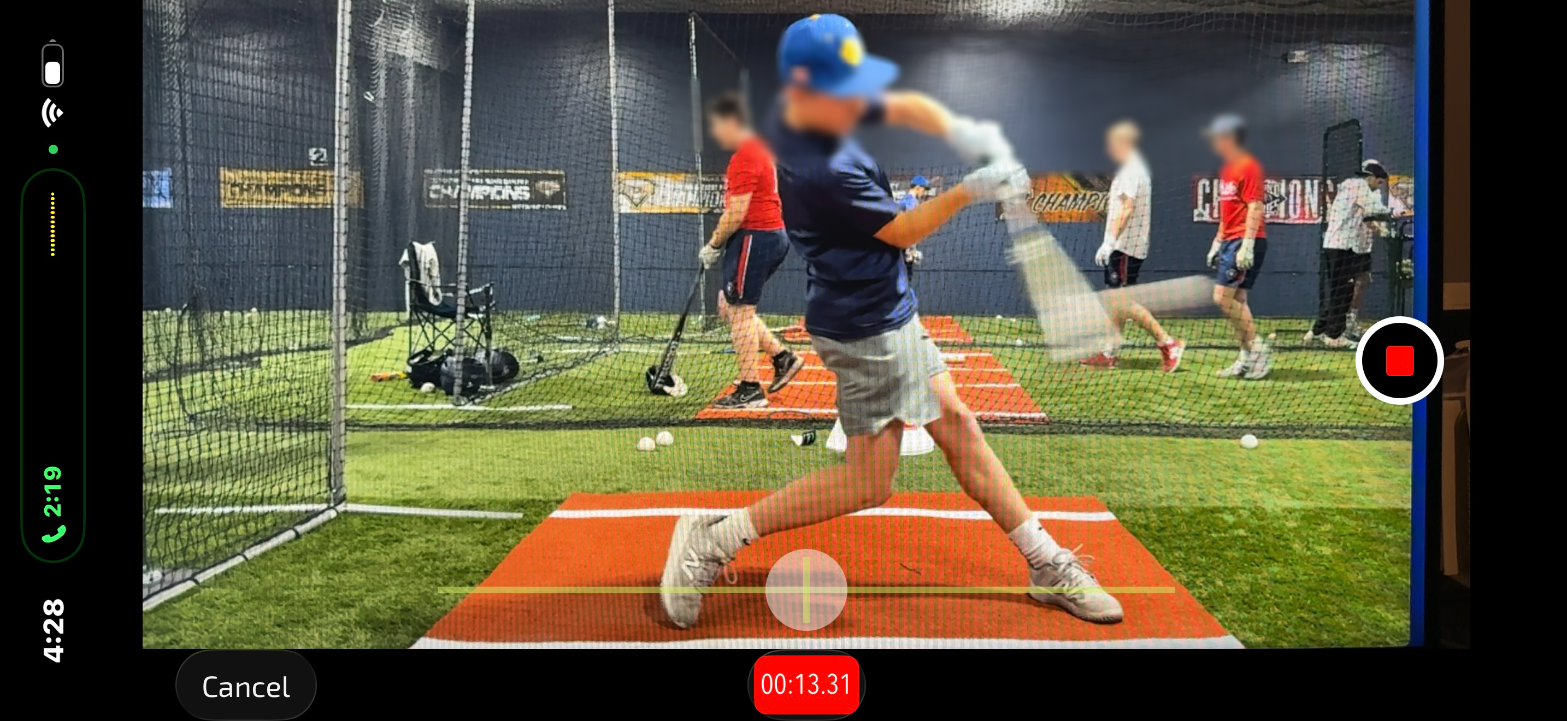
Once you've lined the player up on your screen and ensured the image is properly focused you can remove the notification and begin recording. Once the recording has started, you can record as many swings as you'd like.
***NOTE: DO NOT LET THE PHONE GO INTO AUTO-LOCK. YOUR VIDEO WILL NOT PROCESS IF THE PHONE GOES TO THE LOCK SCREEN DURING RECORDING
After capturing the swings and stopping the recording, you'll be asked to set the contact frame for the swing that you choose to upload. You can click and drag on the slider and then use the buttons on the right and left of the screen to move 1 or 10 frames at a time, to get the ball and bat as close to contact as possible. Once you've arrived at the contact frame, click the 'Set Contact Frame' button in the bottom right.
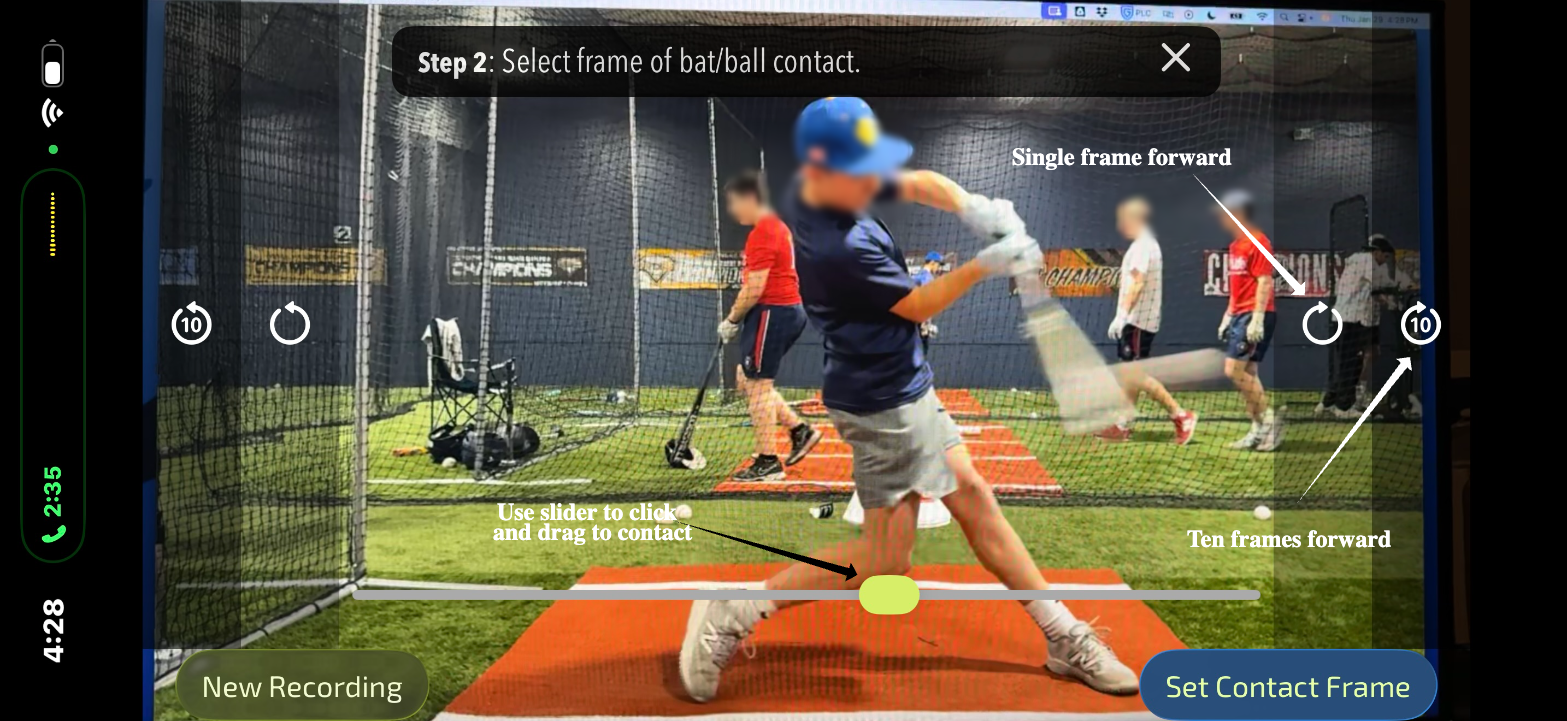
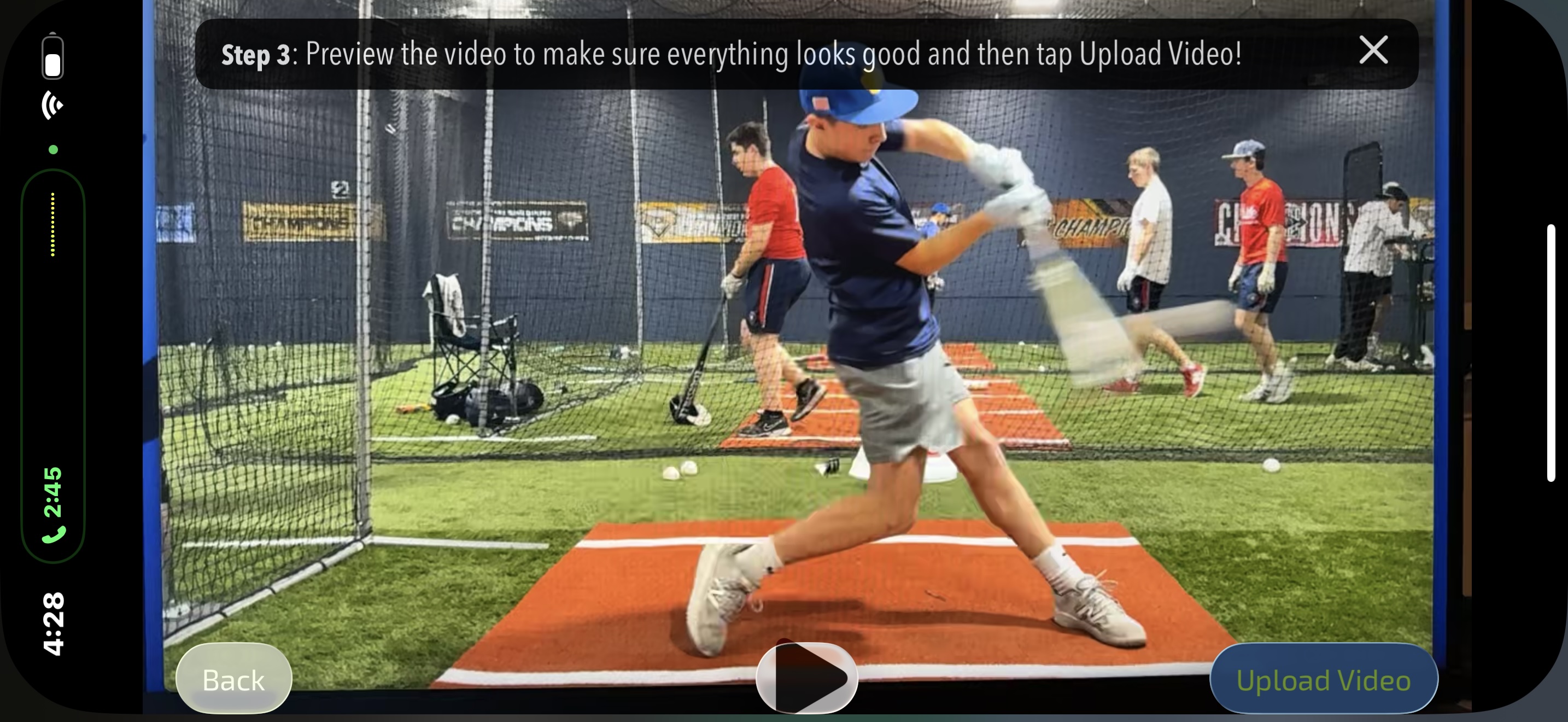
Once you've set the contact frame, hit the 'Upload Video' button and you're video is off to be processed.
Review Video Log Activity
In order to verify that your videos are processing, you can check the video log for each individual service within Pelotero. To access the Video Log, you must enter your service and click on the three dot menu on the right of the screen.
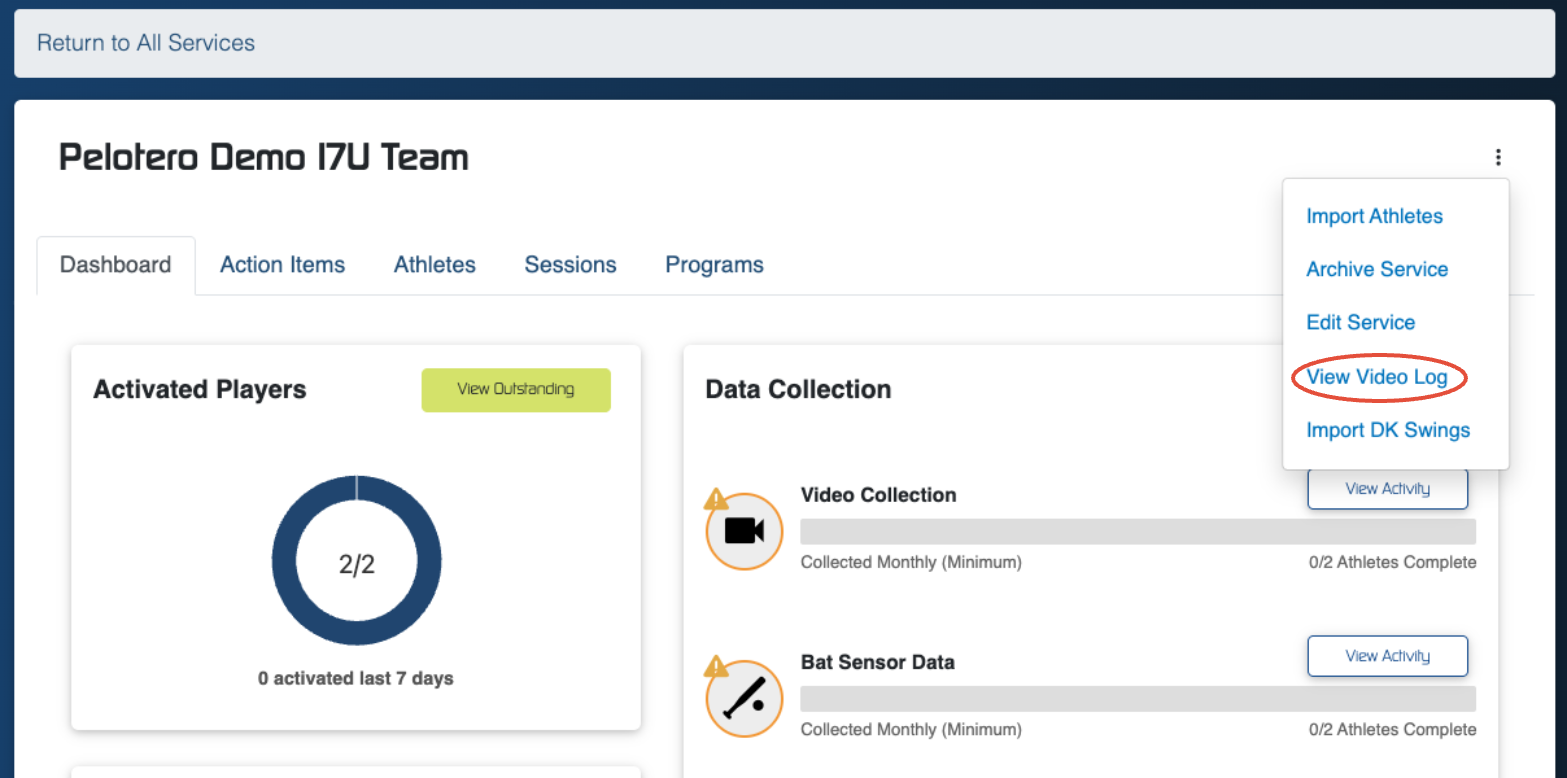
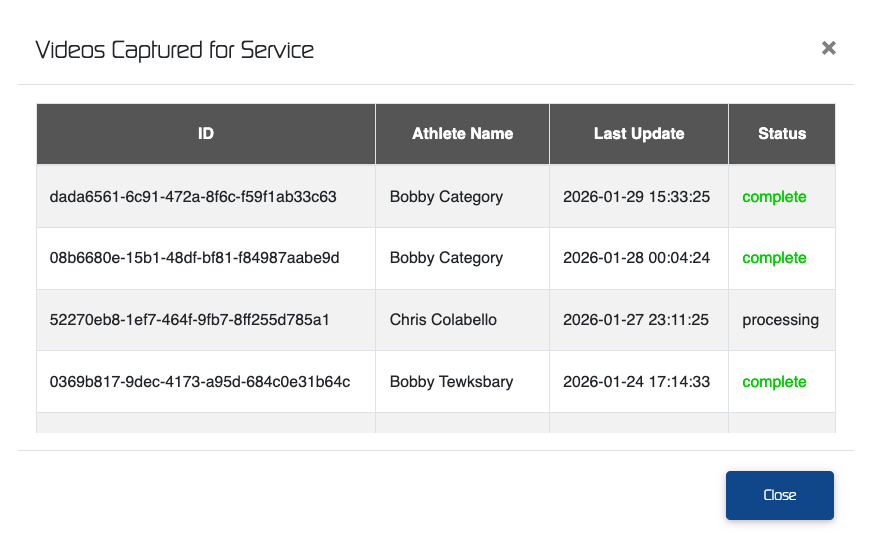
Once you've entered the video log you will see five possible states of a video:
- Pending - an athlete's video is awaiting account activation before processing.
- Processing - video is currently processing and will be available shortly.
- Created - video recording began, but was not completed (VIDEO WILL NOT PROCESS)
- Cancelled - video was denied for processing
- Complete - video is available for review
Was this article helpful?
That’s Great!
Thank you for your feedback
Sorry! We couldn't be helpful
Thank you for your feedback
Feedback sent
We appreciate your effort and will try to fix the article