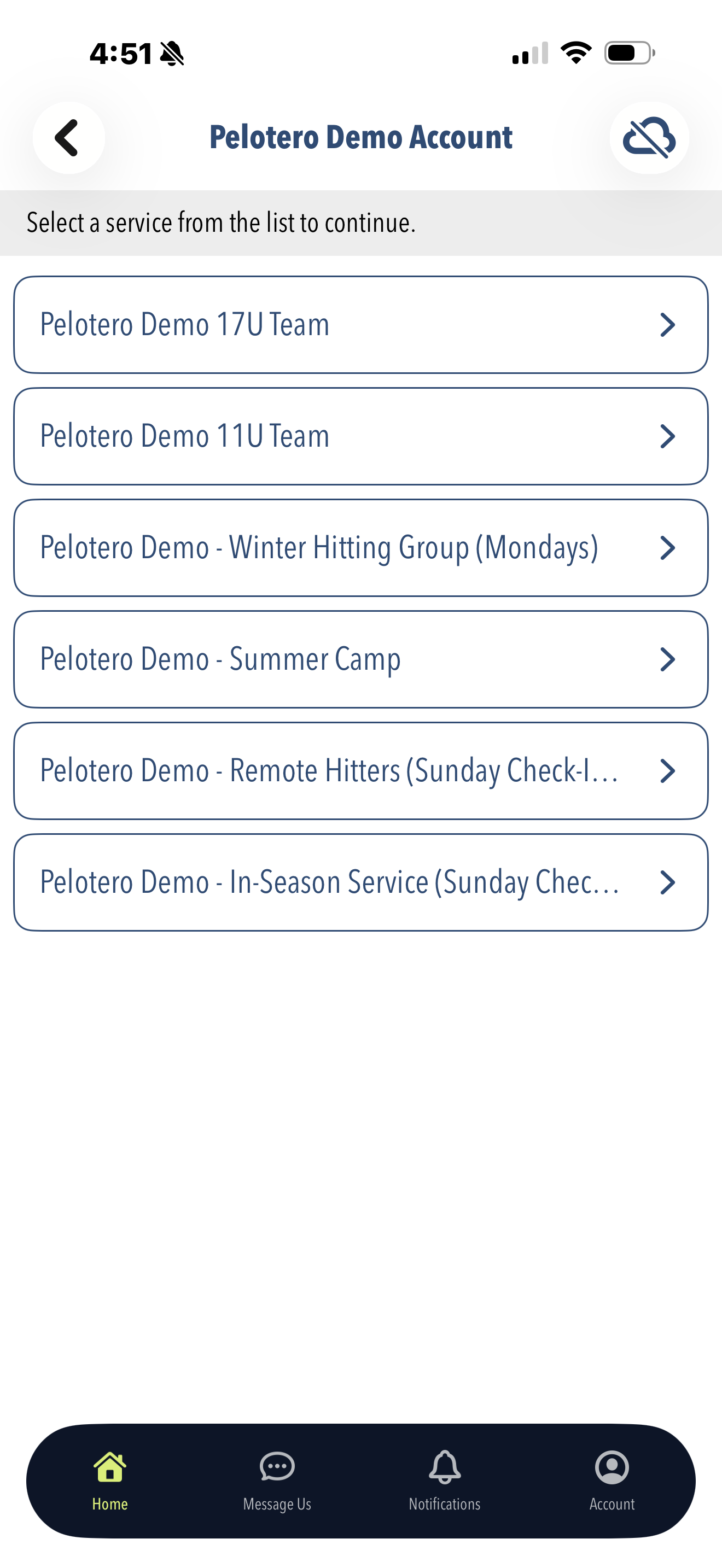
The first (and simplest) data to collect is a hitter's Swing Mechanics Video. Once players have been added to the platform, video collection is as simple as opening up the Pelotero app, logging in with your coach credentials and choosing the Service that you'll be collecting data for.
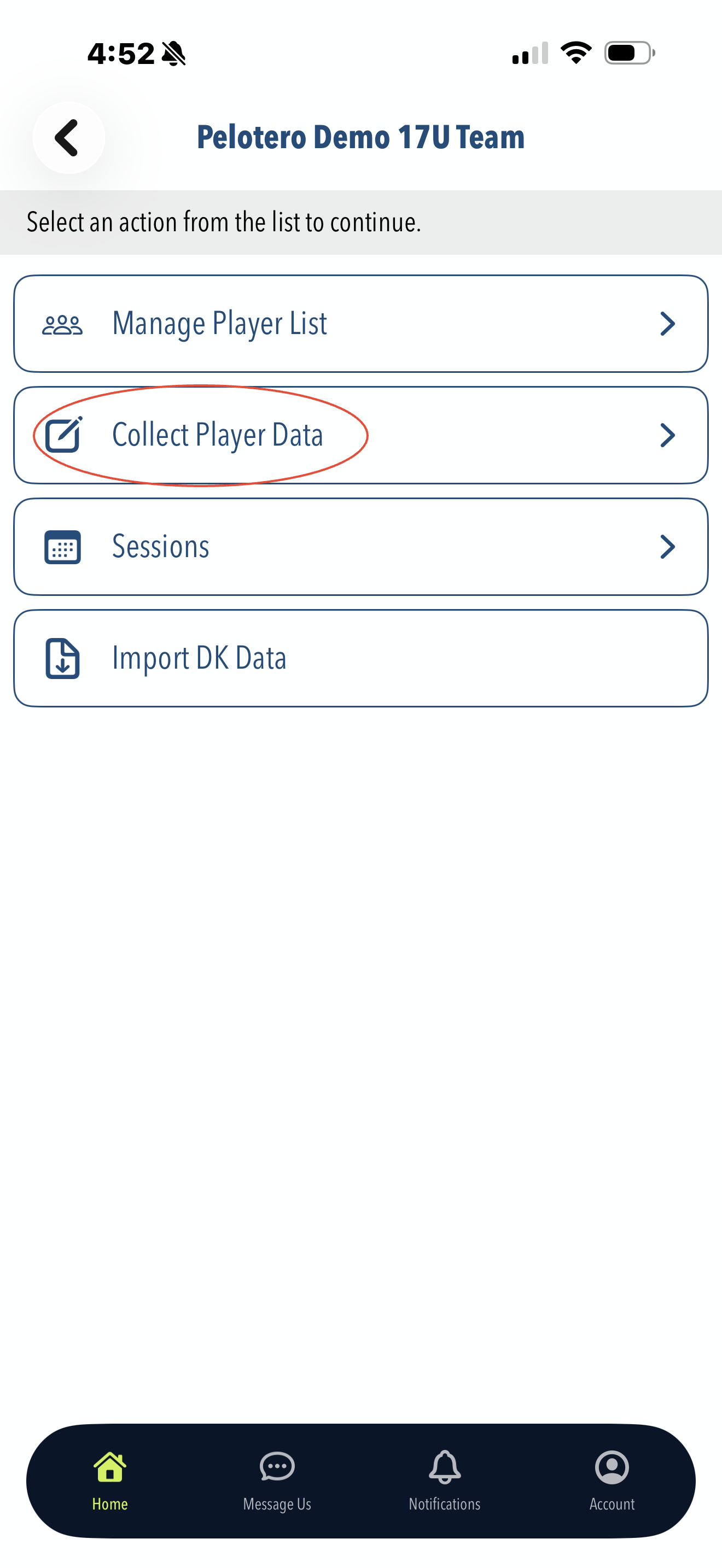
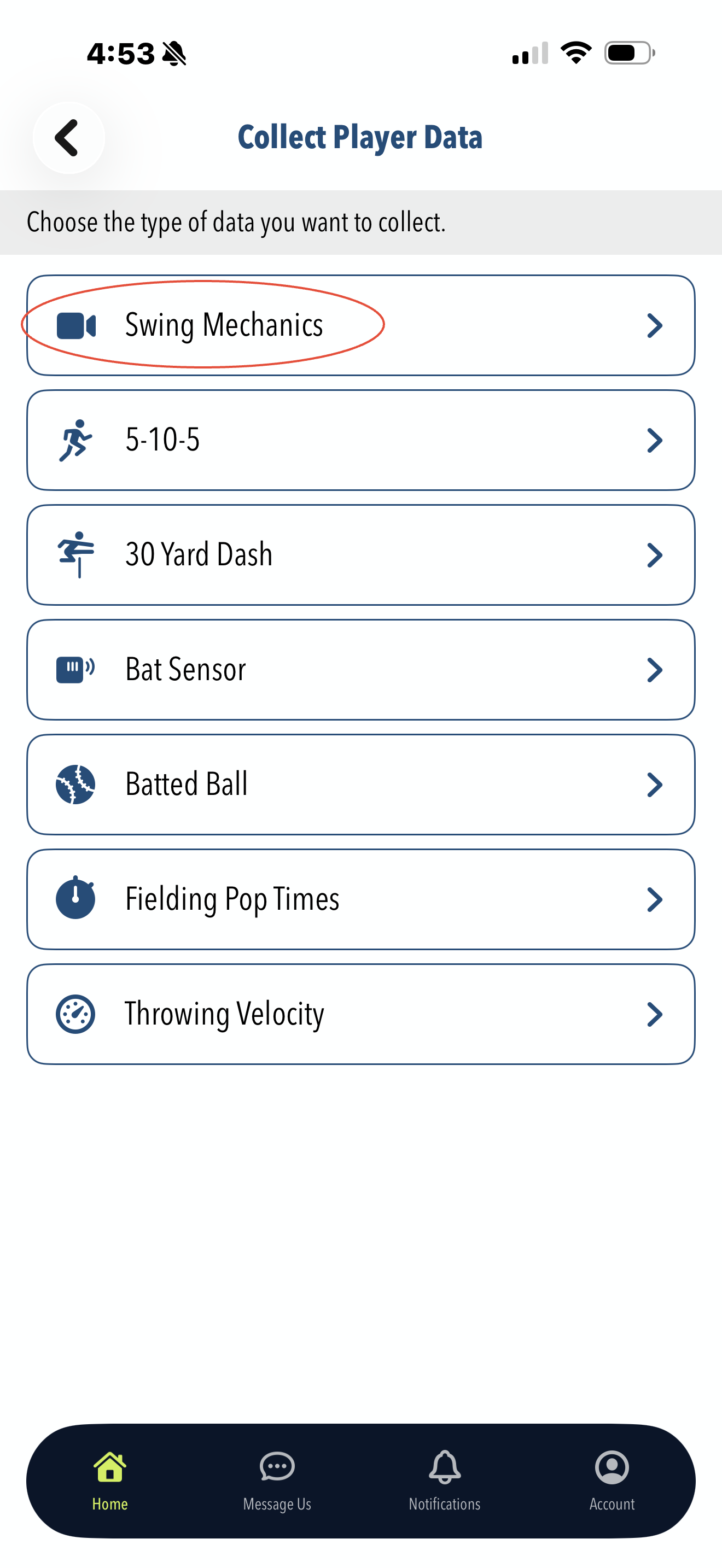
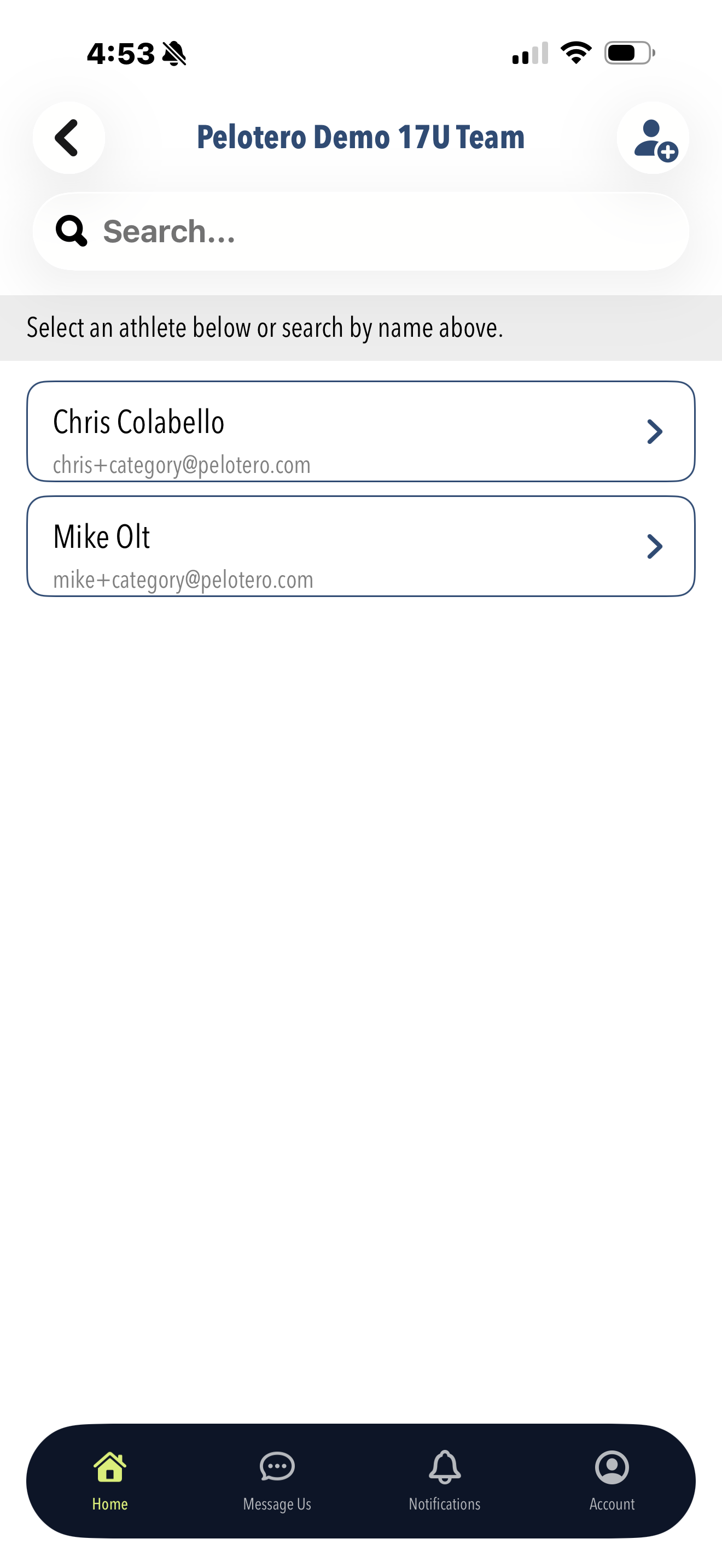
Once you've chosen your service, you'll click into the 'Collect Player Data' menu item. In the following menu, choose the type of data you'd like to collect — in this case, 'Swing Mechanics.' The next step is to choose the specific player you'd like to collect data for.
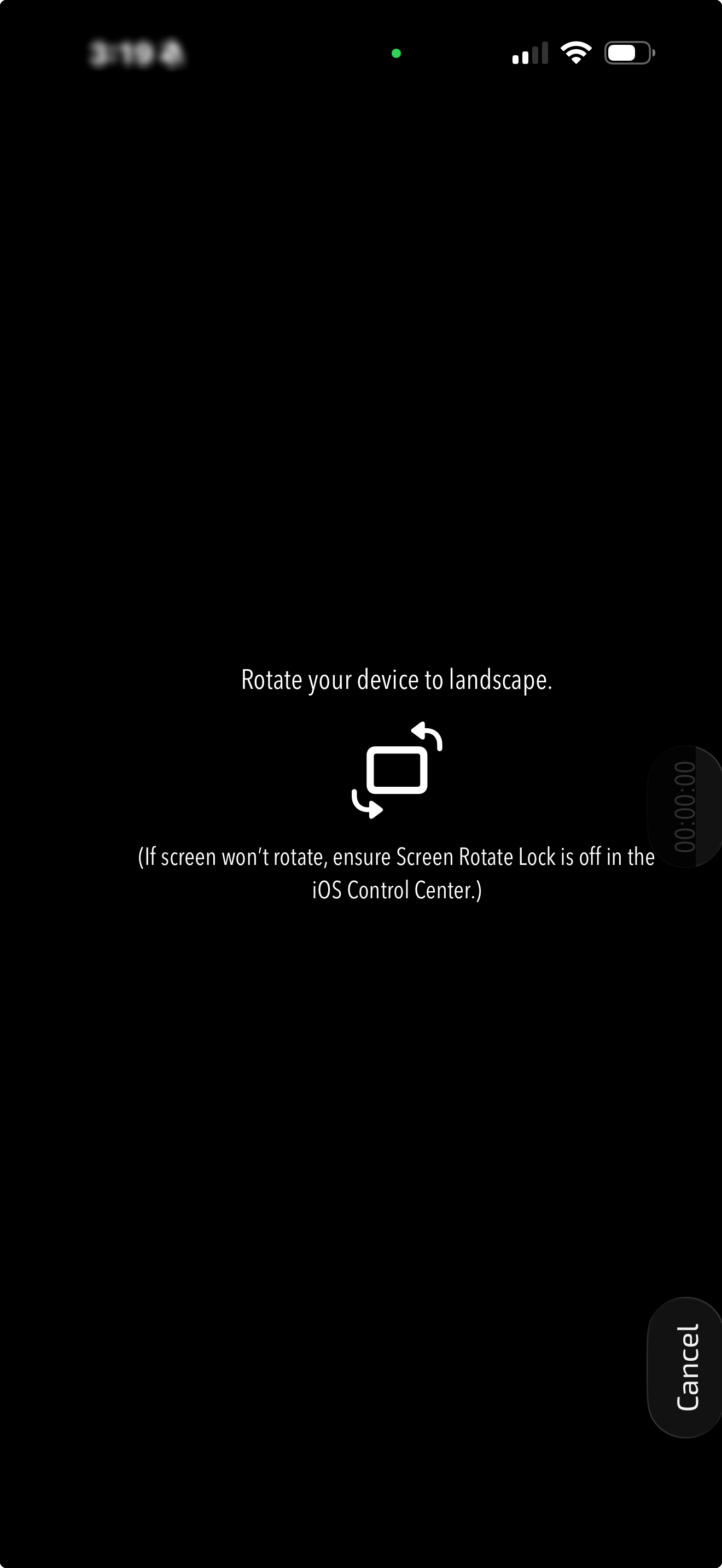
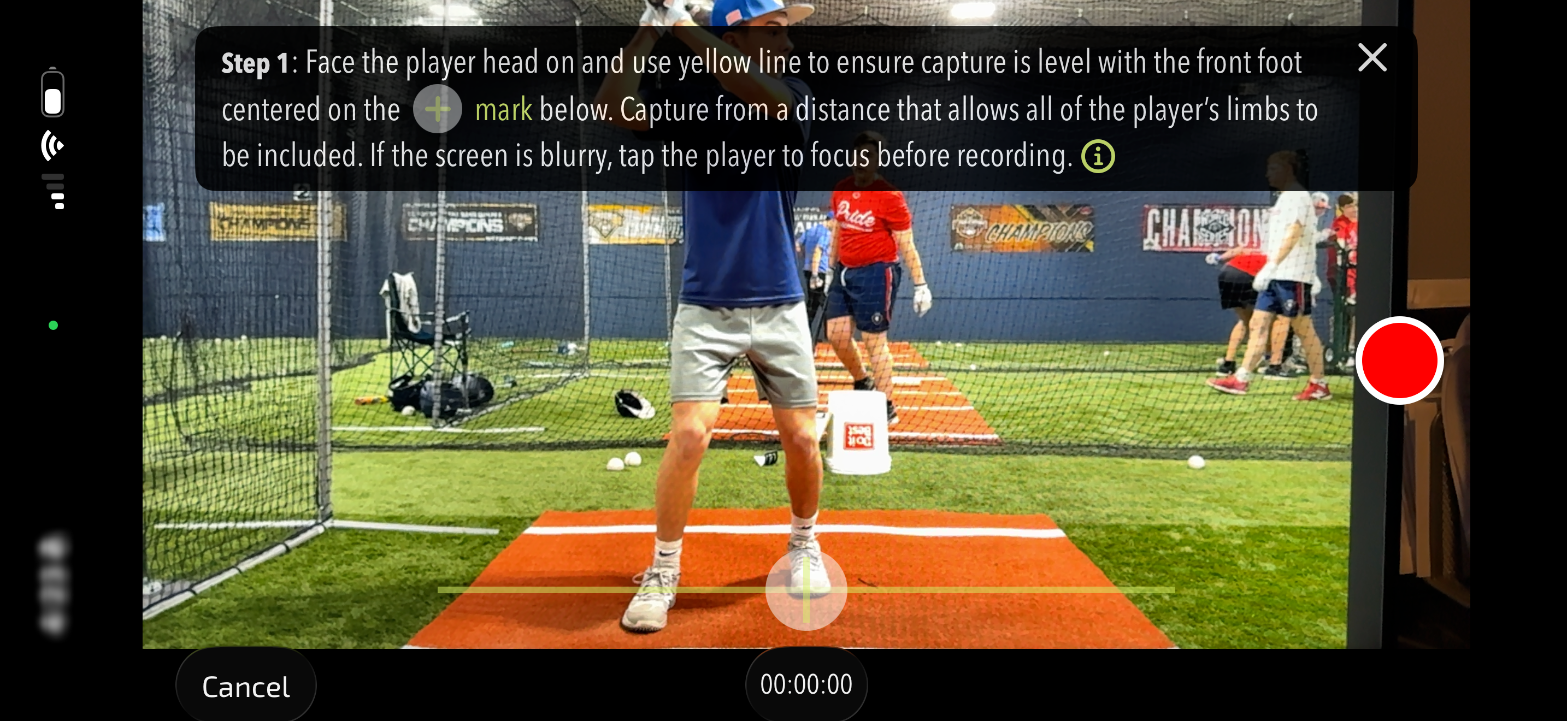
Once you have chosen the player, you will be taken through a guided experience on how to best perform the video capture. You'll start by seeing the prompt 'Rotate your Device.' Once the device is rotated, another notification tells you how to align the player: line up the player's feet with the yellow line at the bottom of the screen and use the cross in the middle to align to their front foot.
Once you've lined the player up and ensured the image is properly focused, you can remove the notification and begin recording. You can record as many swings as you'd like. NOTE: DO NOT LET THE PHONE GO INTO AUTO-LOCK. YOUR VIDEO WILL NOT PROCESS IF THE PHONE GOES TO THE LOCK SCREEN DURING RECORDING.
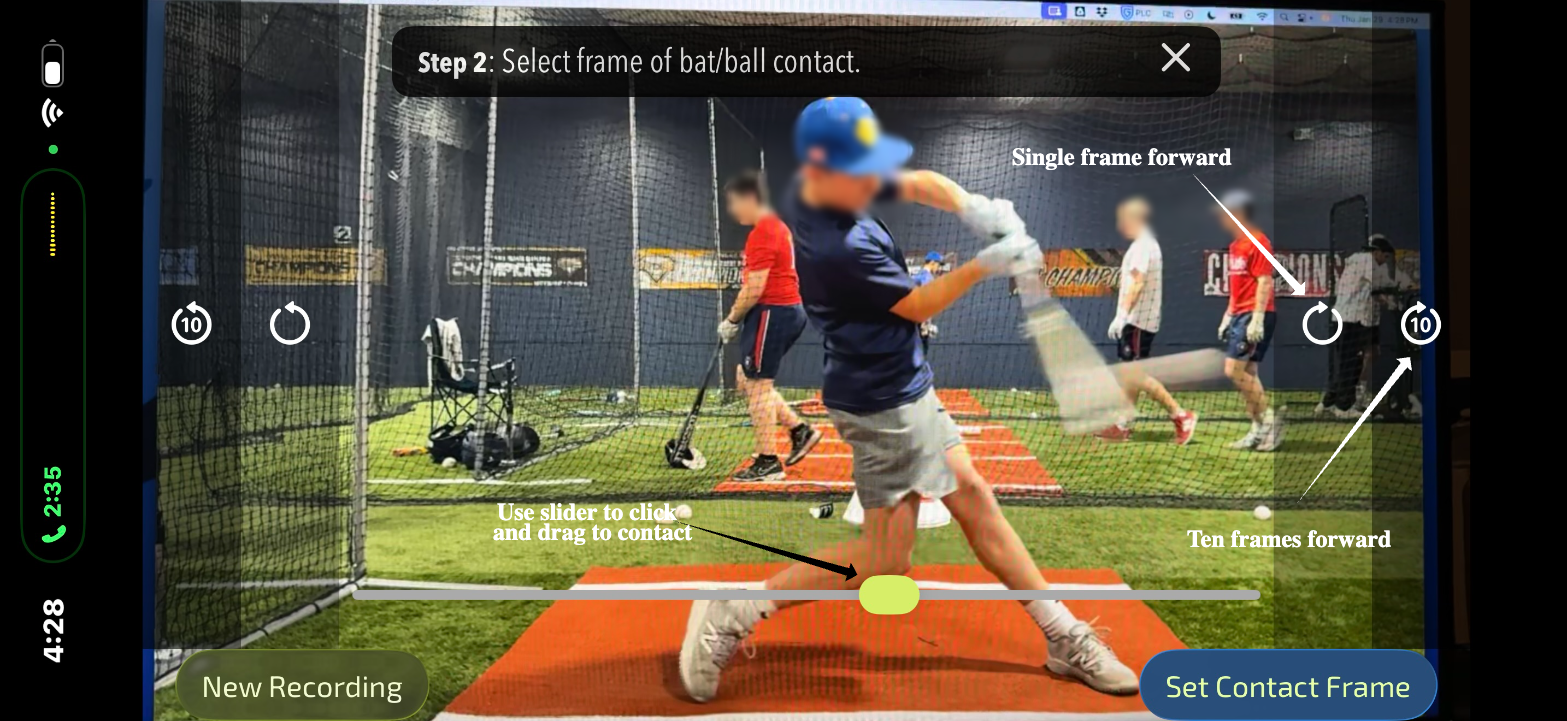
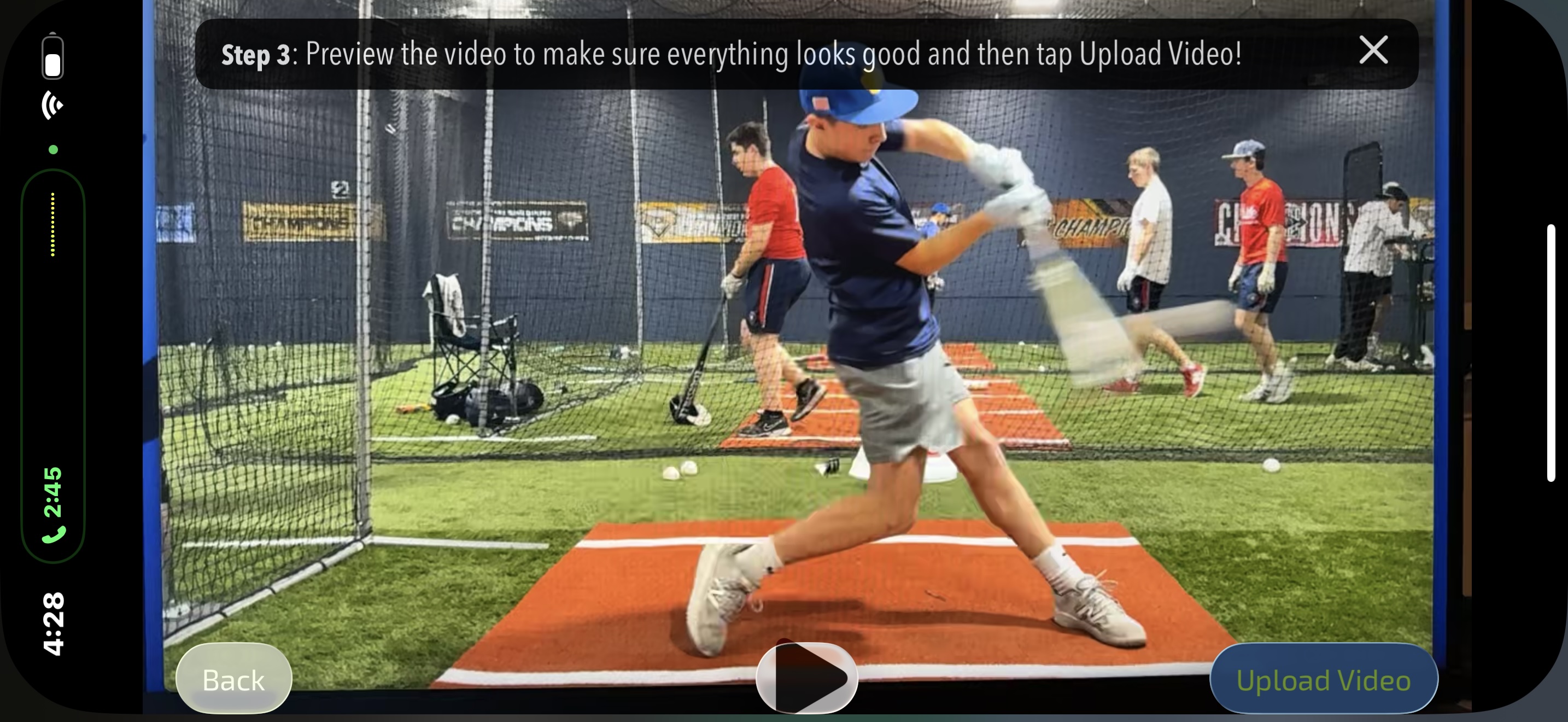
After capturing the swings and stopping the recording, you'll be asked to set the contact frame for the swing you choose to upload. Click and drag on the slider and then use the buttons on the right and left to move 1 or 10 frames at a time, to get the ball and bat as close to contact as possible. Once you've arrived at the contact frame, click the 'Set Contact Frame' button in the bottom right, then hit the 'Upload Video' button.
Review Video Log Activity
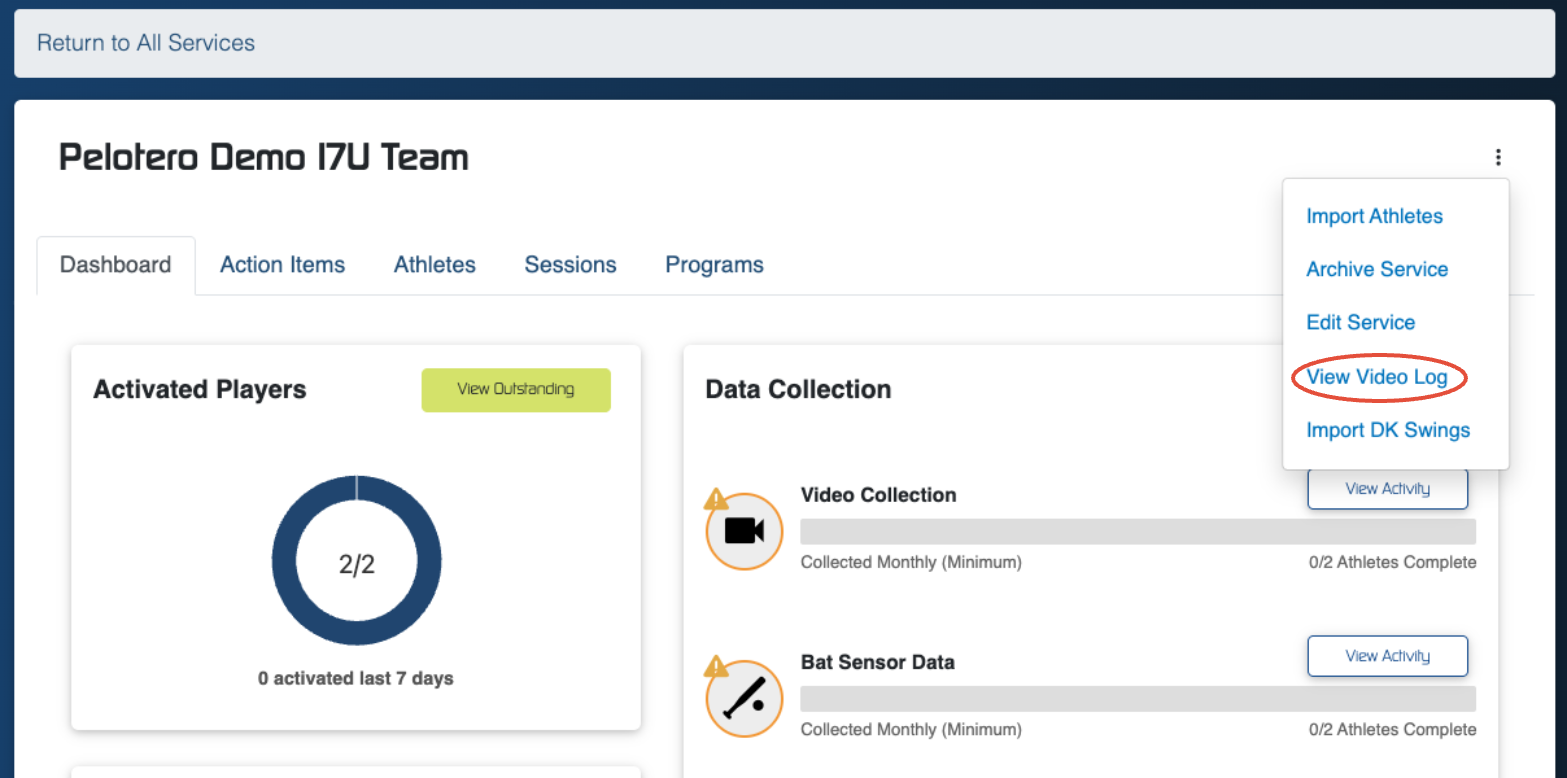
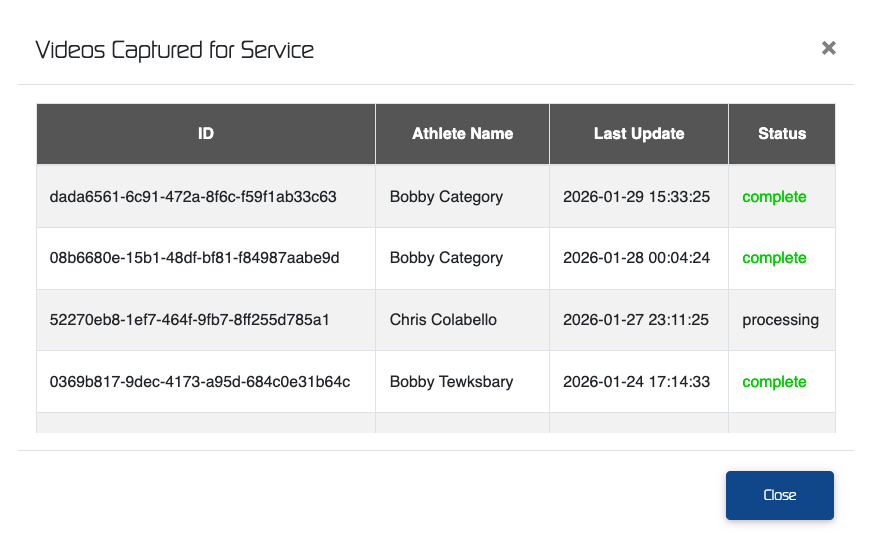
To verify your videos are processing, check the video log for each individual service. To access the Video Log, enter your service and click on the three dot menu on the right of the screen. Once inside the video log you will see five possible states of a video: Pending (awaiting account activation before processing); Processing (currently processing, available shortly); Created (recording began but was not completed — video will not process); Cancelled (video was denied for processing); and Complete (video is available for review).

Was this article helpful?
That’s Great!
Thank you for your feedback
Sorry! We couldn't be helpful
Thank you for your feedback
Feedback sent
We appreciate your effort and will try to fix the article