Step 1: Select Your Service
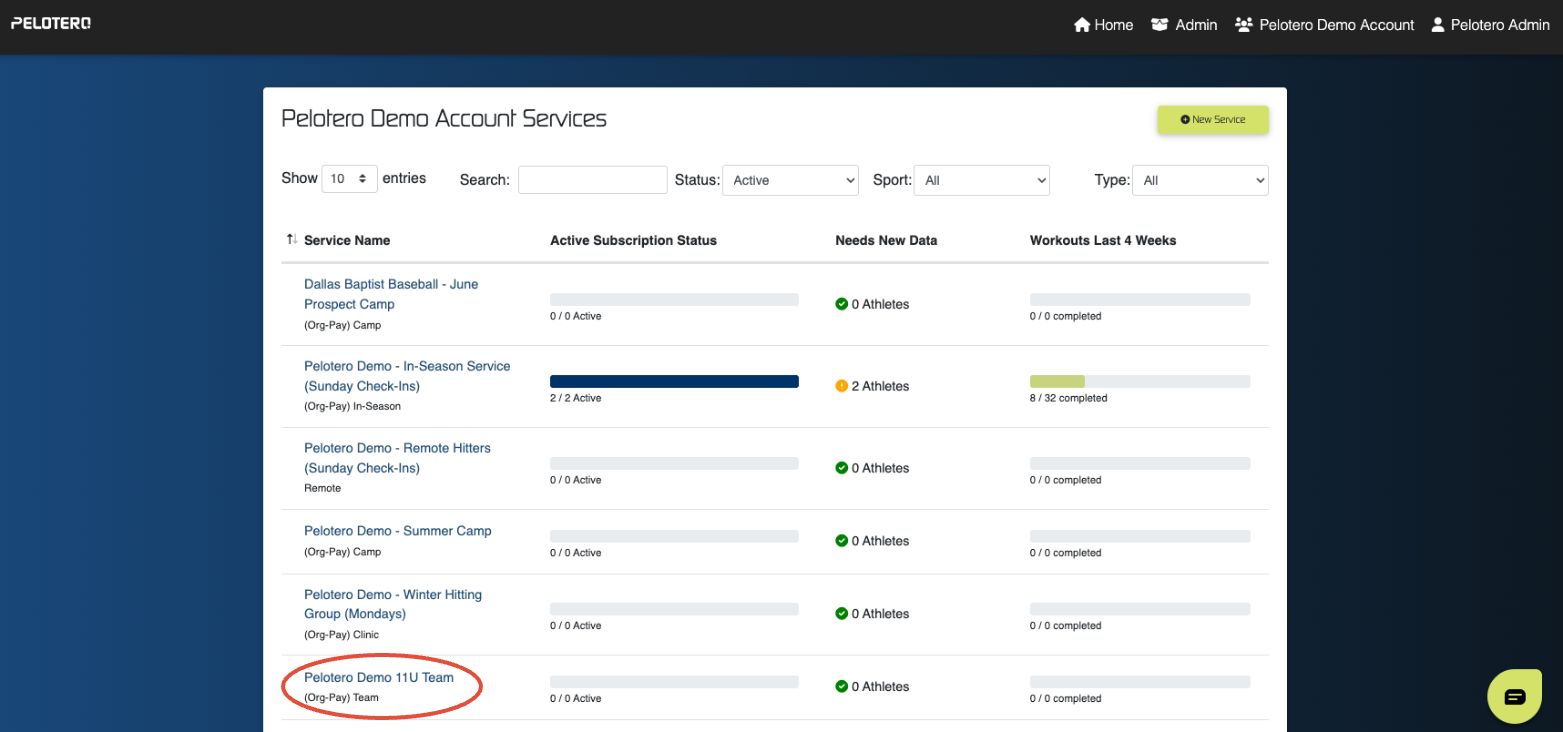
Log in to your Pelotero dashboard to view your active services.
Navigate to the Service Name list and select the specific team or camp you wish to manage (e.g., "Pelotero Demo 17U Team").
Step 2: Access the Athlete List
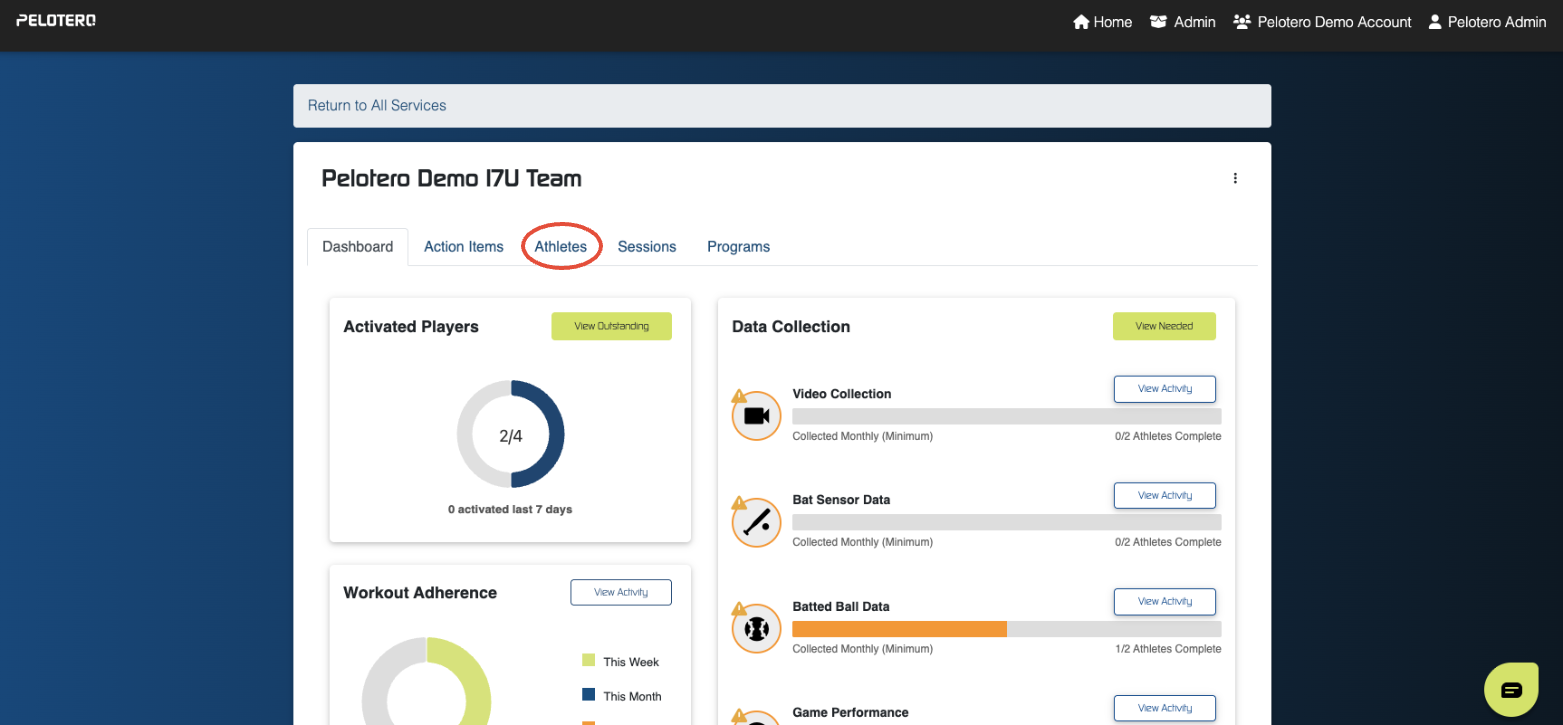
Once inside the service dashboard, click on the Athletes tab located in the top navigation menu.
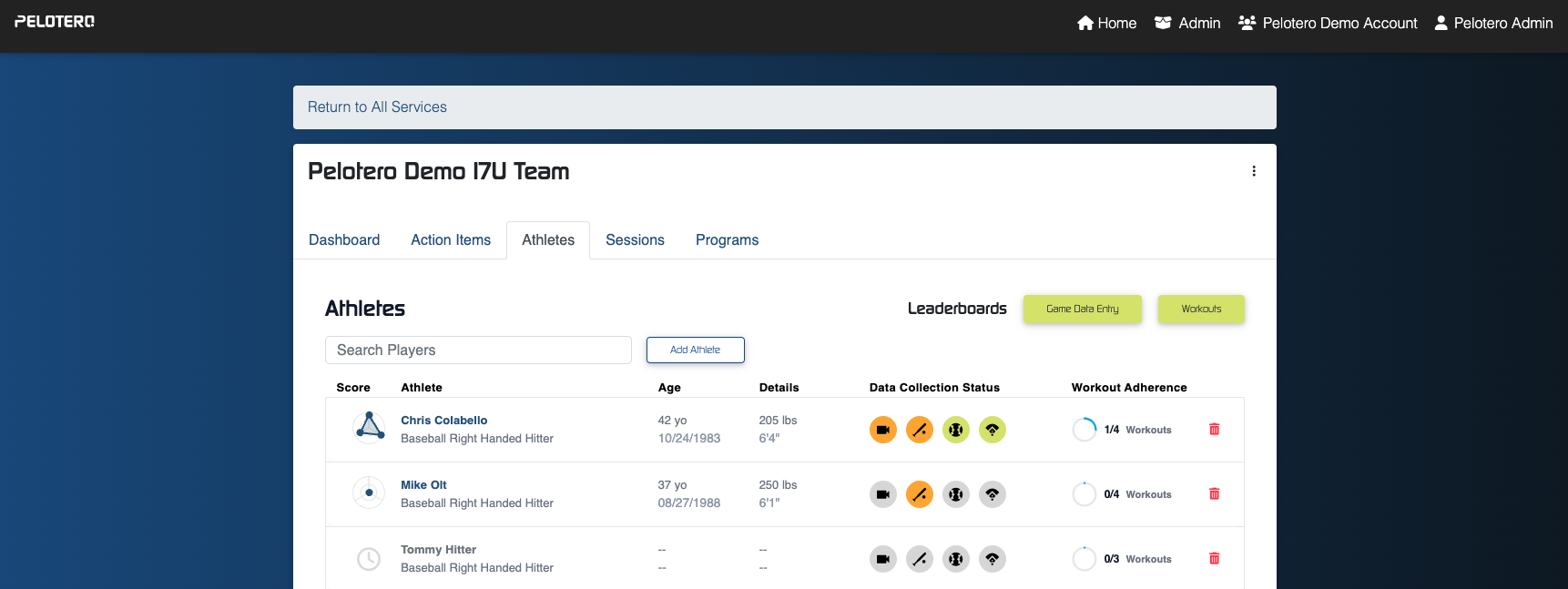
This will bring up your roster, displaying names, ages, and data collection statuses.
Step 3: Manually Enter Batted Ball Data
Locate the athlete you wish to update in the list.
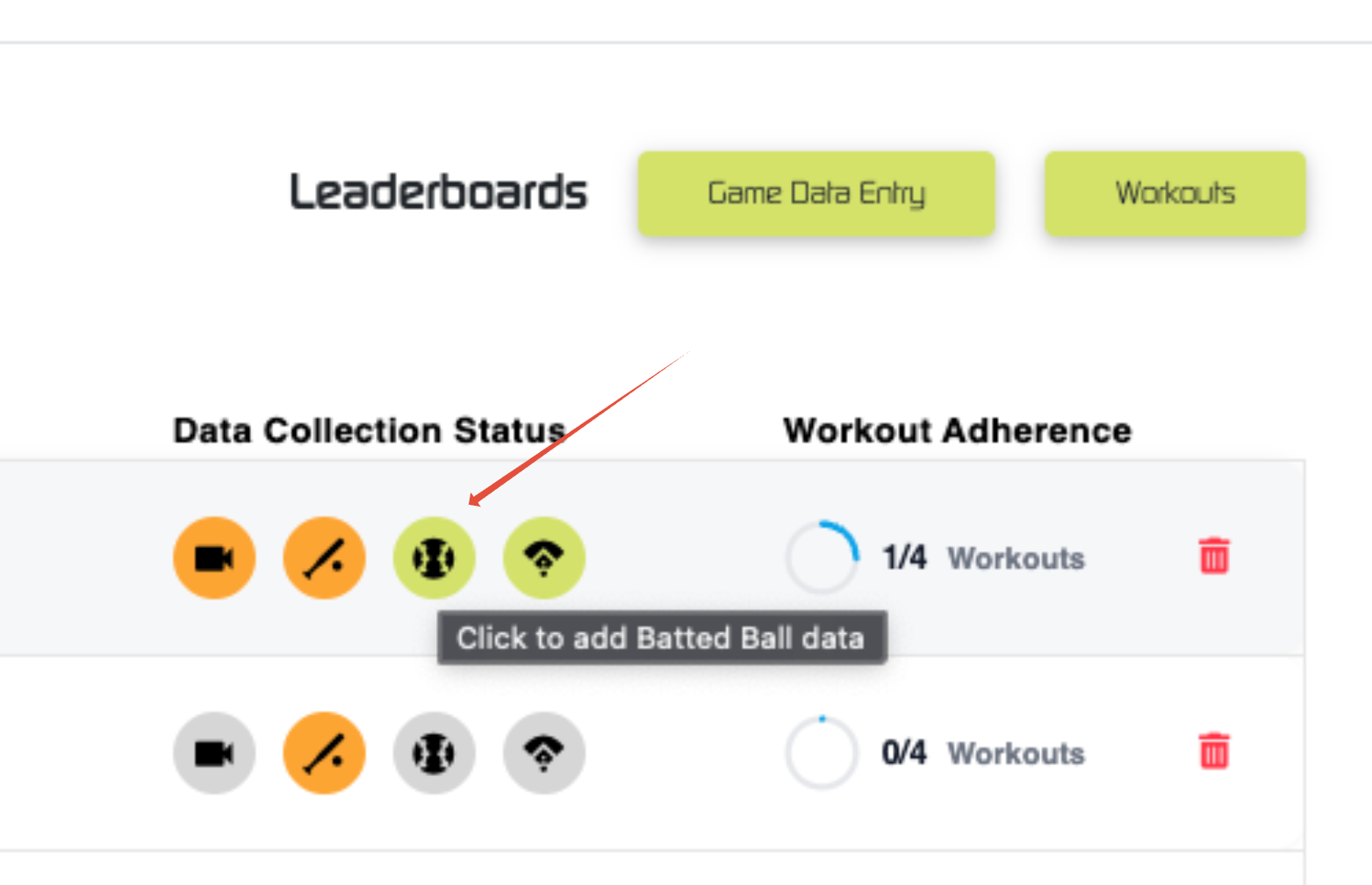
In the Data Collection Status column, hover over the icons until you find the one labeled "Add Batted Ball Data".
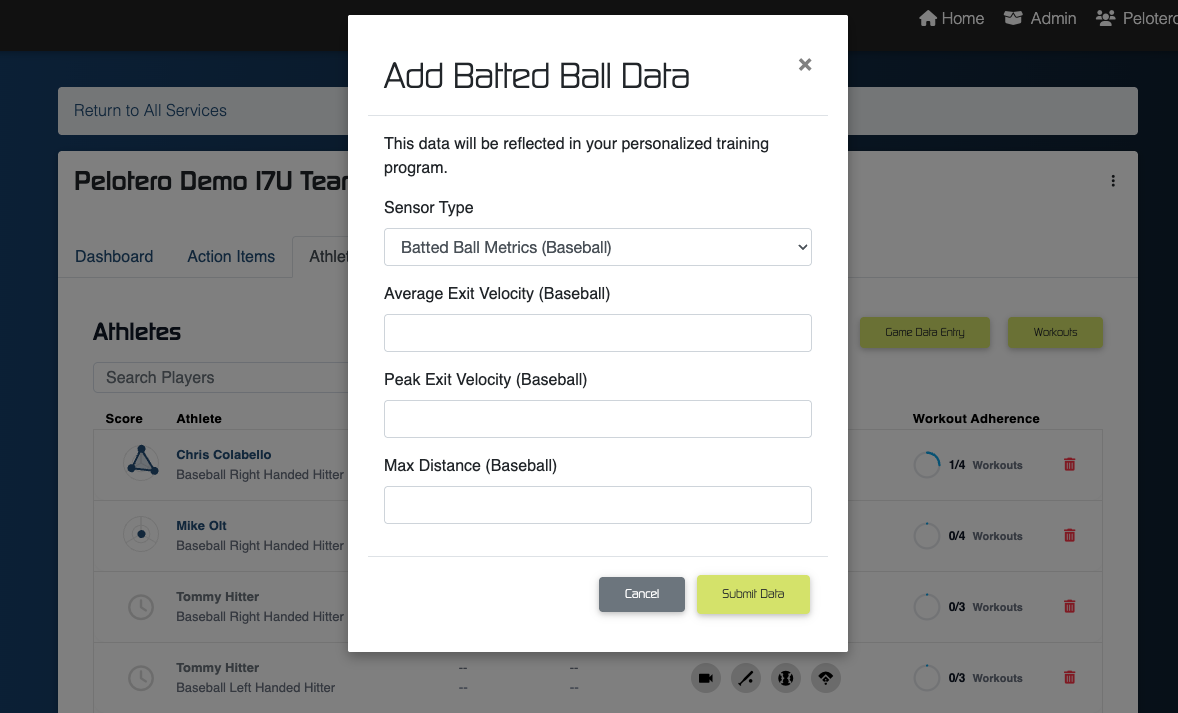
Click the icon to open the data entry form.
Fill in the required metrics, including:
Average Exit Velocity
Peak Exit Velocity
Max Distance
Click Submit Data to save the entry.
Step 4: Bulk Data Import
If you have a large amount of data to upload at once for your entire organization, you do not need to enter it manually.
Contact the support team directly to request a bulk import.
Support Email: support@pelotero.com
Was this article helpful?
That’s Great!
Thank you for your feedback
Sorry! We couldn't be helpful
Thank you for your feedback
Feedback sent
We appreciate your effort and will try to fix the article