1. Athlete Profile
The Athlete Profile is the core of Pelotero's Player Intelligence system. It is accessed by clicking any athlete's name from the Athletes tab. It has six tabs: Overview, Mechanics, Power, Performance, At Bats, and Workouts.
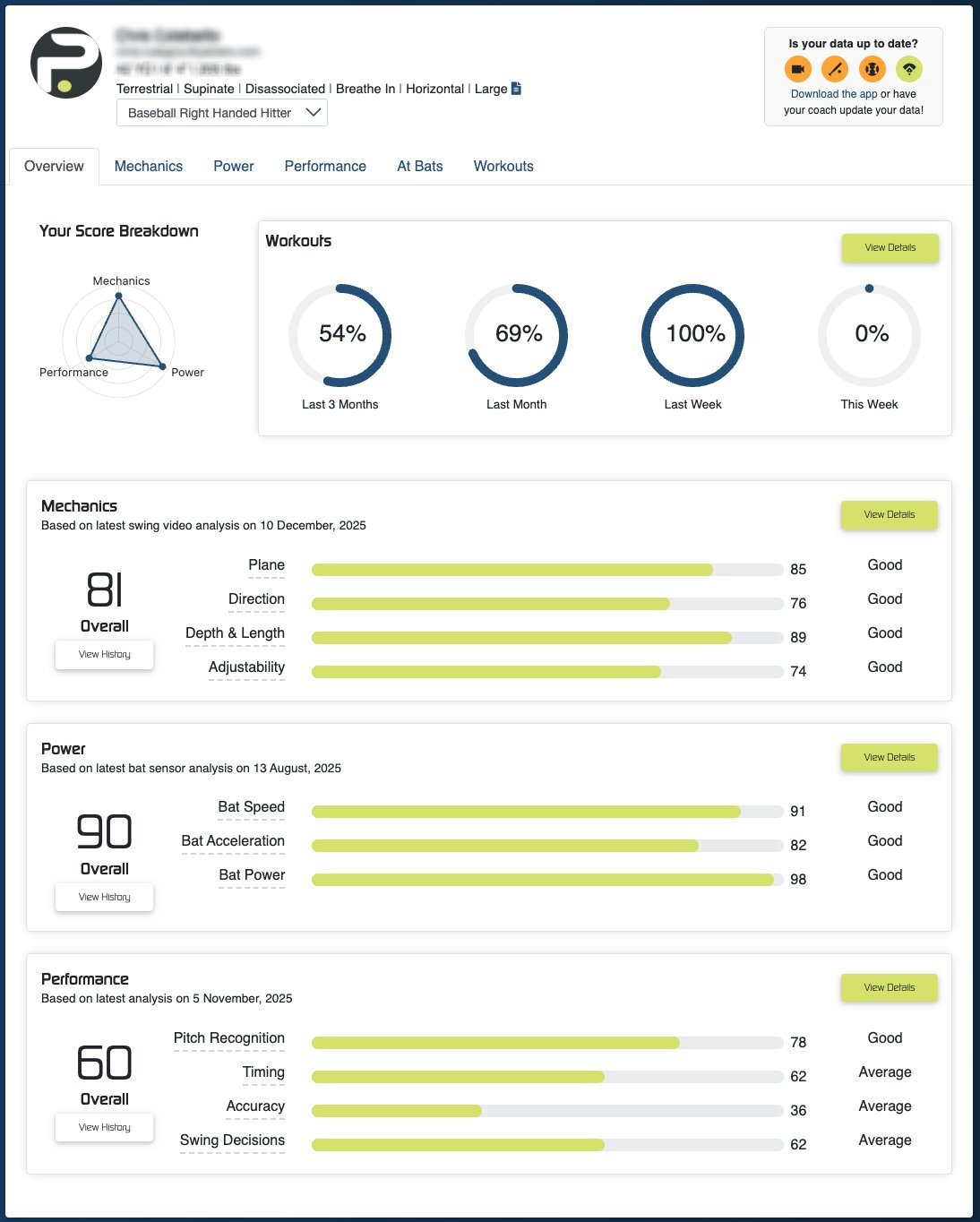
Figure 5: Athlete Overview — score radar, workout completion rings, and Mechanics/Power/Performance summaries
The top of every athlete profile shows:
Profile photo, name, and contact email
Age, height, and weight
Physical profile attributes (e.g., Terrestrial, Supinate, Disassociated, Breathe In, Horizontal, Large)
Position dropdown (e.g., Baseball Right Handed Hitter)
Data freshness indicators — four colored icons for Video, Bat Sensor, Batted Ball, and Game Performance. Orange = needs update. Links to 'Download the app' or ask your coach to update data.
1.1 Overview Tab
Score Breakdown Radar
A triangular radar chart showing the athlete's relative strength across the three pillars: Mechanics (top), Power (right), and Performance (left). The shape of the triangle tells a visual story — a sharp triangle toward one point means imbalance; a balanced equilateral triangle is the goal.
Workouts Widget
Shows workout completion rates across four timeframes: Last 3 Months, Last Month, Last Week, and This Week. Displayed as circular progress charts with percentages. Click 'View Details' to go to the Workouts tab.
Mechanics Summary
Shows the athlete's Mechanics Overall score (e.g., 81) and the four component scores with Good/Average/Poor ratings:
Plane — Whether the swing path matches the ball's entry angle
Direction — Whether the bat is moving toward the pitcher on the correct path
Depth & Length — Whether the swing is compact and efficient
Adjustability — Whether the athlete can adapt their swing to different pitch locations
'View History' shows how these scores have changed over time. 'View Details' opens the full Mechanics tab.
Power Summary
Shows the Power Overall score (e.g., 90) with three components:
Bat Speed — Speed of the sweet spot of the barrel at contact (measured in mph)
Bat Acceleration — How quickly the bat speeds up from start to impact (measured in Gs)
Bat Power — Combined metric of bat speed and bat weight (measured in KG * M/s)
Performance Summary
Shows the Performance Overall score (e.g., 60) with four components:
Pitch Recognition — How often the athlete correctly identifies pitch type (Good = 80%+ accuracy)
Timing — Whether the athlete's swing timing is early, late, or on time
Accuracy — Contact quality and bat-to-ball skill
Swing Decisions — Whether the athlete is swinging at pitches they should swing at
1.2 Mechanics Tab
The Mechanics tab provides a deep dive into swing video analysis. The header question — 'Are you getting into key checkpoints at various points in your swing?' — frames the entire analysis.
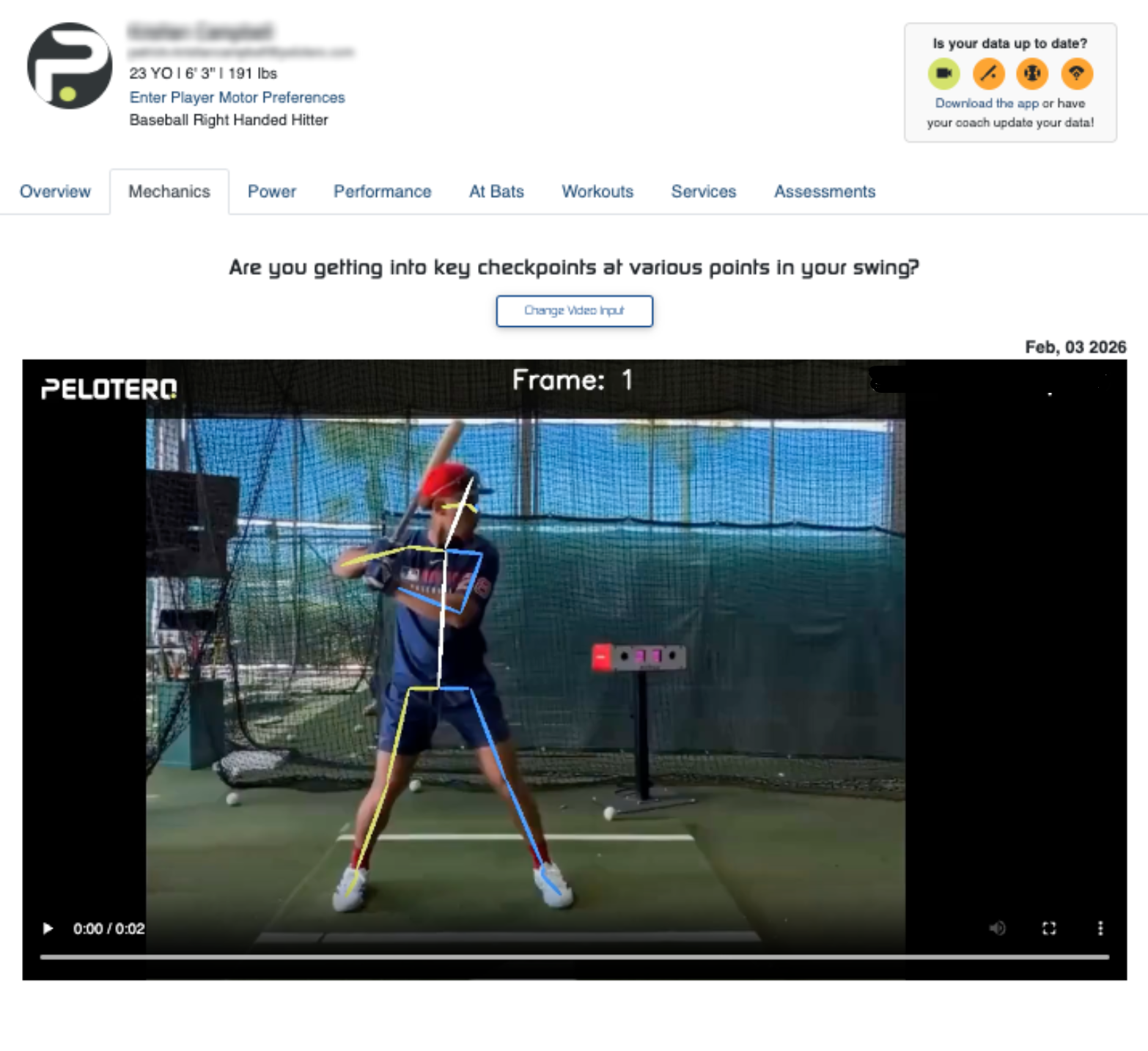
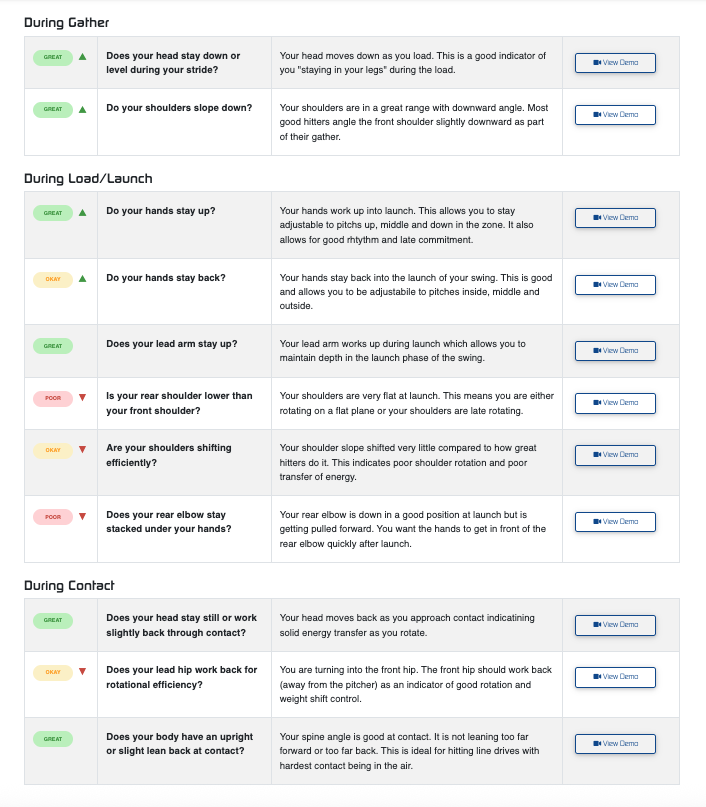
Figure 6: Mechanics Tab — swing video with checkpoint analysis across Gather, Load/Launch, and Contact phases
At the top is an embedded swing video (date-stamped) with a 'Change Video Input' button to analyze a different video. Below the video, the analysis is broken into three phases:
During Gather
The load/setup phase before the stride. Key checkpoints include head position, shoulder slope, and initial load mechanics. Each checkpoint is rated Great / Okay / Poor with a detailed explanation of what the athlete is doing and why it matters. Some checkpoints show a trend arrow (▲ improving, ▼ declining). A 'View Demo' button links to a video demonstration of the ideal position.
During Load/Launch
The stride and launch phase. Checkpoints include hand position, lead arm angle, rear shoulder position, shoulder shift efficiency, and rear elbow position. This phase has the most checkpoints as it is where most mechanical errors originate.
During Contact
The contact phase through extension. Checkpoints include head position, lead hip movement, spine angle, and extension quality.
1.3 Power Tab
The Power tab answers: 'Are you moving the bat fast enough?' It is powered by bat sensor data and benchmarks the athlete against four competition levels.
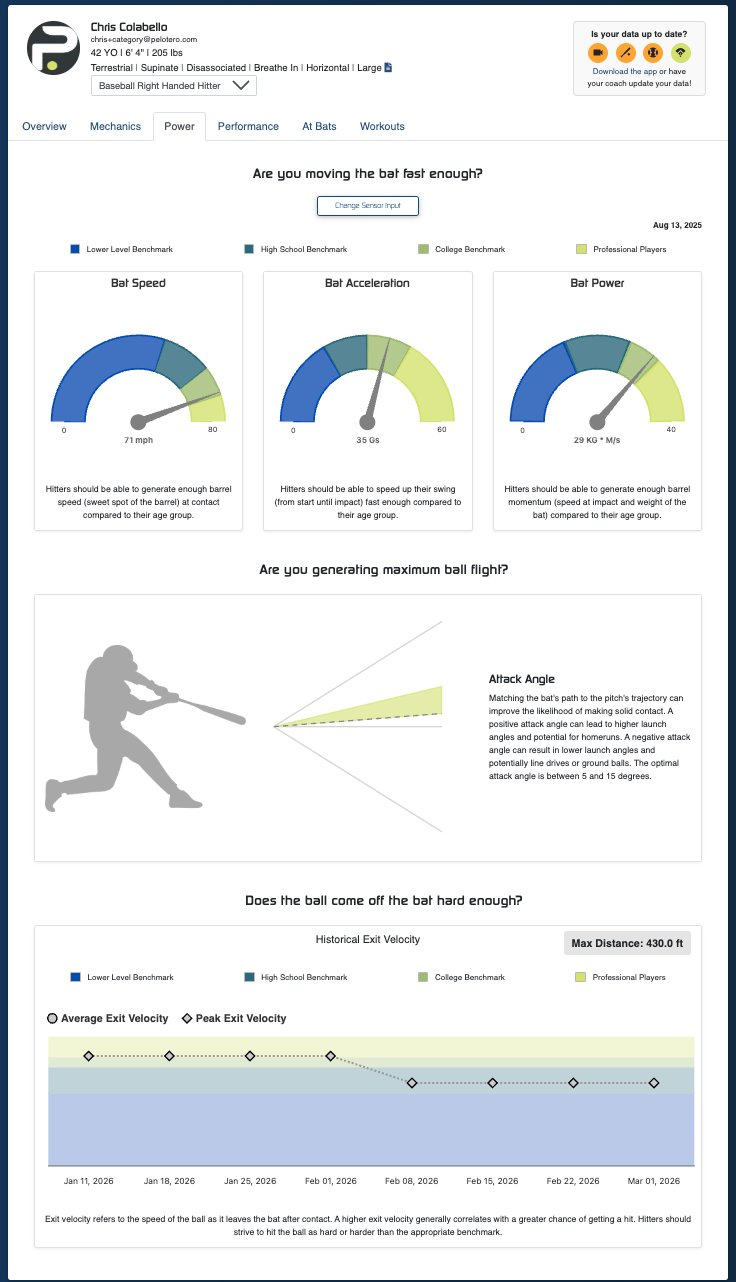
Figure 7: Power Tab — bat speed gauges, attack angle diagram, and historical exit velocity chart
Three gauge charts display the athlete's metrics vs. benchmarks:
Bat Speed (mph) — Benchmarked against Lower Level, High School, College, and Professional levels. The ideal is to exceed the college benchmark and approach professional levels.
Bat Acceleration (Gs) — How efficiently the athlete accelerates the bat from stance to contact. Higher Gs means more explosive hip and torso rotation.
Bat Power (KG * M/s) — A composite metric combining bat speed and bat weight. Reflects real-world power potential.
Each metric includes a description explaining what it measures and why it matters to performance.
1.4 Performance Tab
The Performance tab tracks in-game and live performance data. It includes Session Type and Time Frame filters (1 Month default) so coaches can look at specific game types or time ranges.
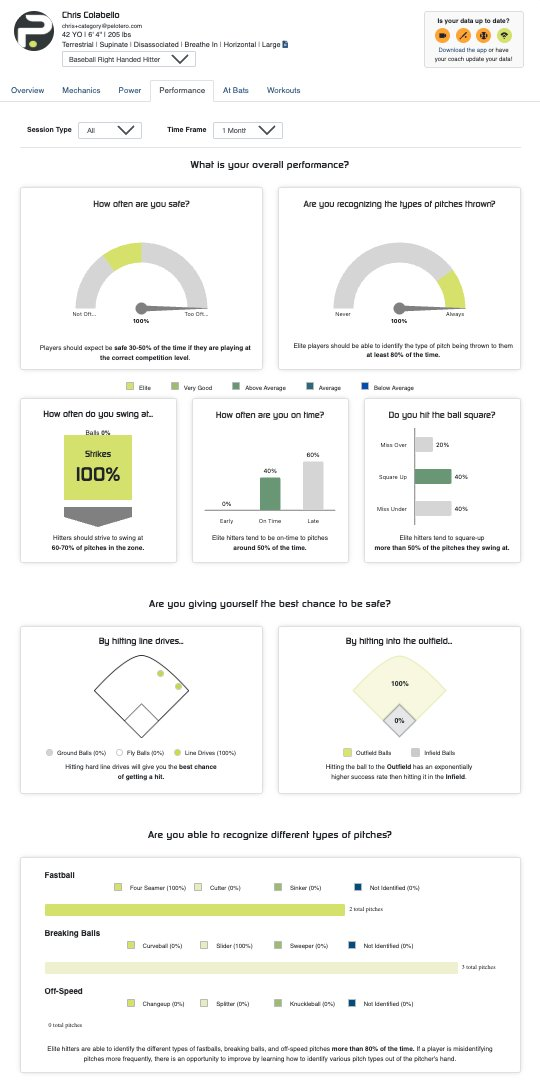
Figure 8a: Performance Tab — safety rate, pitch recognition, swing zone, timing, and batted ball distribution
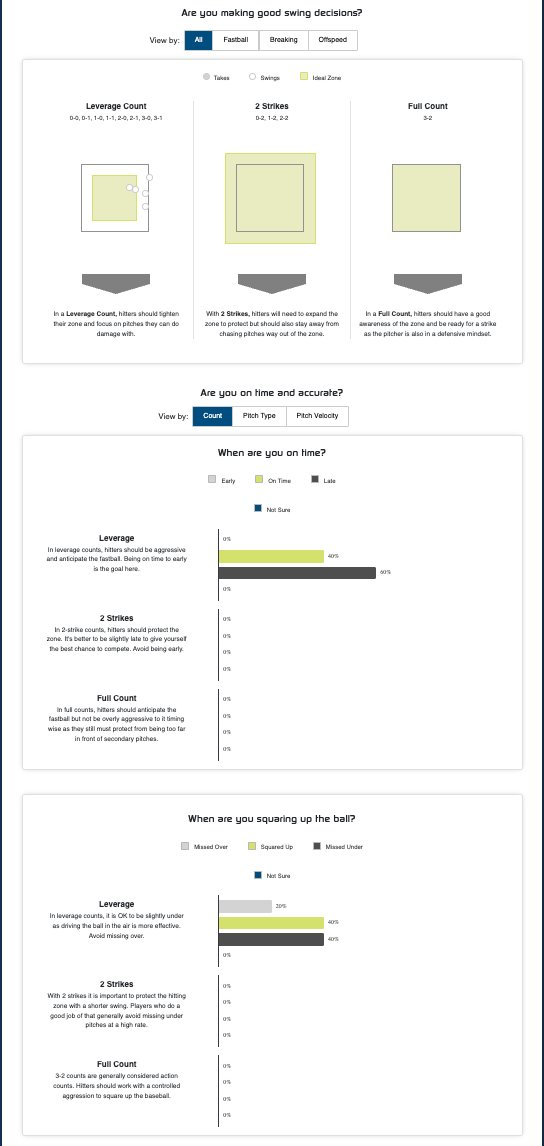
Figure 8b: Performance Tab — swing decisions by count and timing/squaring-up analysis
Key performance metrics displayed:
How often are you safe? — On-base/hit percentage. The benchmark is 30-50% for players at the correct competition level. A gauge chart shows whether the athlete is 'Not Often' or 'Too Often' (which can indicate weak contact or over-swinging).
Are you recognizing the types of pitches thrown? — Pitch recognition rate. Elite players should identify pitch type at least 80% of the time.
Timing metrics — Are swings early, on time, or late relative to pitch arrival?
Accuracy metrics — Quality of contact and bat-to-ball performance.
Swing Decisions — Percentage of good swing decisions (swinging at strikes, taking balls).
1.5 At Bats Tab
The At Bats tab provides a detailed breakdown of individual at-bat data, including pitch-by-pitch information where available. This is useful for spotting patterns — such as a tendency to chase breaking balls low and away, or consistently swinging early on fastballs.
1.6 Workouts Tab
The Workouts tab is the athlete's personal training hub. It has two panels:
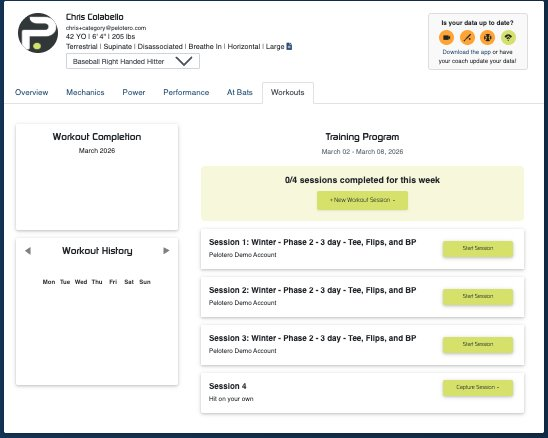
Figure 9: Workouts Tab — monthly completion calendar and weekly training program sessions
Left Panel: Workout Completion & History
Shows a monthly workout completion calendar with a calendar view and navigation arrows to move between months. The completion percentage for the current month is displayed as a progress indicator.
Right Panel: Training Program
Shows the current week's training program (date range displayed). Key elements:
Weekly completion counter — e.g., '0/4 sessions completed for this week'
+ New Workout Session button — Allows the athlete (or coach) to log an ad-hoc workout outside the scheduled program
Session cards — Each session in the weekly program is listed (e.g., Session 1, Session 2, etc.) with the program name and a 'Start Session' button
'Capture Session' — Marks a session as completed and optionally records notes
Was this article helpful?
That’s Great!
Thank you for your feedback
Sorry! We couldn't be helpful
Thank you for your feedback
Feedback sent
We appreciate your effort and will try to fix the article