1. Platform Overview
Pelotero is a baseball player development platform that helps coaches and organizations deliver data-driven, personalized training programs to their athletes. The platform bridges the gap between how players currently perform and their true potential by combining video analysis, bat sensor data, batted ball metrics, and game performance data into a unified intelligence system.
Core Concepts
Service: Services are the foundational unit of the platform — each service represents a specific training offering (team, camp, clinic, membership, in-season, remote) with its own roster of athletes, programs, and sessions.
Player Intelligence: Player Intelligence is the overall score system built from three pillars: Mechanics, Power, and Performance.
Data Collection: Data Collection refers to four input types that power Player Intelligence: Video, Bat Sensor Data, Batted Ball Data, and Game Performance.
Programs & Sessions: Programs are structured weekly training plans assigned to athletes. Sessions are individual practice events tied to a program template.
Service Types
2. Navigation & Layout
Top Navigation Bar
The top navigation bar is present on every page and contains three key items:
Home: Home — Returns to the Organization Dashboard (list of all services)
Org Dropdown: [Organization Name] — Dropdown menu with quick links to: Services, Coaches, Athletes, Edit Profile, and Change Organization
Profile: [Your Name] — Your personal account settings and profile
Organization Dashboard
The main dashboard at app.pelotero.com/organization/[ID]/dashboard shows all services for your organization in a sortable table with the following columns:
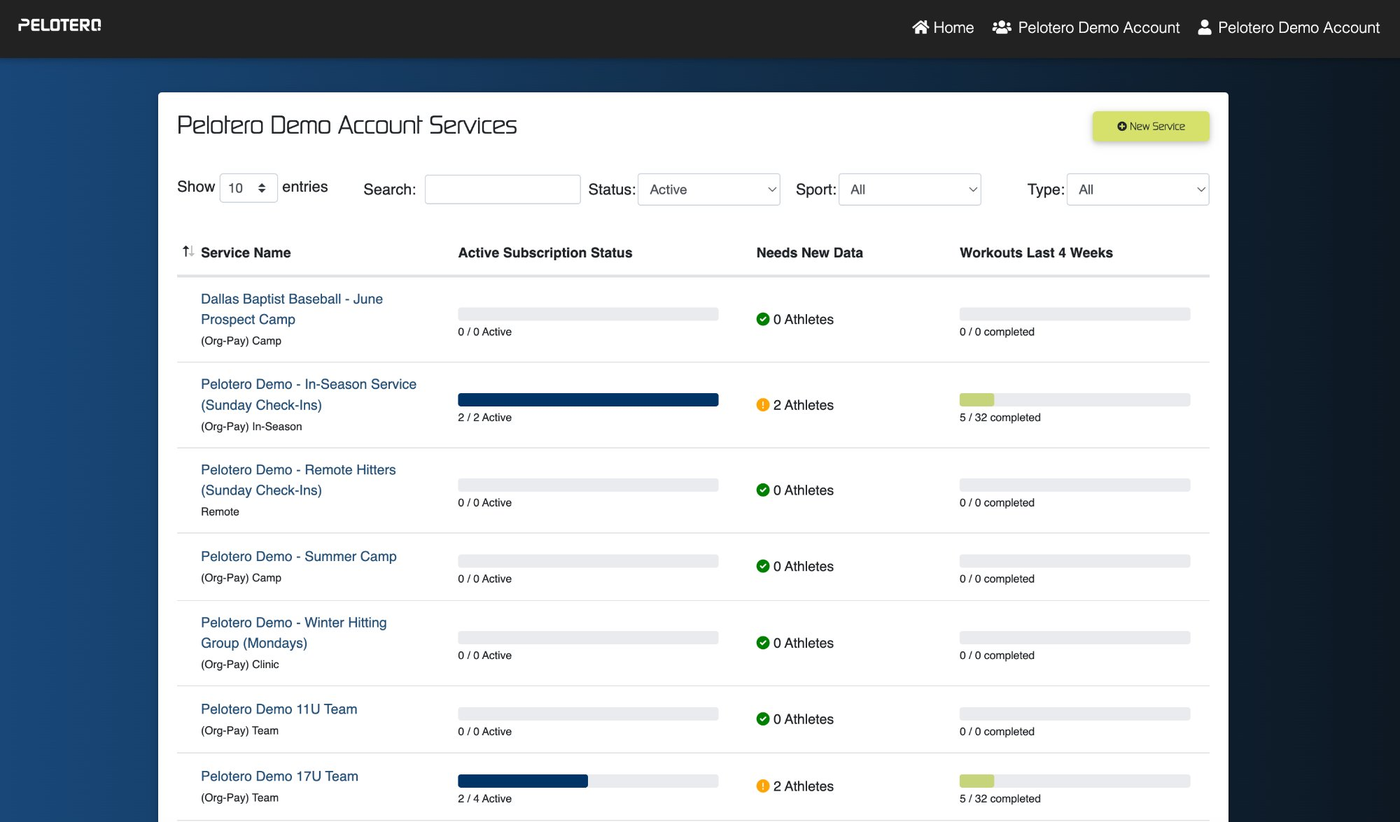
Figure 1: Organization Dashboard — services list with subscription status, data freshness, and workout completion
Service Name — Clickable link to open the service dashboard
Active Subscription Status — Progress bar showing active vs. total athlete subscriptions
Needs New Data — Count of athletes who need updated data collection (orange = attention needed, green = up to date)
Workouts Last 4 Weeks — Progress bar showing workout completion across all athletes
3. Service Dashboard
Each service has its own dashboard with five tabs: Dashboard, Action Items, Athletes, Sessions, and Programs.
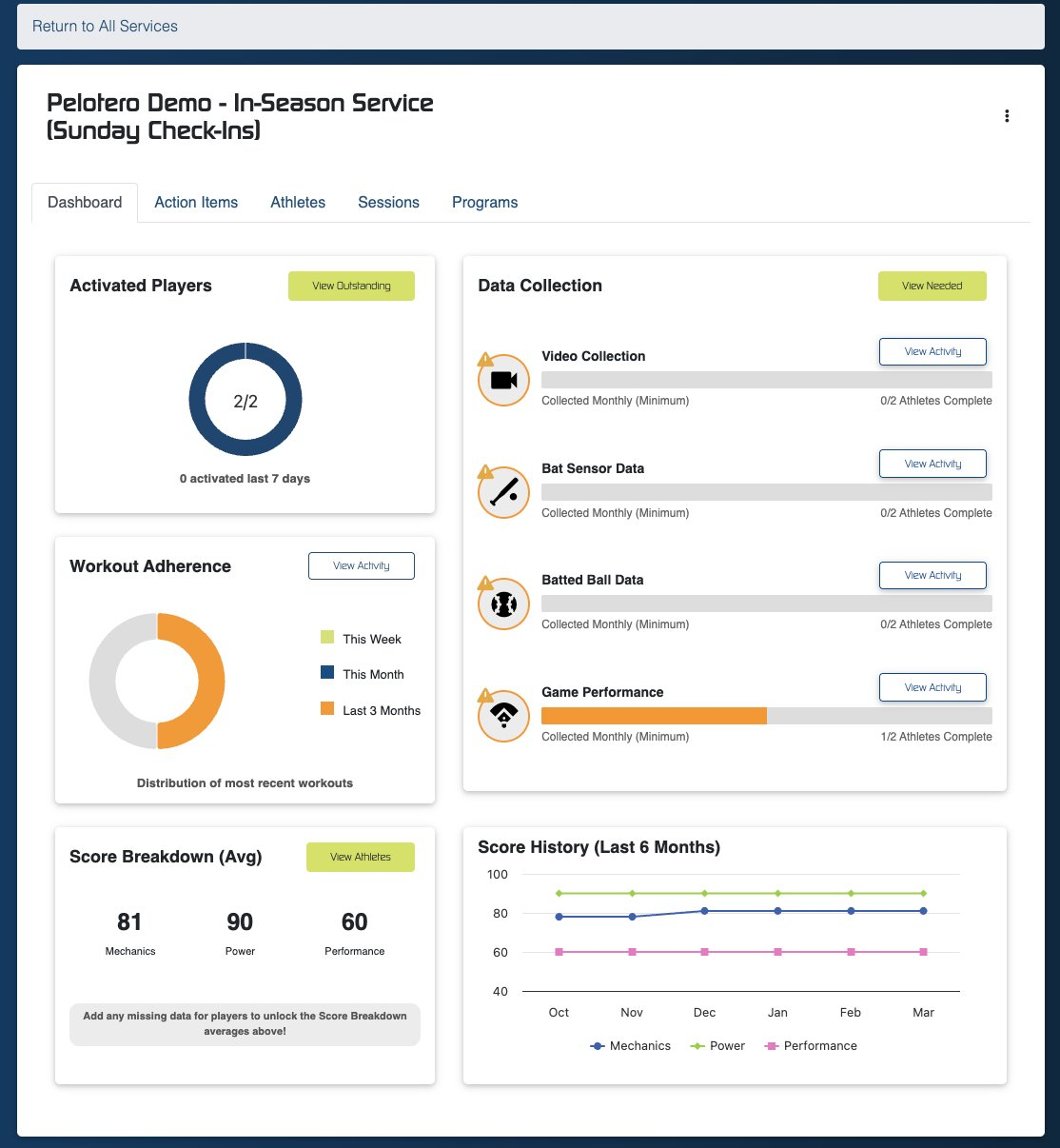
Figure 2: Service Dashboard — activated players, data collection status, workout adherence, and score history
3.1 Dashboard Tab
The service Dashboard tab gives an at-a-glance view of the service's health:
Activated Players
Shows how many athletes have activated their accounts out of total enrolled (e.g., 2/2). Athletes must activate before they can receive programs and have their data tracked. The 'View Outstanding' button shows any athletes who haven't activated yet, and you can send them reminder emails directly.
Data Collection
Shows the completion status of the four data collection types, each collected on a monthly minimum basis:
Video Collection — Swing video submitted via the mobile app or uploaded by coach
Bat Sensor Data — Data from a connected bat sensor device (measures bat speed, acceleration, power)
Batted Ball Data — Exit velocity, launch angle, and related metrics from a batted ball tracking device
Game Performance — In-game performance stats entered after at-bats
Each row shows a progress bar and completion count (e.g., 0/2 Athletes Complete). Orange warning icons indicate data is overdue. Click 'View Activity' to see which athletes need to submit data, or 'View Needed' to see all outstanding data needs at once.
Workout Adherence
A donut chart showing the distribution of workout completion across three timeframes: This Week (lime green), This Month (dark blue), and Last 3 Months (orange). This gives you a quick read on whether athletes are staying consistent over time.
Score Breakdown (Avg)
Displays the average Player Intelligence scores across all athletes in the service for Mechanics, Power, and Performance. The 'View Athletes' button takes you directly to the Athletes tab. Below the averages is a prompt to add missing data to unlock the full breakdown.
Score History (Last 6 Months)
A line chart tracking the average Mechanics (blue), Power (green), and Performance (pink) scores over the past 6 months. This lets you quickly see if your group is trending up, plateauing, or declining across any of the three dimensions.
3.2 Action Items Tab
The Action Items tab consolidates everything that needs your attention into one place. It has three sections:
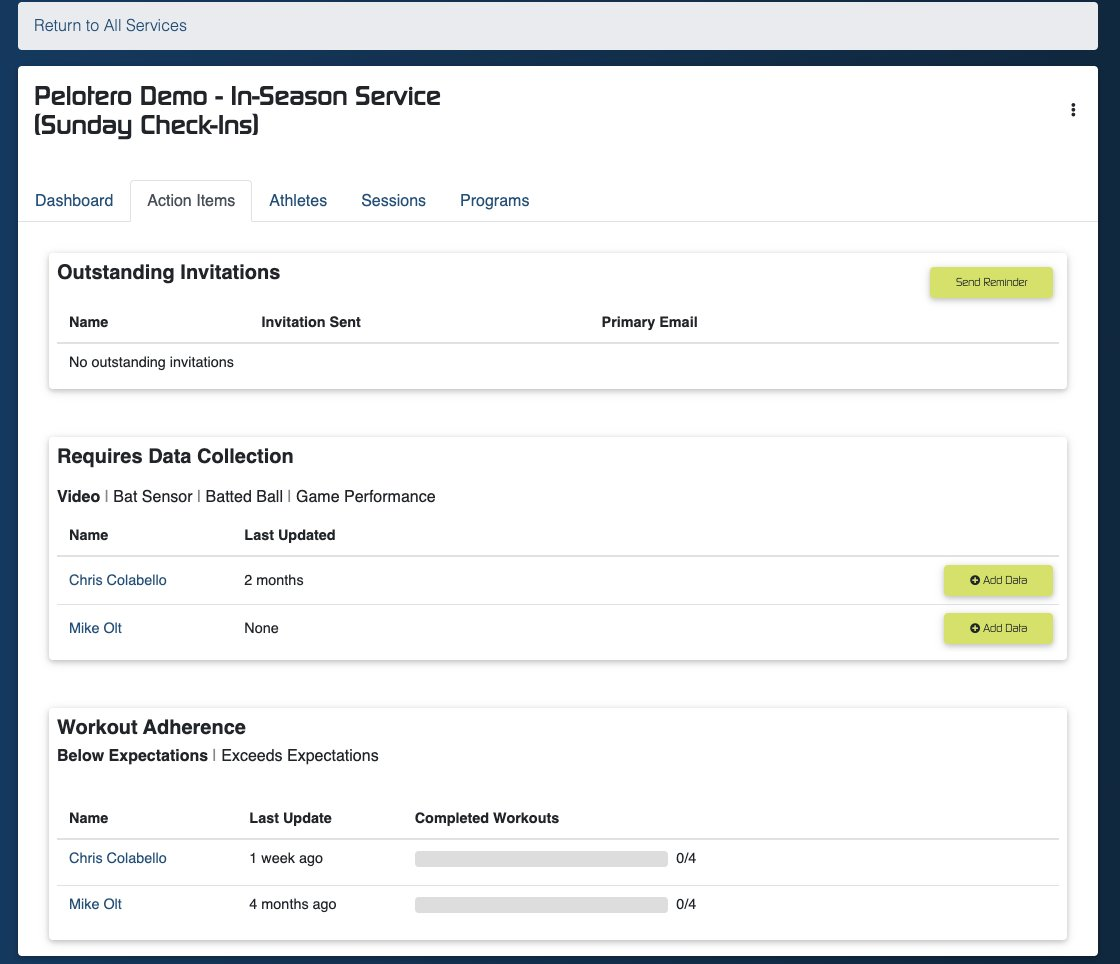
Figure 3: Action Items Tab — outstanding invitations, data collection needs, and workout adherence summary
Outstanding Invitations
Lists any athletes who have been added to the service but haven't yet accepted their invitation and activated their account. You can send a reminder email to all outstanding athletes at once using the 'Send Reminder' button.
Requires Data Collection
Lists athletes who need new data submitted. Shows their name, when their data was last updated (or 'None' if never), and an 'Add Data' button that takes you directly to the data entry flow for that athlete. The data types required are shown above the table: Video, Bat Sensor, Batted Ball, Game Performance.
Workout Adherence
Lists athletes whose workout completion is below expectations, and separately highlights athletes who are exceeding expectations. This helps you know who needs a check-in and who to recognize.
3.3 Athletes Tab
The Athletes tab shows all enrolled athletes with their key stats at a glance:
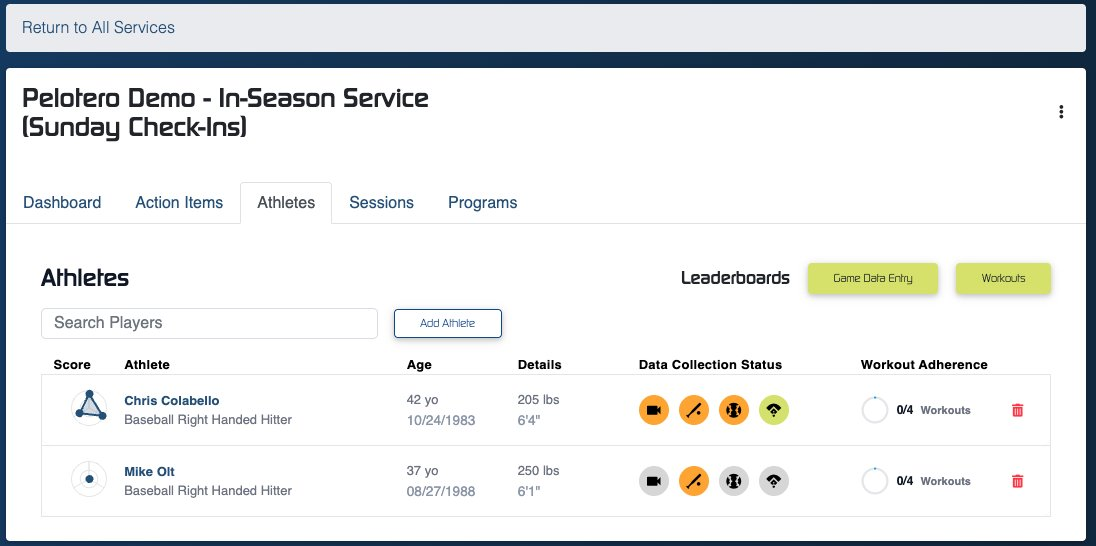
Figure 4: Athletes Tab — athlete roster with scores, data collection status icons, and workout adherence rings
Score — The athlete's radar/triangle icon showing their Mechanics, Power, Performance balance
Athlete — Name and position (e.g., Baseball Right Handed Hitter)
Age — Age in years and date of birth
Details — Height and weight
Data Collection Status — Four colored icons showing whether each data type is current (dark = complete, orange = needs update)
Workout Adherence — Progress circle showing workouts completed vs. assigned (e.g., 0/4)
Additional controls on this page:
Search Players — Filter the athlete list by name
Add Athlete — Add a new athlete to this service
Leaderboards — View athlete rankings by score across the service
Game Data Entry — Bulk entry screen for entering game performance data for multiple athletes at once
Workouts — View all workout activity across all athletes in the service
3.4 Sessions Tab
Sessions are individual practice events that you schedule and run with your athletes. They are tied to a program template and capture workout completion for each athlete.
The Sessions list shows: Session Name, Session Date, and Program Template used.
Creating a Session
Click the 'Create Session' button
Name the session (e.g., 'Wed Hitting - Feb 04')
Select the date
Choose a Program Template (this determines the exercises for the session)
The session is created and athletes from the service roster are automatically added
Running a Session
Inside a session view, you see each enrolled athlete with their workout blocks expanded. For each athlete:
Blocks are sections of the workout (e.g., Block 0: Warmup, Block 1: Tee Work, etc.)
Each block contains ordered exercises with Focus area, Sets, and Reps
Exercise names link to demo videos so athletes can see proper form
Mark each exercise complete individually, or click 'Mark Completed' to complete the entire athlete's session at once
'Complete All' button marks every athlete in the session as complete
'Add Athlete' lets you add a player to this specific session
3.5 Programs Tab
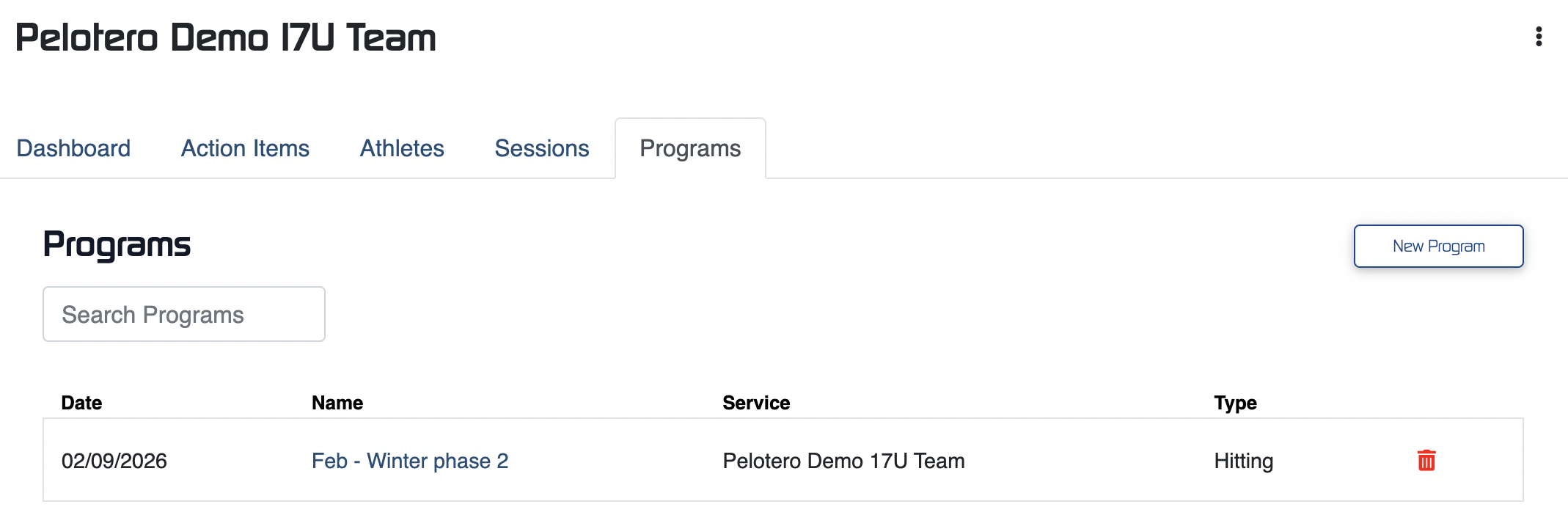
Programs are the structured training plans assigned to athletes. Each program has a date range, name, service association, and type. The Programs tab shows all programs linked to the service.
Click 'New Program' to create a new training program template that can be used in sessions or you can click on an existing program that has previously been built.
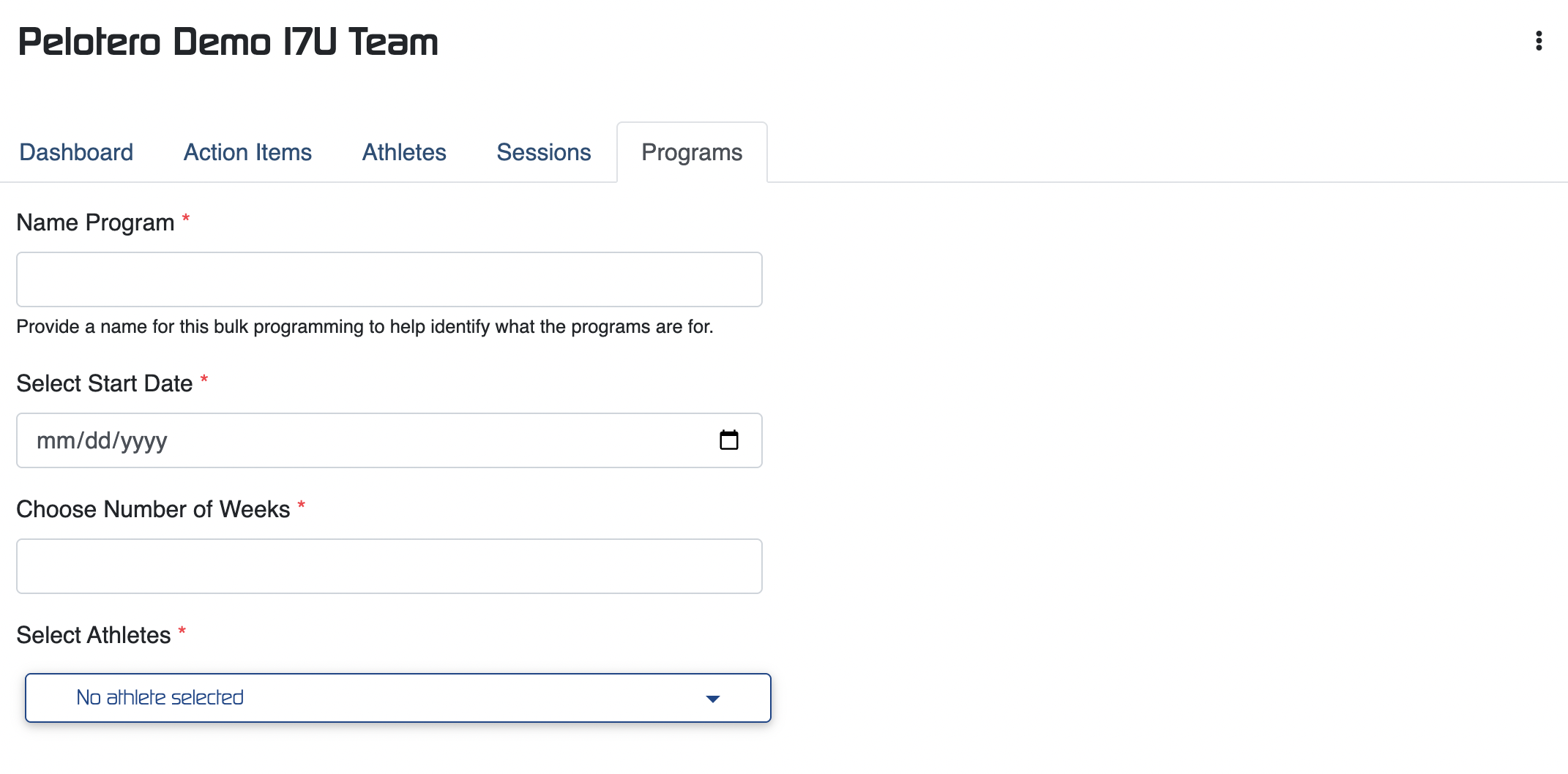
When building new programs, coaches can select a start date and any number of weeks they choose for that specific template to be assigned to a player.
The athletes selected will receive the programs in their athlete profiles immediately upon completion of the build.
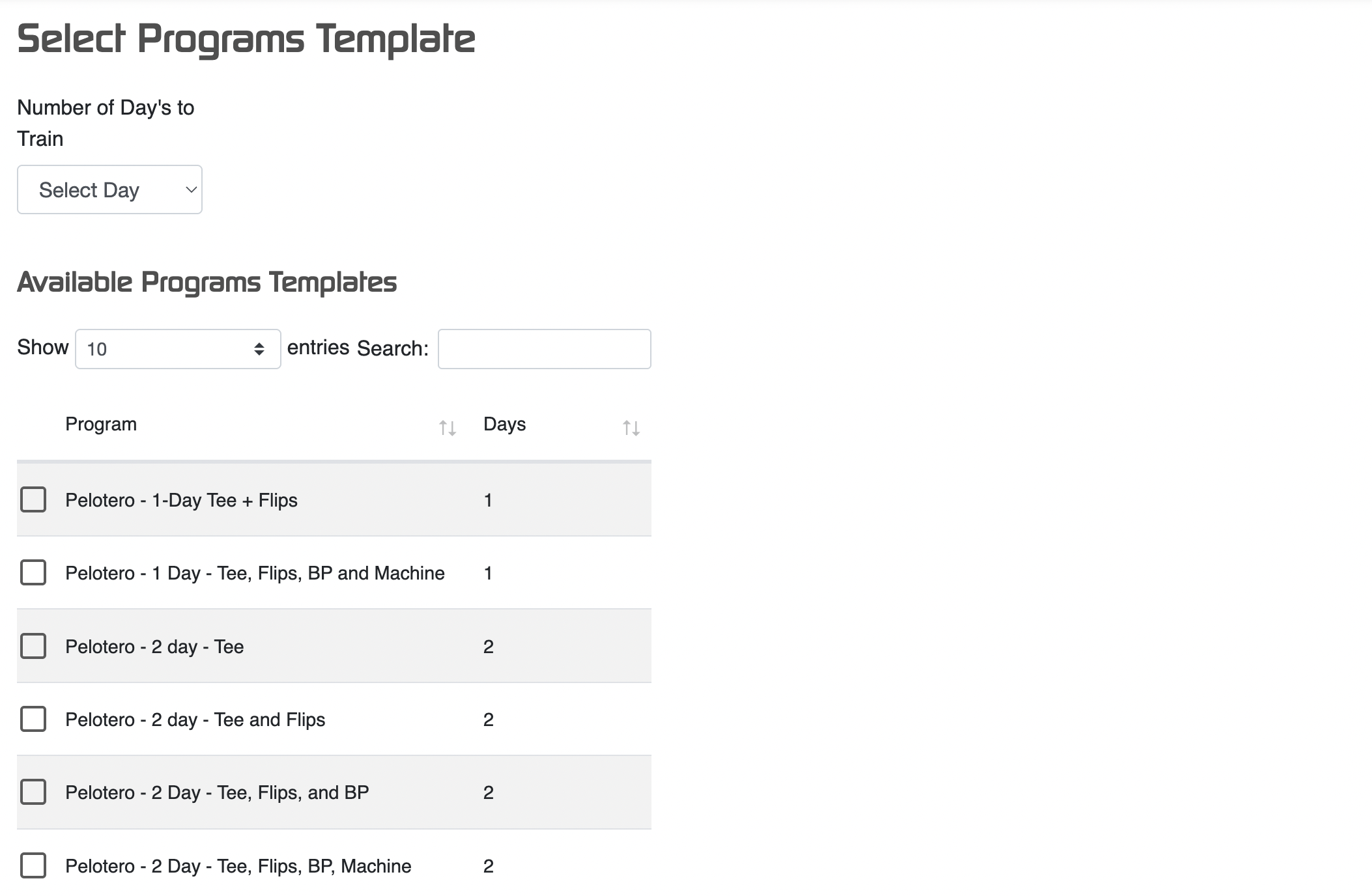
When building a program, the final choice coaches will make is, which template to assign to the workout. A template is a specific cadence of a workout based on number of days to train per week (eg. 1, 2, 3, 4, etc.), and the amount of sets and reps an athlete will perform, based on ball delivery types.
Was this article helpful?
That’s Great!
Thank you for your feedback
Sorry! We couldn't be helpful
Thank you for your feedback
Feedback sent
We appreciate your effort and will try to fix the article